Step 1: Test in webmail (do this first)
Webmail is your email in a web browser, with no Outlook involved. It tells us in one minute whether the problem is Outlook on your PC or your email account.
Microsoft 365 email
-
Open your web browser and go to outlook.office.com
Use Chrome or Edge. Type the address in the bar at the very top of the browser, then press Enter.
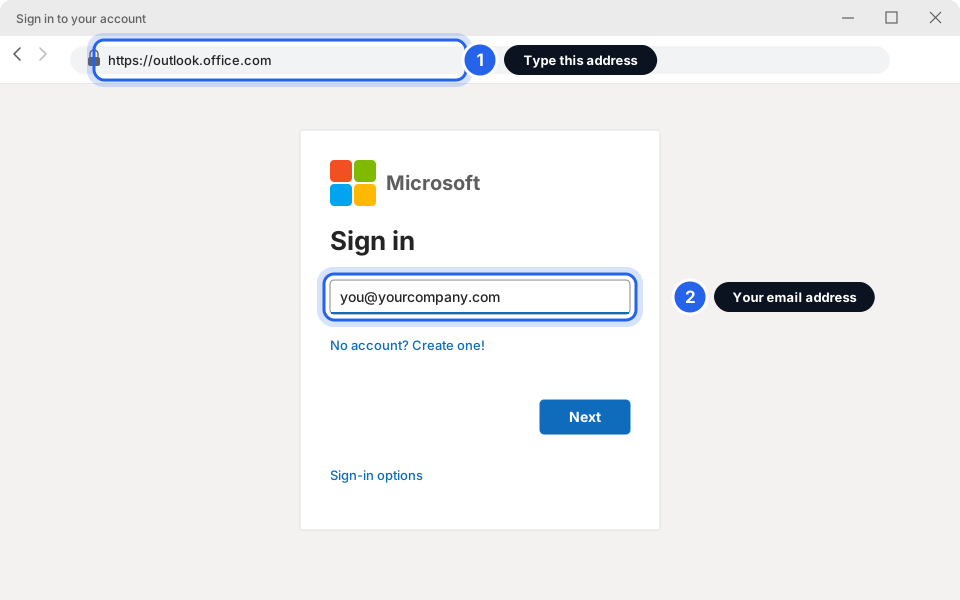
Type the address, then enter your email address.Click picture to enlarge -
Sign in with your email address and password
Click Next, then type your password. If your phone asks you to approve the sign-in, do that too.
Skytech-hosted email
-
Open your web browser and go to your webmail address
It is https://webmail.yourcompany.com, with your own company name instead of yourcompany. Type it in the bar at the very top of the browser, then press Enter.
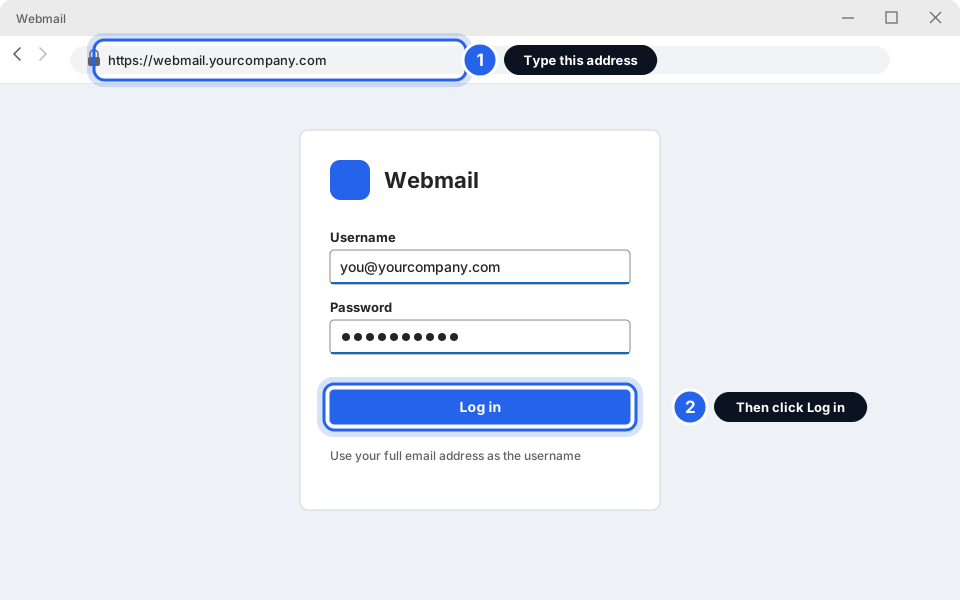
Type the address, then your email and password.Click picture to enlarge -
Log in
Your username is your full email address (you@yourcompany.com). Type your password and click Log in.
Not sure which one you have? If you sign in on a Microsoft page, you have Microsoft 365. If your company has its own webmail page, it is Skytech-hosted. Still unsure? Try both, or message us.
What happened?
I can't send. Mail is stuck in the Outbox
A message sits in the Outbox folder when Outlook tried to send it and failed. Check these in order.
Classic Outlook (File, Home, Send / Receive tabs)
-
Look in the Outbox folder
In the folder list on the left, click Outbox. If you see a message there, Outlook has not sent it. (If there is no Outbox, nothing is stuck.)
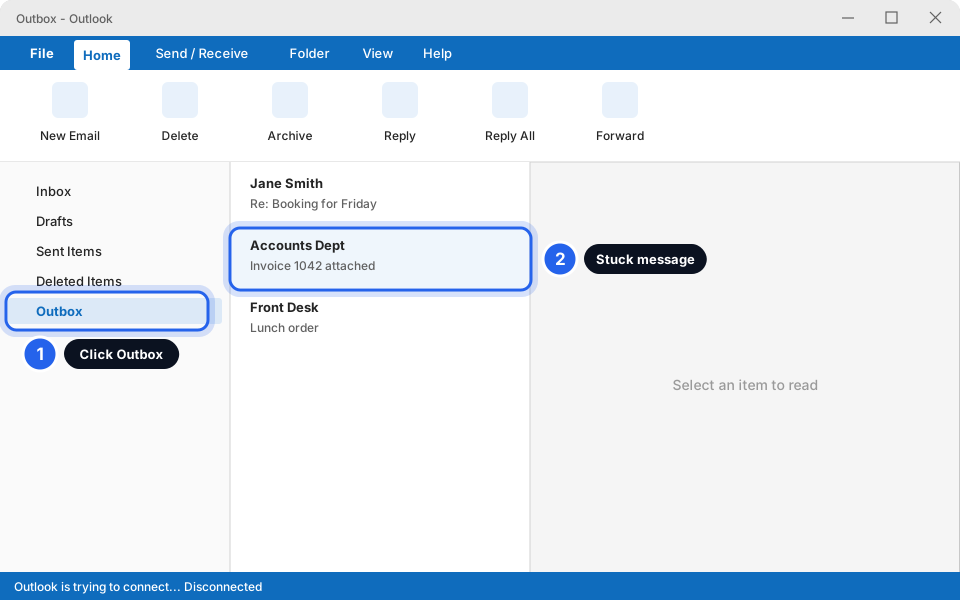
Click Outbox. A message sitting there is stuck.Click picture to enlarge -
Check Outlook is not working offline
Look at the very bottom of the Outlook window. If it says Working Offline or Disconnected, click the Send / Receive tab at the top, then click Work Offline once so it is no longer pressed in.
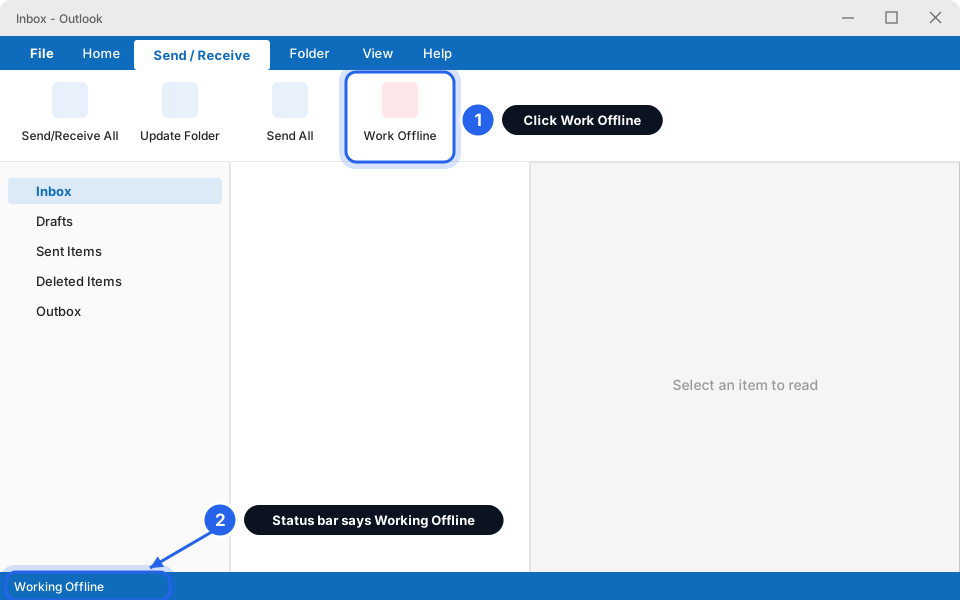
Turn Work Offline off, then wait a few seconds.Click picture to enlarge -
Click Send All
Still on the Send / Receive tab, click Send All. Watch the Outbox. If the message disappears, it has gone.
New Outlook (the one with a Settings gear in the top-right)
-
Check for a yellow or red banner at the top
New Outlook shows a banner under the search box when it cannot connect. A stuck message may show in Drafts (marked as not sent) or in an Outbox folder if your version shows one.
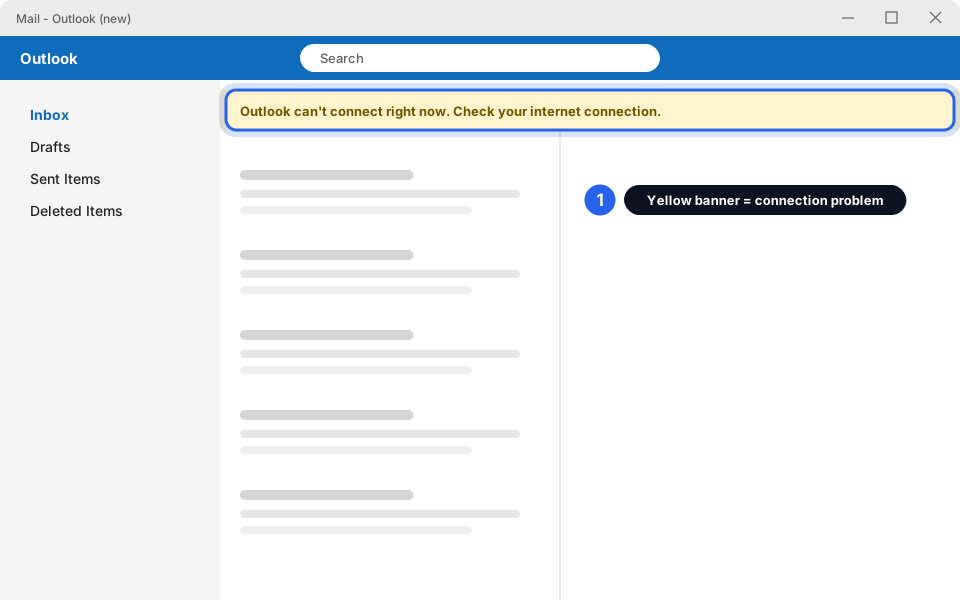
A yellow banner means a connection problem, not a problem with your message.Click picture to enlarge -
Check your internet, then open the message and click Send again
Open any website first to make sure the internet works. Then open the unsent message (look in Drafts or Outbox) and click Send.
-
Check for a big attachment
A message with a very big file (a few photos or a large PDF, roughly 20 MB or more) can get stuck. Open the stuck message, remove the big file, and click Send. To send something big, use Send a file that's too big to email.
-
Close Outlook completely and open it again
Click the X in the top-right corner, wait 10 seconds, then open Outlook from the Start menu. Check the Outbox again.
-
Try sending the same message from webmail
If webmail sends it, your account is fine and it is Outlook. Message us and say "stuck in Outbox". If webmail also cannot send, tell us that instead.
I can't receive email
-
Check Junk Email and the "Other" tab
Click Junk Email in the folder list. If the missing message is there, right-click it and choose Not Junk (or Report then Not junk, depending on your version). In Inbox, also check the Other tab next to Focused.
-
Make sure no filter is hiding your mail
If the top of your Inbox says Filtered or only shows Unread, click the filter button and choose All. Also check the search box at the top is empty.
-
Ask the sender to check the address
One wrong letter in your address and the message never reaches you. The sender usually receives a "bounce" message saying it failed. If they did, send them My email bounced: what the message means.
-
Check your mailbox is not full
A full mailbox stops new mail arriving. See Mailbox almost full: archive and clean up.
-
Compare with webmail
If the email is in webmail but not in Outlook, restart Outlook and wait a few minutes. If it is in neither, message us with the sender's address and the time they sent it.
Outlook keeps asking for my password
This usually means Outlook is holding an old password, for example after your password was changed.
-
Type your password carefully
When the box appears, type your password. Check Caps Lock is off. Tick Remember my credentials if you see it, then click OK.
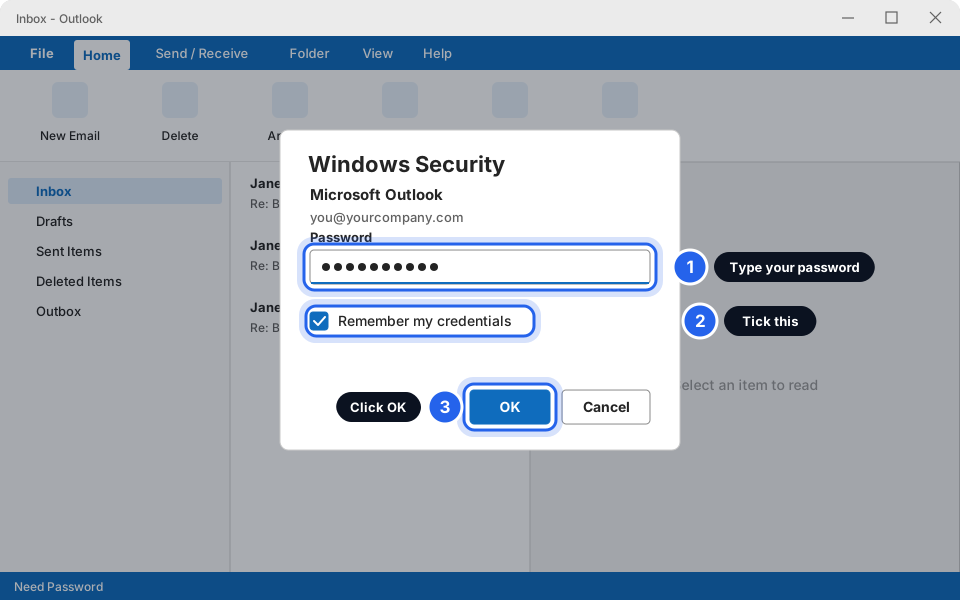
Type your password, tick the box, click OK.Click picture to enlarge -
If it asks again, test the same password in webmail
Go back to Step 1 and sign in to webmail with that exact password. If webmail accepts it but Outlook still asks, close Outlook completely, reopen it, and type the password once more.
-
If webmail rejects it, reset the password
Microsoft 365: try aka.ms/sspr. If that page says you can't reset, message us. See also Reset your Microsoft 365 password & set up Authenticator.
Skytech-hosted email: message us and we will reset it.
-
Changed your password recently?
Update it on every device: your phone, your other PC and any tablet. An old password saved on a phone can keep trying and make the account lock.
Outlook won't open, freezes or crashes
-
Close the frozen Outlook
Press Ctrl + Shift + Esc together. A window called Task Manager opens. Under Processes, click Microsoft Outlook (it may say "Not responding"), then click End task. Wait 10 seconds.
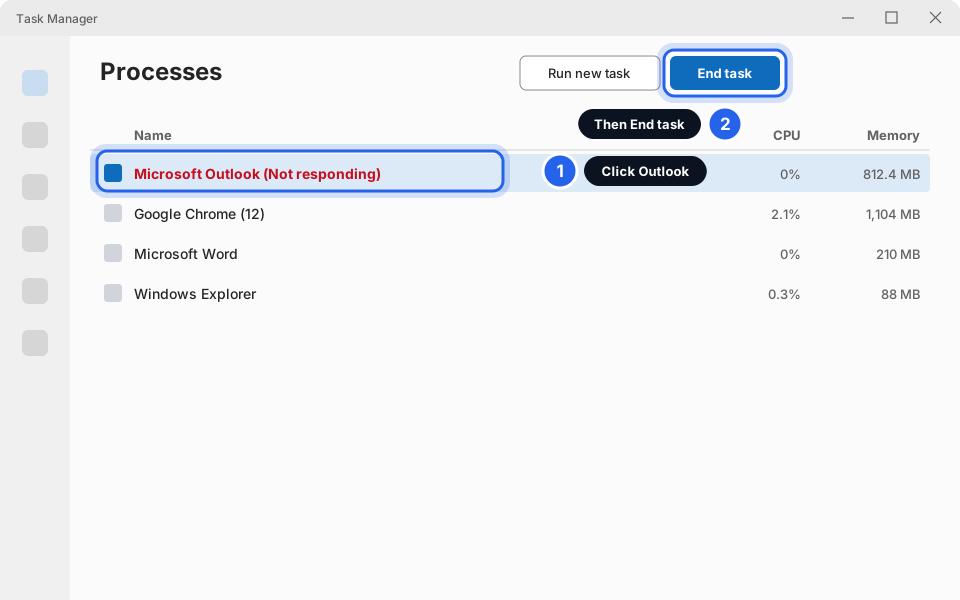
Click Outlook, then End task.Click picture to enlarge -
Open Outlook again and wait
Give it a full minute. A big mailbox can be slow to start, especially just after Windows has started.
Still won't open? Try the version that matches yours.
Classic Outlook
-
Open Outlook in Safe Mode
Press the Windows key and R together. In the Run box type outlook /safe and click OK. If Outlook asks which profile to use, click OK.
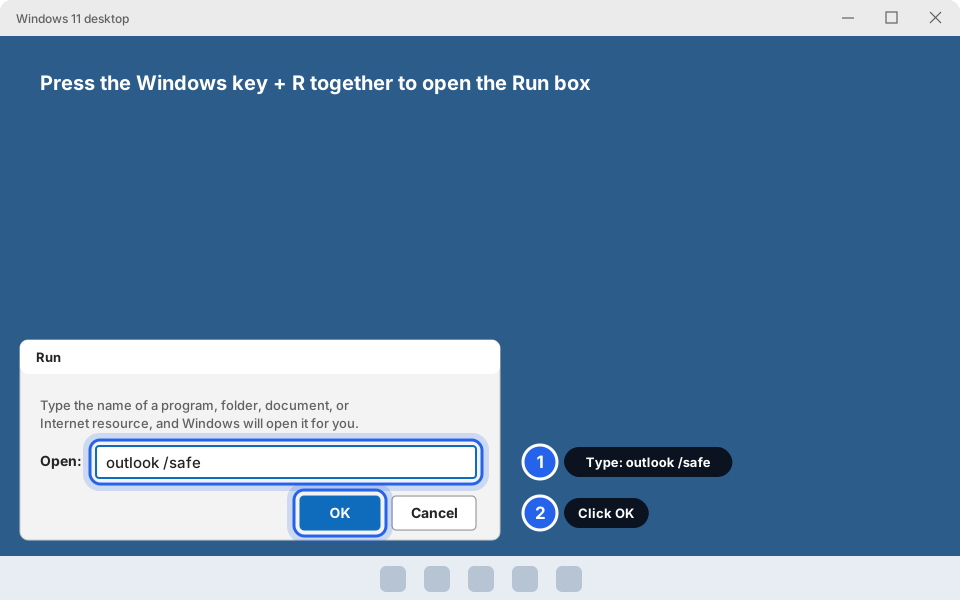
Type outlook /safe, then click OK.Click picture to enlarge -
See if it works now
If Outlook opens normally in Safe Mode, an add-in is probably causing the crashes. Close Outlook, open it the normal way, and message us. We will find the add-in.
-
Restart the PC
Click Start, the power button, then Restart. Do not choose Shut down, because Windows can skip a full restart that way.
New Outlook
-
Repair New Outlook in Windows Settings
Click Start, then Settings, Apps, Installed apps. Find Outlook (new) (it may be called Outlook for Windows), click the three dots ... beside it, then Advanced options and Repair.
-
Restart the PC and try again
Click Start, the power button, then Restart.
-
Still crashing? Tell us before you click Reset
The Reset button on that same page clears New Outlook's local data. Your mail stays on the server, but you would need to sign in again. Message us first so we can check.
My email account disappeared from Outlook
Stay calm. Your emails are not gone. They are stored on the mail server, and webmail will show them. Only the connection in Outlook was lost, and that can be rebuilt.
-
Check your mail is safe in webmail
Go to Step 1 and sign in. Seeing your emails there confirms nothing is lost.
-
Check Outlook is not just hiding the account
In the folder list, click the small arrow beside your email address to expand it. In New Outlook also click Mail at the far left, in case you are viewing Calendar.
-
Add the account again
Follow How to add your email to Outlook. It takes about 5 minutes.
Before you remove or delete anything, message us. If your account was set up the old POP way, some old emails may exist only on this PC, and we can save them first.
It works at home but not in the office
If your email works on your phone or at home but fails at work (or the other way round), the problem is usually the network, not your password or your settings.
-
Check it really is the office network
Try webmail on your phone using mobile data (Wi-Fi off). If it works there, but not on an office PC, it is the office connection.
-
Message us with these details
Tell us: which office, which PC, roughly when it stopped, and any error text or photo. We will check and fix it on our side.
Two computers show different email
Maybe one PC shows an email that the other does not, or you replied on one PC and the other has no copy. This happens when one PC was set up as POP. POP downloads mail to one PC only. IMAP keeps every PC and phone in step, so always choose IMAP.
-
Check which kind each PC uses
Classic Outlook: click File, then Account Settings, then Account Settings... again. Look at the Type column. It should say IMAP/SMTP (or Microsoft Exchange for Microsoft 365). POP/SMTP is the problem.
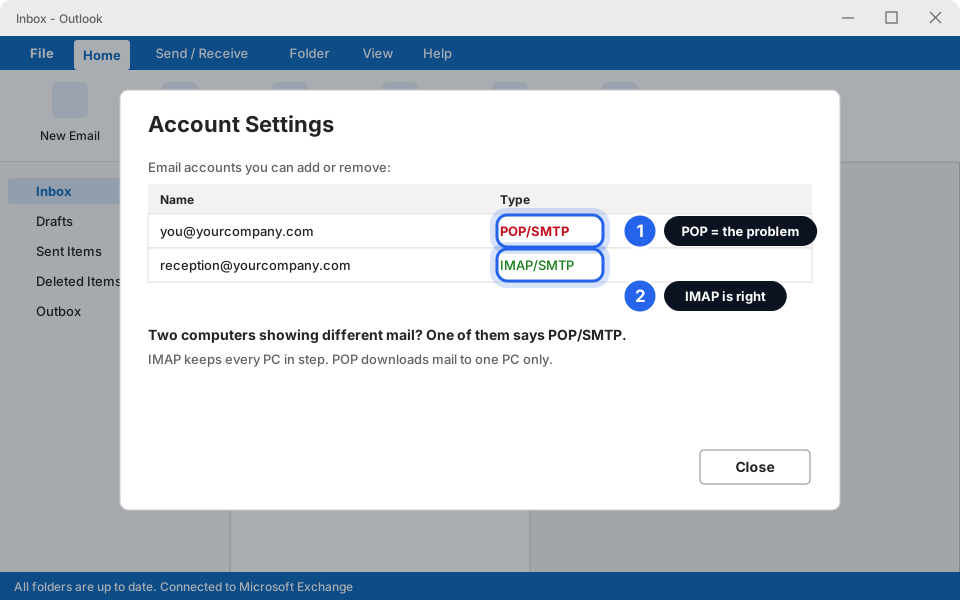
POP/SMTP is the wrong type. IMAP/SMTP is right.Click picture to enlarge -
Do not delete the POP account yet
Old emails that POP downloaded may be on this PC only. Message us, and we will help you save them and switch to IMAP safely.
Deleting a POP account can delete its emails from that PC for good. Wait for us. -
Set the account up again as IMAP
We will guide you, or you can follow How to add your email to Outlook and pick IMAP when asked.
Back in business?
Send yourself a test email and check it arrives. If it does, you are done. If not, the questions below cover the most common leftovers.
Still not working?
Webmail works but Outlook does not, and I have tried everything above
Message us. We can connect to your PC remotely and look. See Let Skytech connect to your computer. Tell us which Outlook you use (Classic or New).
I get an error message with a code
Take a photo or a screenshot of the whole message and send it to us. See Take a screenshot to send us. The exact words help us a lot.
Only one person in the office has the problem
Then it is usually that person's PC or password. Work through Step 1 and the matching section above. If everyone is affected, tell us straight away, because it is probably not your PC.
Webmail says my account is locked or blocked
Do not keep trying passwords, because that can lock it further. Message us. We will unlock it and check why.
I can send but my emails bounce back
That is a different problem. See My email bounced: what the message means.
Is it safe to share my password with Skytech?
Please do not. Skytech will never ask for your password by email or text. If someone does, do not reply. We do not need it to help you.