I forgot my password
You can reset it yourself in about 3 minutes, from any computer or phone. This only works if your company has switched on self-service reset. If it says you can't reset, message us.
-
Go to aka.ms/sspr and type your work email
Open your web browser (Edge or Chrome). Type aka.ms/sspr in the address bar at the top and press Enter. Type your full work email, for example you@yourcompany.com.
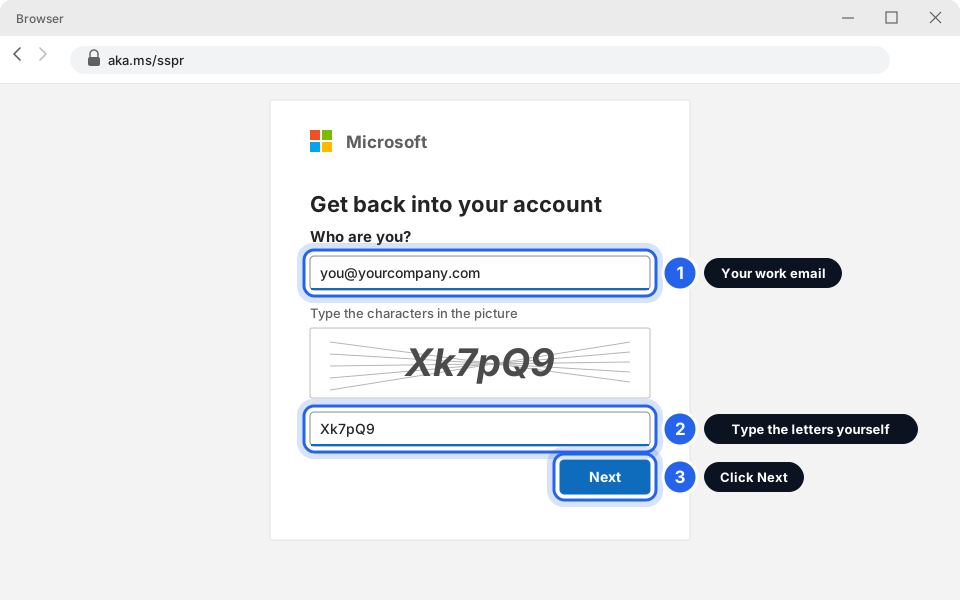
Type your email in the first box.Click picture to enlarge -
Type the letters and numbers from the picture
Look at the picture with the twisty letters. Type the characters you see into the box underneath, then click Next.
Type the characters yourself. This step proves you are a real person, so nobody else can do it for you. Can't read them? Look for a small New or refresh link to get new ones. Letters can be capital or small, so copy them exactly.Type the characters, then click Next.Click picture to enlarge -
Choose how to get your code
Microsoft shows the ways it can check it is really you. Pick one you can use right now: a text to your phone, an approval in the Authenticator app, or a code to a second email. The wording may be slightly different on your screen. Click Next.
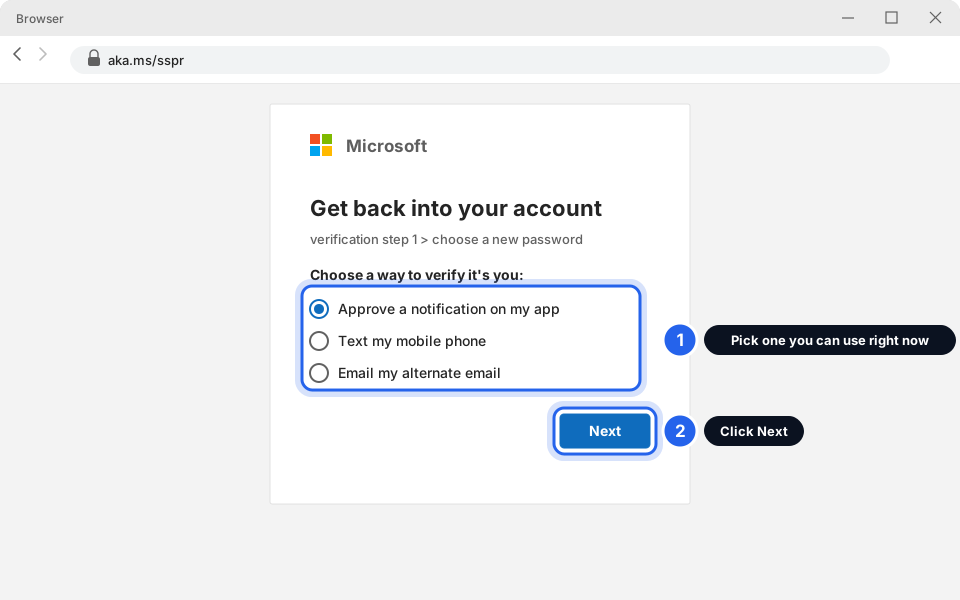
Pick a way you can use now, then Next.Click picture to enlarge -
Type the code you receive
Wait a few seconds. A code (usually 6 numbers) arrives by text, in the app or in your other email. Type it in and click Next. If you chose the app, open Authenticator and tap Approve (or type the number shown).
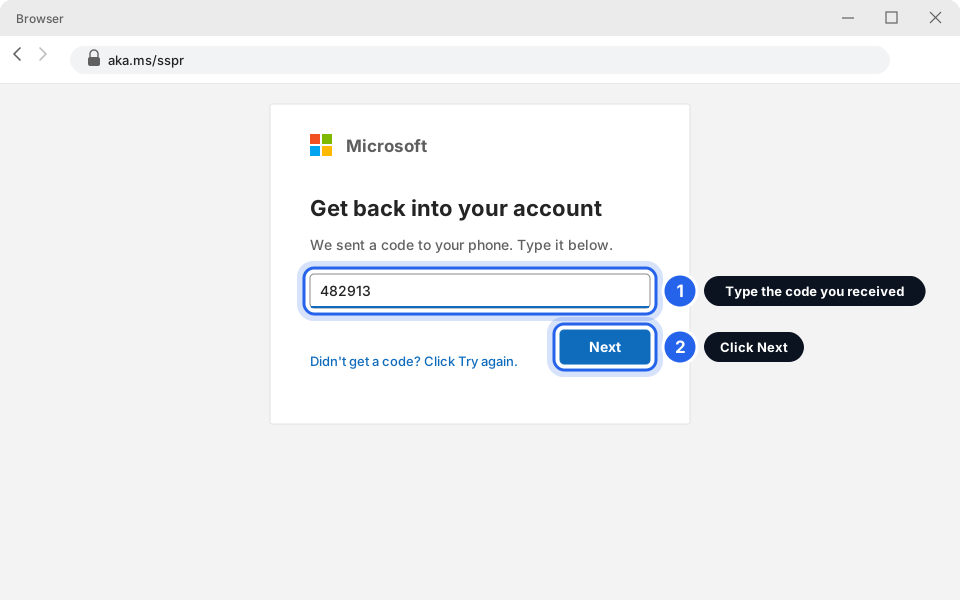
Type the code, then click Next.Click picture to enlarge -
Choose a new password
Type your new password, then type it again to confirm. Click Finish.
A good password is long and easy for you to remember: three or four unrelated words, like teapot-sunrise-ladder-42. Don't use your name, your business name, or a password you use anywhere else. Skytech will never ask you for it.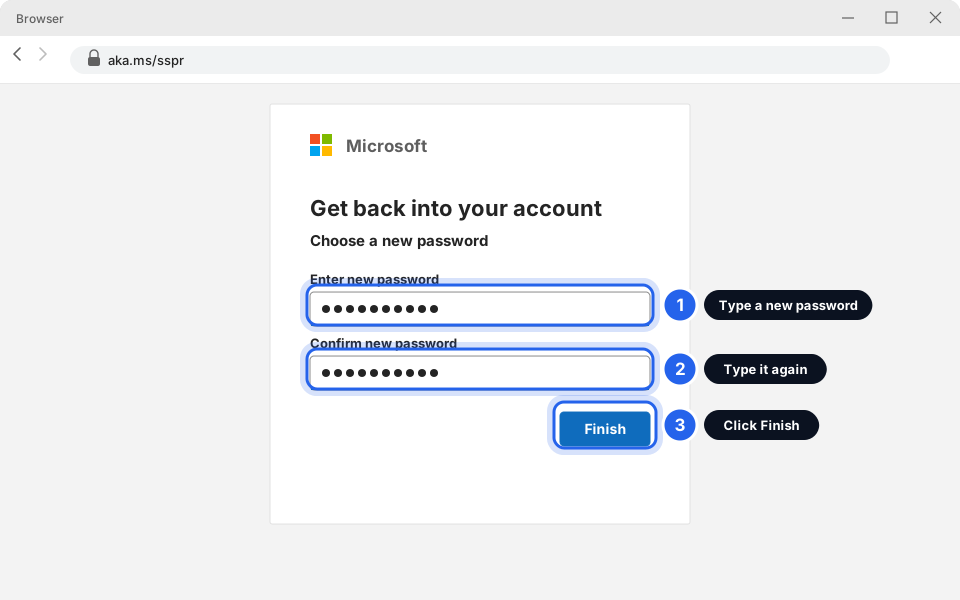
Type it twice, then click Finish.Click picture to enlarge
Your password is reset
Now sign in with the new password. Outlook, Teams and your phone may ask for the new password once. Type it in when they do.
I know my password and want to change it
Do this if you want a new password, or you think someone else may know yours. You need to be able to sign in first.
-
Go to myaccount.microsoft.com and click Password
Sign in with your work email if it asks. On the left of the page click Password. (You may see a Change password link in the middle of the page instead. That works too.)
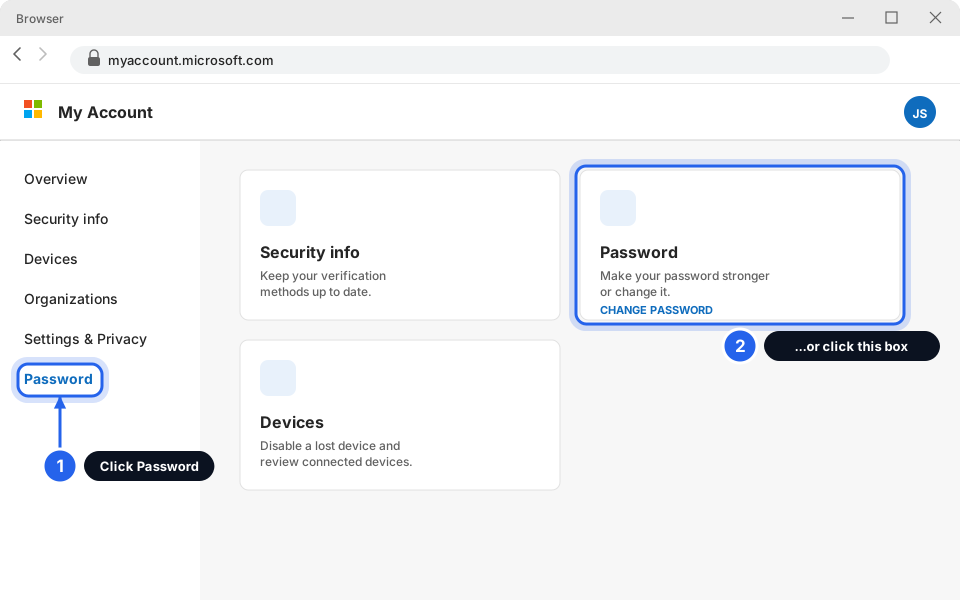
Click Password.Click picture to enlarge -
Fill in the three boxes and click Submit
Type your old password, then your new password twice. Click Submit.
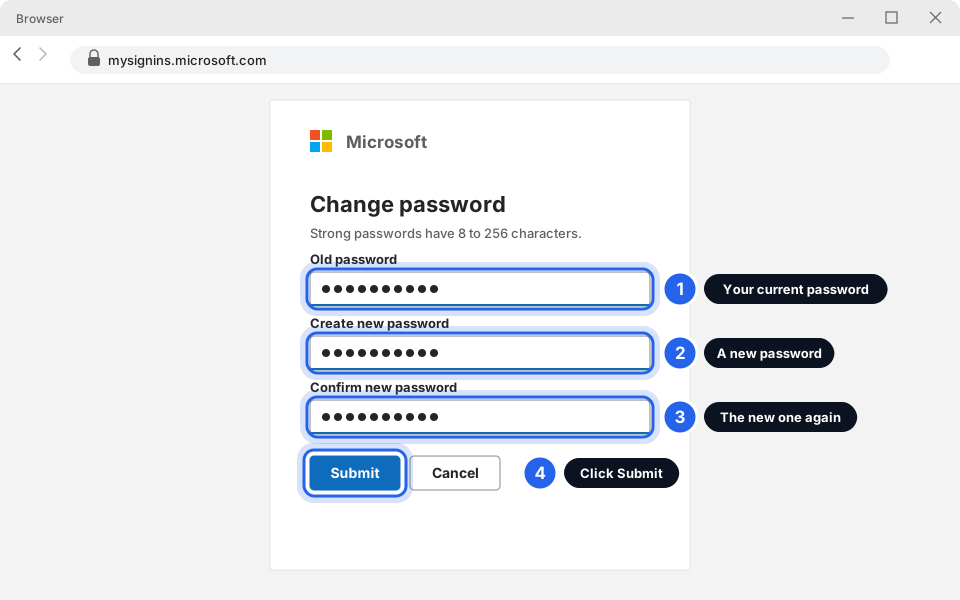
Old password, new password, new password again, Submit.Click picture to enlarge -
Sign in again where it asks
Outlook, Teams, and your phone's email app will ask for the new password the next time you open them. Type it in once on each. If Outlook keeps asking, see Email not working.
Set up Microsoft Authenticator on a new phone
Microsoft Authenticator is a free app that asks you to tap Approve when you sign in. It keeps your account safe even if someone learns your password. You need both your computer and your phone for this.
-
On your phone, install Microsoft Authenticator
Open the App Store (iPhone) or Play Store (Android). Search for Microsoft Authenticator. Tap Get or Install. Check the maker is Microsoft Corporation.
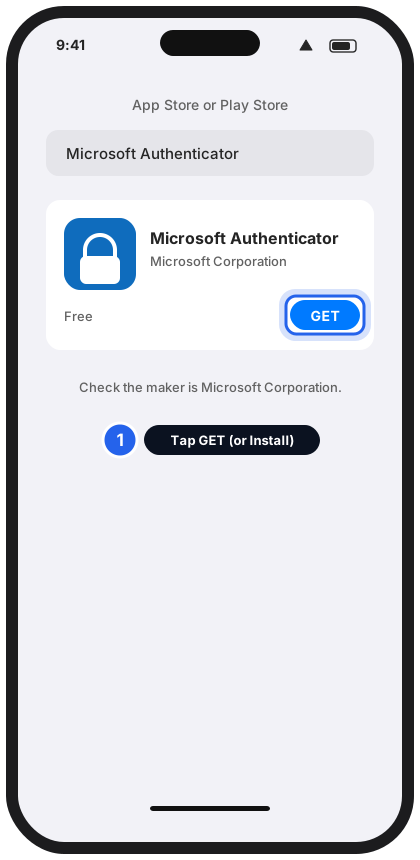
Install the app made by Microsoft Corporation.Tap to enlarge -
On your computer, go to aka.ms/mysecurityinfo and click + Add sign-in method
Sign in with your work email if asked. You land on a page called Security info. Click + Add sign-in method (it may say Add method).
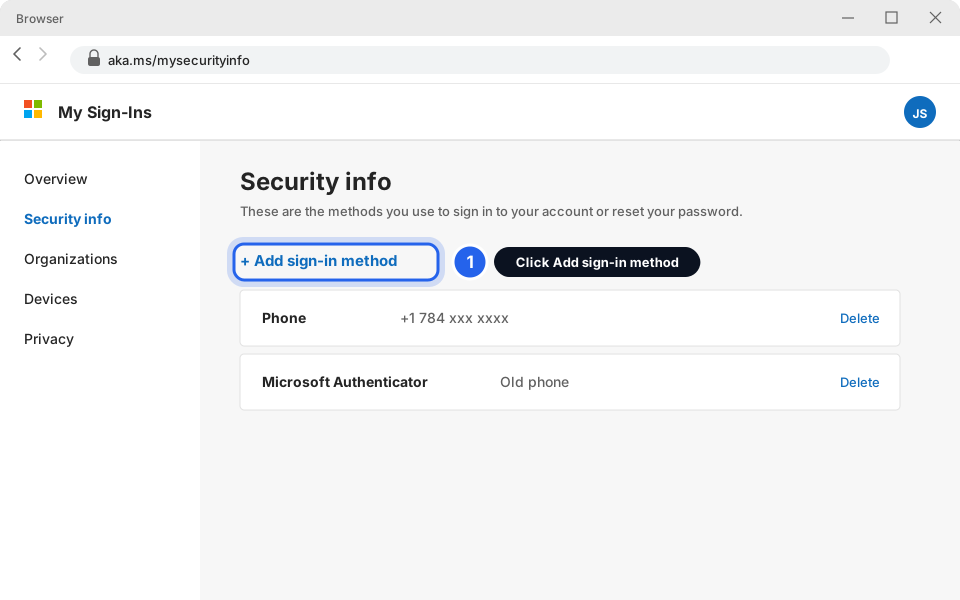
Click Add sign-in method.Click picture to enlarge -
Choose Authenticator app and click Add
Pick Authenticator app from the list, then click Add.
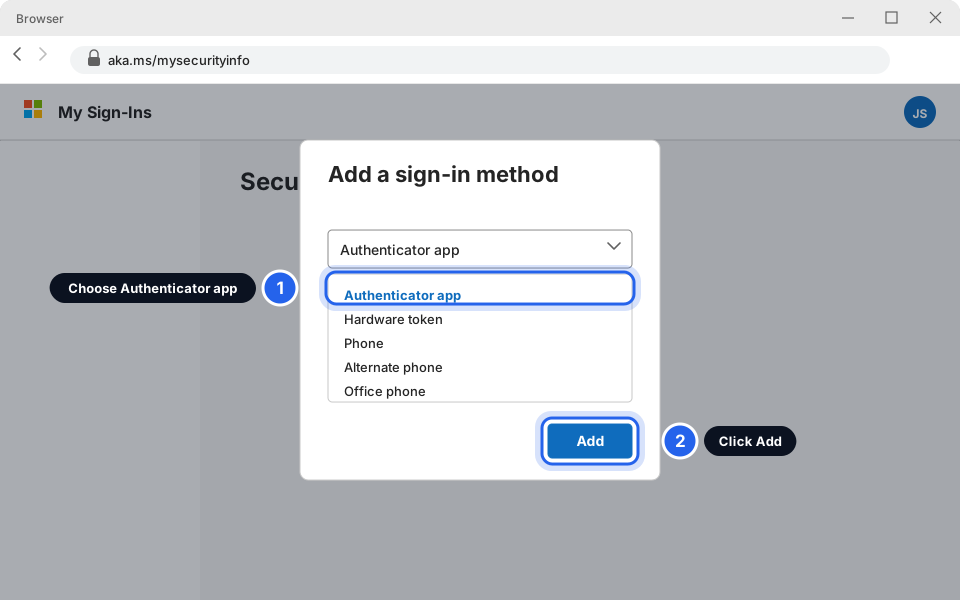
Choose Authenticator app, then Add.Click picture to enlarge -
Click Next until a square QR code appears
The first screen says to install the app (you already did). Click Next. The second screen says Set up your account. Click Next again. Now you will see a black and white square: the QR code. Leave it on the screen.
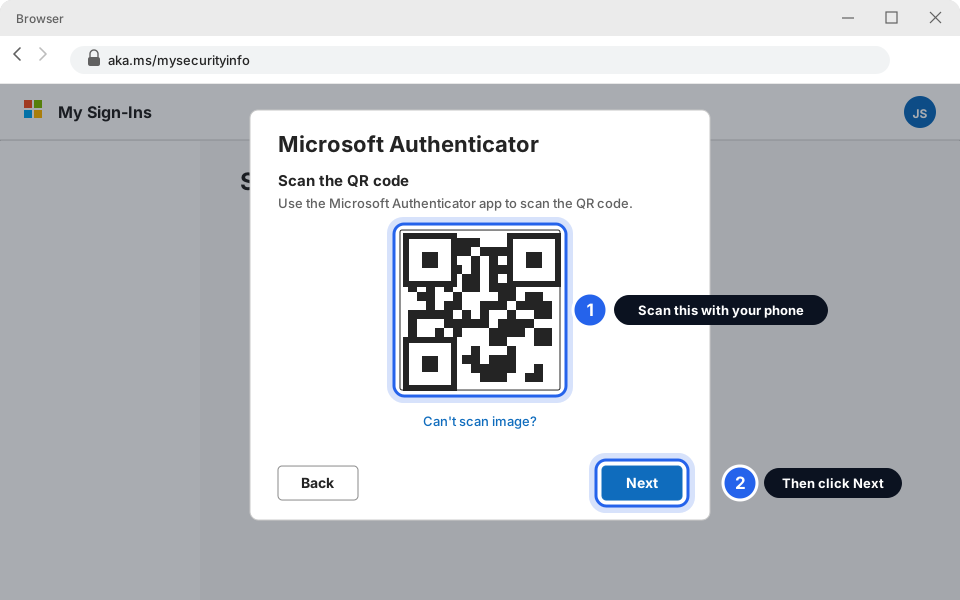
Leave this QR code on your computer screen.Click picture to enlarge -
On your phone, open the app and tap +, then Work or school account
Open Authenticator. If it asks, tap Allow for notifications and the camera. Tap the + at the top right, then Work or school account. (On some versions you then tap Scan QR code.)
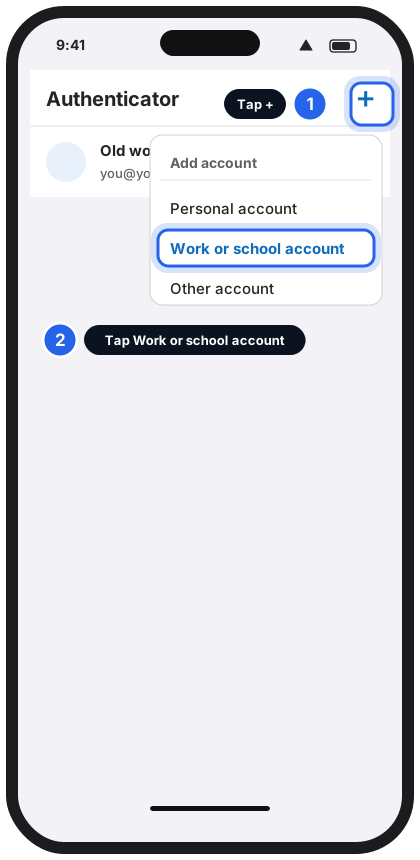
Tap + then Work or school account.Tap to enlarge -
Point the phone camera at the QR code on your computer
Hold the phone still so the square sits inside the frame. It scans by itself. You will see your work email appear in the app.
Don't scan the QR code if someone else sent it to you or you didn't open this page yourself.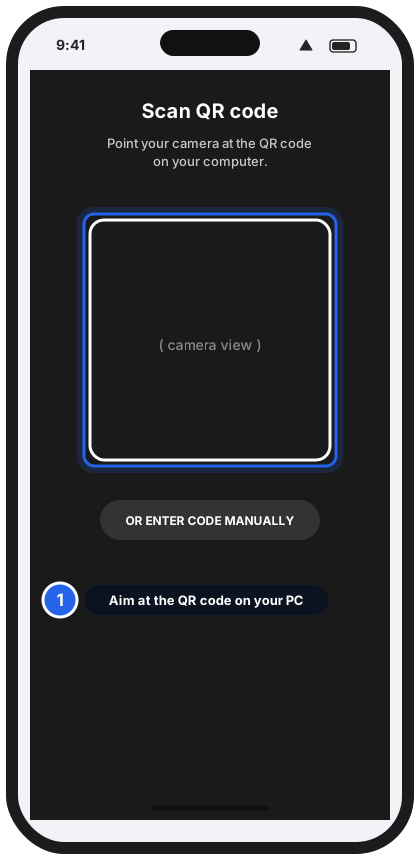
Aim the phone camera at the computer screen.Tap to enlarge -
On your computer, click Next and remember the number
Microsoft sends a test sign-in to your phone. Your computer shows a 2-digit number. Keep this window open.
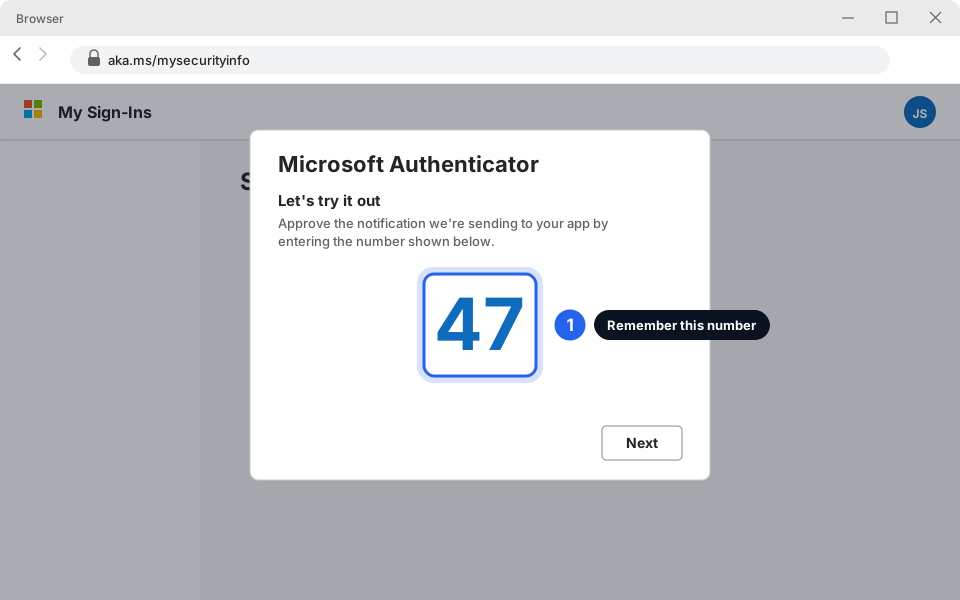
A number appears on your computer.Click picture to enlarge -
On your phone, type that number and tap Yes
A notification arrives. Tap it, type the number from your computer, and tap Yes (or Approve). Your phone may ask for your fingerprint, face or phone PIN. That is normal.
Why the number? It is called number matching. It proves you really started the sign-in yourself. If a sign-in request asks for a number and you are not signing in, never type one in.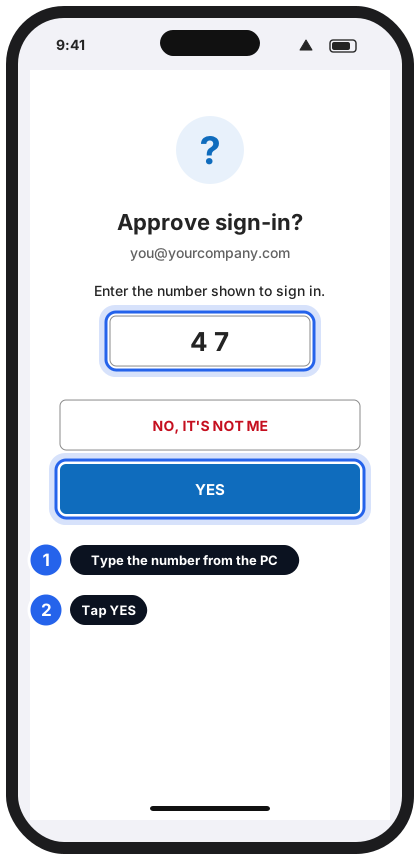
Type the number from the computer, then tap Yes.Tap to enlarge -
Click Next, then Done
The computer says Notification approved. Click Next and Done. Your new phone is now listed on the Security info page.
Authenticator is ready
Remove your old phone if it's gone: on the Security info page, click Delete next to the old Microsoft Authenticator entry.
I got a new phone (or lost my old one)
“Sign-in blocked” or “unusual sign-in” when travelling abroad
Microsoft and your company protect your account by watching where you sign in from. A sign-in from another country can look like a thief, so it may be blocked. The fix is quick if we know in advance.
-
Before you travel, tell us
Send us a short message with the country, the dates, and the email address you use. Tap Copy, then paste it into WhatsApp.
Hi Skytech, I'm travelling to [country] from [date] to [date]. Please make sure I can sign in to my work email while I'm away. My email is [you@yourcompany.com].Take your Authenticator phone with you and keep it charged. Authenticator works over Wi-Fi and mobile data. Text-message codes may not arrive abroad. -
If you get blocked, stop and take a picture
If you see a message like “You can't get there from here” or “Your sign-in was blocked”, don't keep trying. Lots of failed attempts can lock your account. Take a screenshot (how to take a screenshot) and message us.
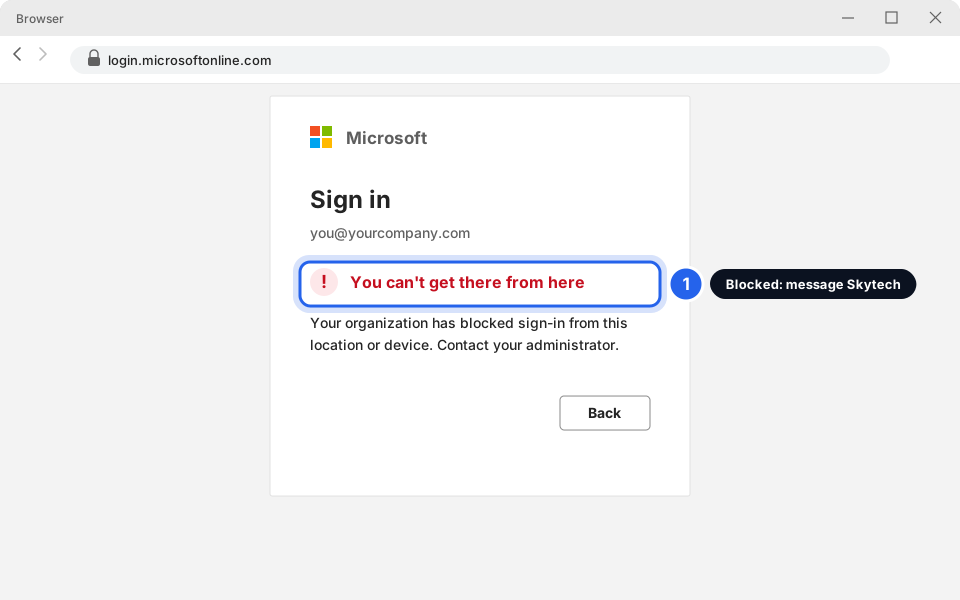
A blocked sign-in. Message Skytech with a picture.Click picture to enlarge -
Try again on another connection
Sometimes a hotel's Wi-Fi is the problem. Try your phone's mobile data once. If it still fails, wait for our reply.
Windows asks for a PIN
That PIN is not your email password. It is a short number you (or whoever set up the PC) chose to unlock this one computer. It is different on every PC and Microsoft can't tell you what it is.
-
Click I forgot my PIN
It is a blue link under the PIN box on the sign-in screen. Follow the prompts: type your work email password and approve the sign-in on your phone. Then choose a new PIN.
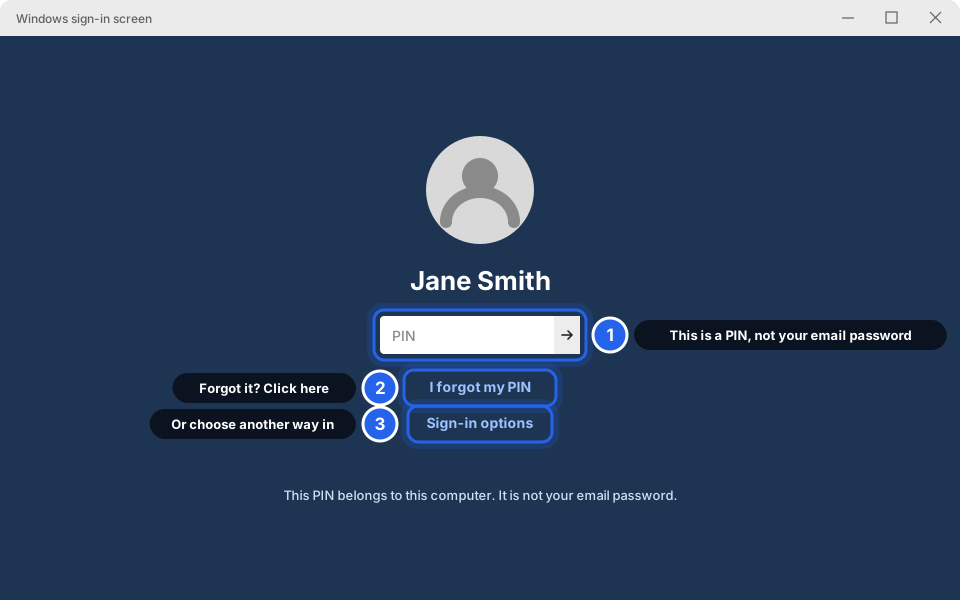
Click I forgot my PIN, or Sign-in options.Click picture to enlarge -
Or click Sign-in options and choose the password icon
This lets you unlock the PC with your work email password instead. If you don't see a password option, or you can't get past this screen, call or message us. We can help remotely if the PC is still on and online.
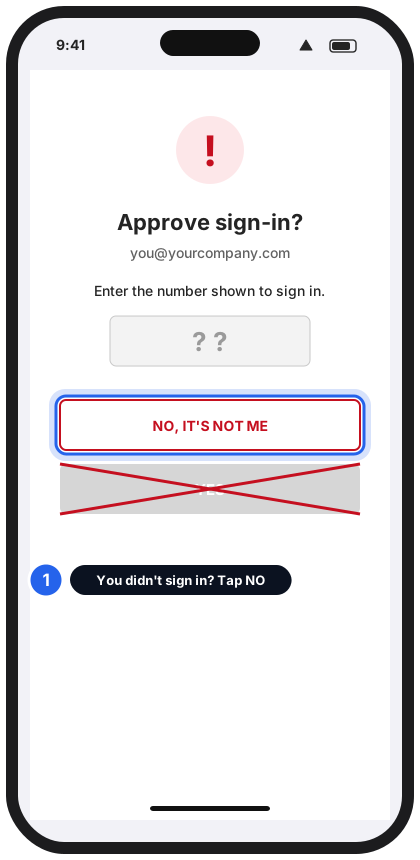
Never approve a sign-in you didn't start
Scammers who learn your password keep trying to sign in. Your phone then buzzes again and again with Approve sign-in?, hoping you will tap Yes just to make it stop. This is called MFA fatigue.
Skytech-hosted email (webmail) password
If your mailbox is hosted by Skytech (you use webmail, not Microsoft 365), you change your password in webmail.
-
Sign in to webmail and open Settings > Password
Go to https://webmail.yourcompany.com and sign in with your full email address. Click Settings (a cog icon, usually bottom left or top right). Then click Password.
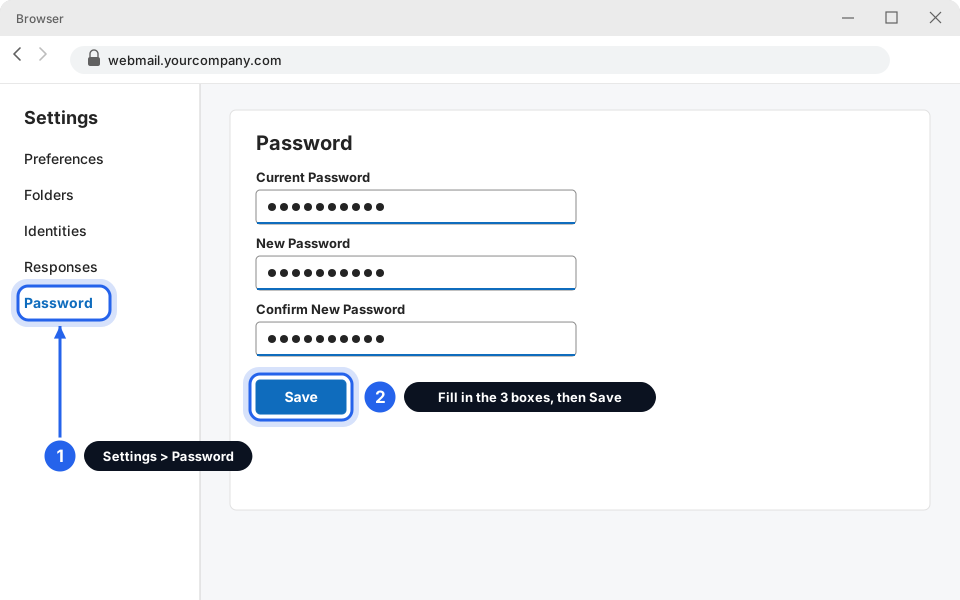
Settings, then Password.Click picture to enlarge -
Type your current and new passwords, then click Save
After this, update the password in Outlook and on your phone too.
If you don't see Password in Settings, or you forgot your password, message us and we will reset it for you.
Still not working?
It says I can't reset my password
Your company may not have switched on self-service reset, or your phone number isn't registered. Message us and we'll reset it.
I never received the code
- Wait one minute, then click Try again.
- Check your phone has signal and the number is right.
- Try a different method (app instead of text).
- Still nothing? Message us.
The Authenticator notification never arrives
- Check your phone has internet.
- Open the Authenticator app by hand. The request is often waiting inside.
- Check Authenticator is allowed to send notifications in your phone settings.
- Restart the phone and try again.
Outlook keeps asking for my password after I changed it
Close Outlook completely, open it again and type the new password once. If it keeps asking, see Email not working? Fix it in 5 minutes.
It says my account is locked
Wait 30 minutes, then try once more. Don't keep trying. If it is still locked, message us.