Pick your device
On a Windows computer
-
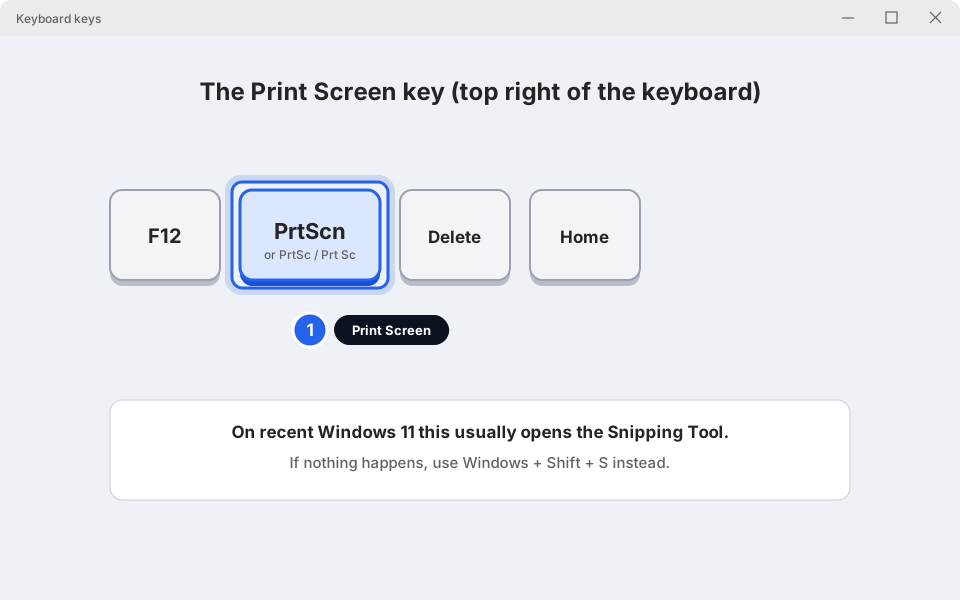
Hold the Windows key, Shift and S together
The Windows key is at the bottom left of the keyboard, between Ctrl and Alt. It has a small flag or window on it. Hold it down, hold Shift, then tap the letter S. Let go of all three.
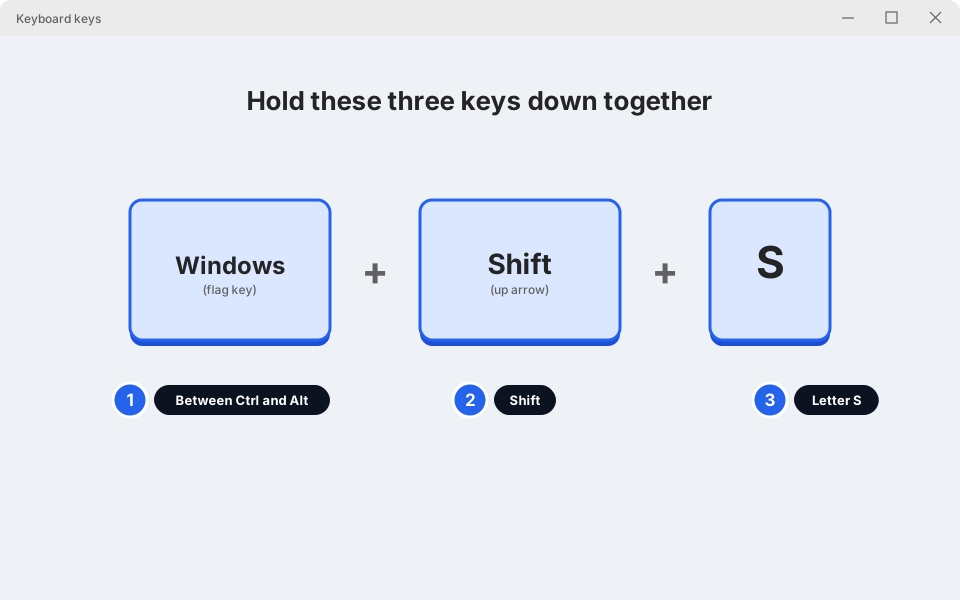
1 Windows · 2 Shift · 3 SClick picture to enlarge -
Drag a box over what you want to show us
The screen goes dim and a small bar appears at the top. Press and hold the left mouse button at one corner of the area you want, drag to the opposite corner, then let go.
Want the whole screen? Click the full-screen button on the bar (the third one; hover over a button to see its name).
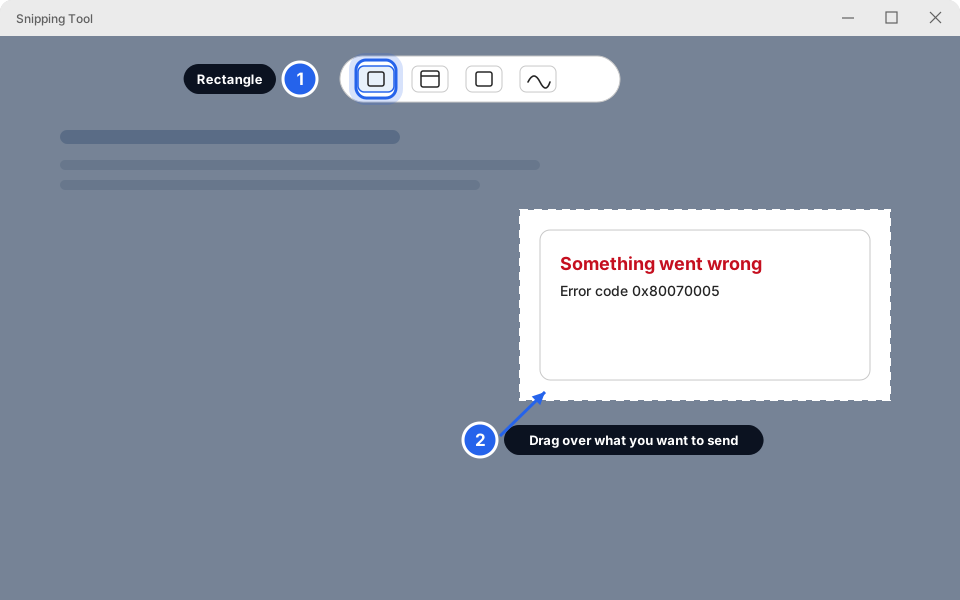
1 Rectangle mode · 2 Drag over the problemClick picture to enlarge -
A notification says the snip is copied
A small message appears in the bottom-right corner. The picture is now copied, ready to paste. You don't have to click anything. On most PCs a copy is also saved automatically in Pictures › Screenshots. To mark it up or save it somewhere else, click the message, then the Save icon.
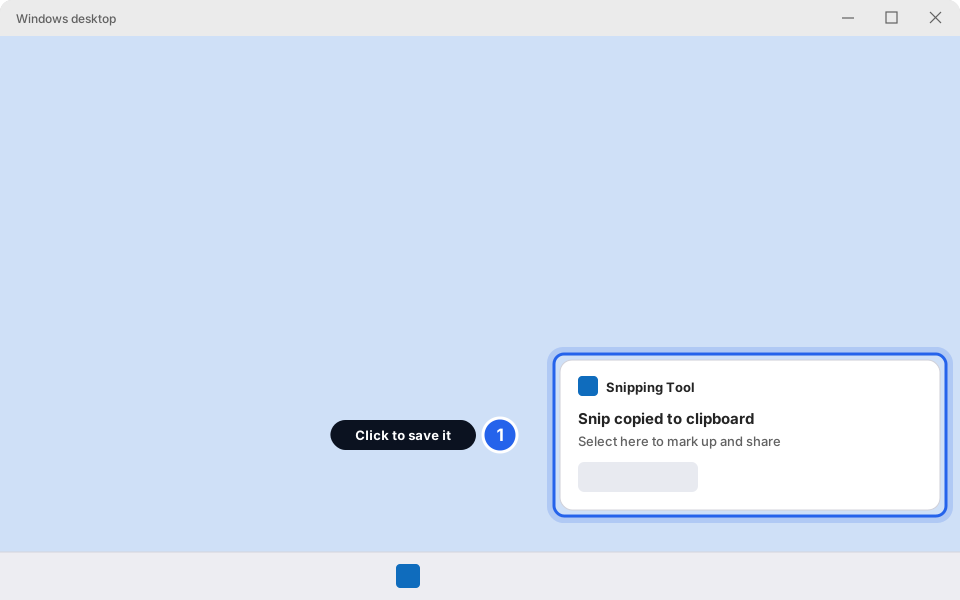
1 Click only if you want to save it.Click picture to enlarge -
Paste it into your message with Ctrl + V
Open your chat with us on WhatsApp Web (or start a new email). Click in the message box. Hold Ctrl and tap V. The picture appears. Add a few words about what you were doing, then click Send.
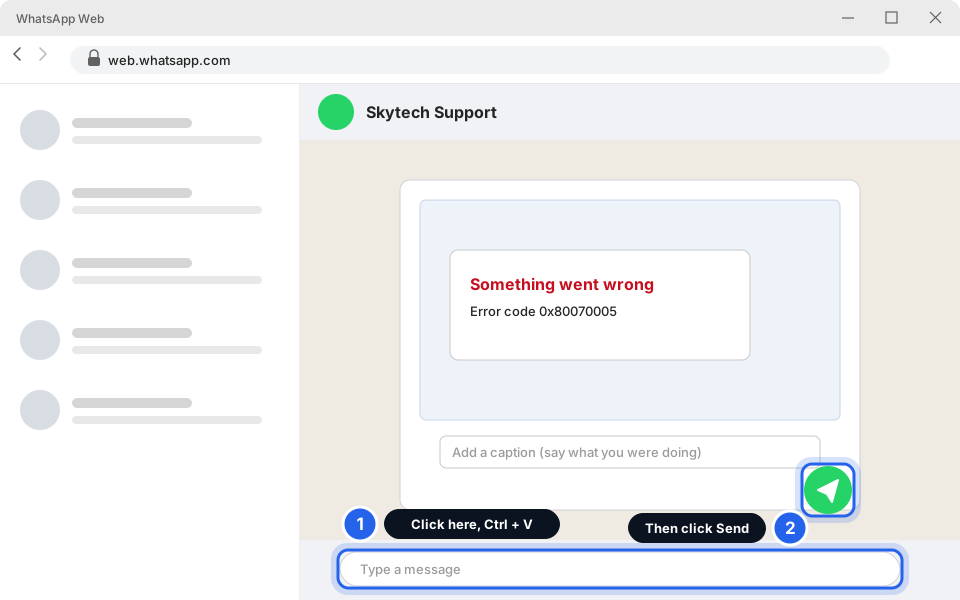
1 Paste with Ctrl + V · 2 SendClick picture to enlarge
On a Mac
-
Hold Shift + Command + 4 together
The pointer turns into a small cross. Drag a box over what you want to show us and let go. The picture is saved on your desktop as a file called Screenshot followed by the date.
For the whole screen, press Shift + Command + 3 instead. For a toolbar with more choices, press Shift + Command + 5.
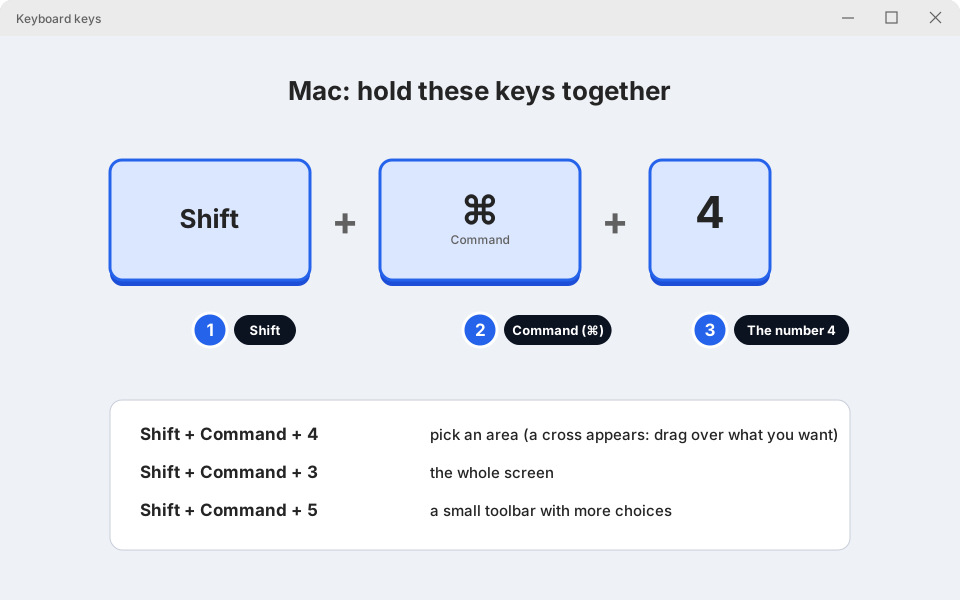
1 Shift · 2 Command · 3 the number 4Click picture to enlarge -
Attach the picture to your message
In WhatsApp Web, click the + (attach) button, choose Photos & videos, and pick the new Screenshot file from your desktop. In an email, drag the file into the message. Then send.
Faster: hold Control too (Shift + Control + Command + 4). The picture is copied instead of saved, so you can click in the message and press Command + V to paste.
On an iPhone
-
Press the side button and Volume up together, then let go
iPhone with Face ID (no round button on the front): quickly press the side button (right edge) and the Volume up button (left edge) at the same time.
iPhone with a Home button: quickly press the Home button and the side button together.
The screen flashes white. A small picture appears in the bottom-left corner.
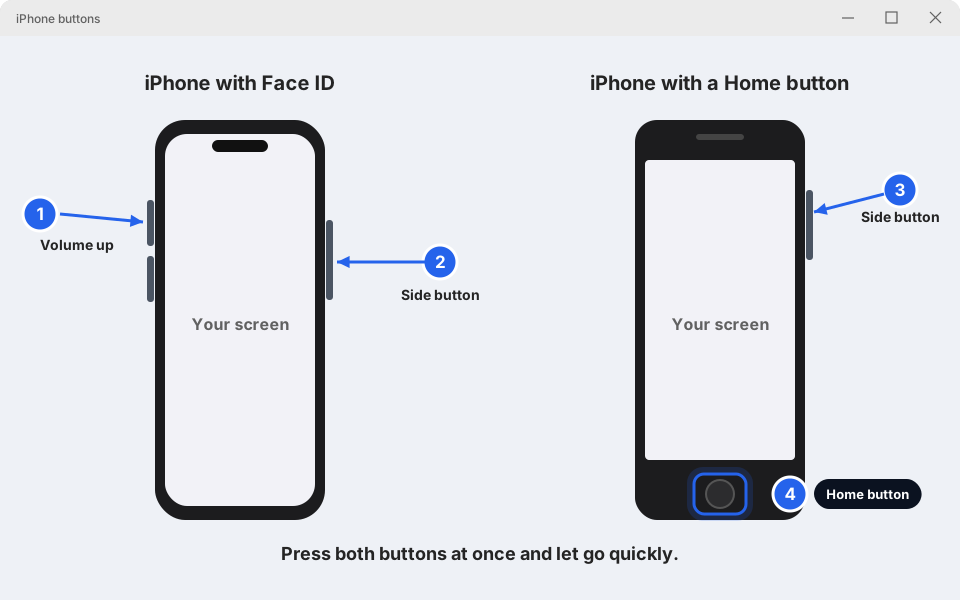
1 Volume up · 2 Side button · 3 Side button · 4 Home buttonClick picture to enlarge -
Send it in WhatsApp or email
Open WhatsApp and your chat with us. Tap the + button, choose Photo & Video Library, and tap the newest picture. Tap the blue or green Send arrow.
On an Android phone
-
Press Power and Volume down together
Both buttons are on the right edge of most phones. Press them at the same time and hold for about a second, until the screen flashes or you hear a click.
On some phones (Samsung, Pixel) you can also swipe the side of your hand across the screen (on a Samsung this is switched off until you turn on Palm swipe to capture). If the buttons don't work on a Pixel, hold Power for a few seconds and tap Screenshot. The buttons work on all of them.
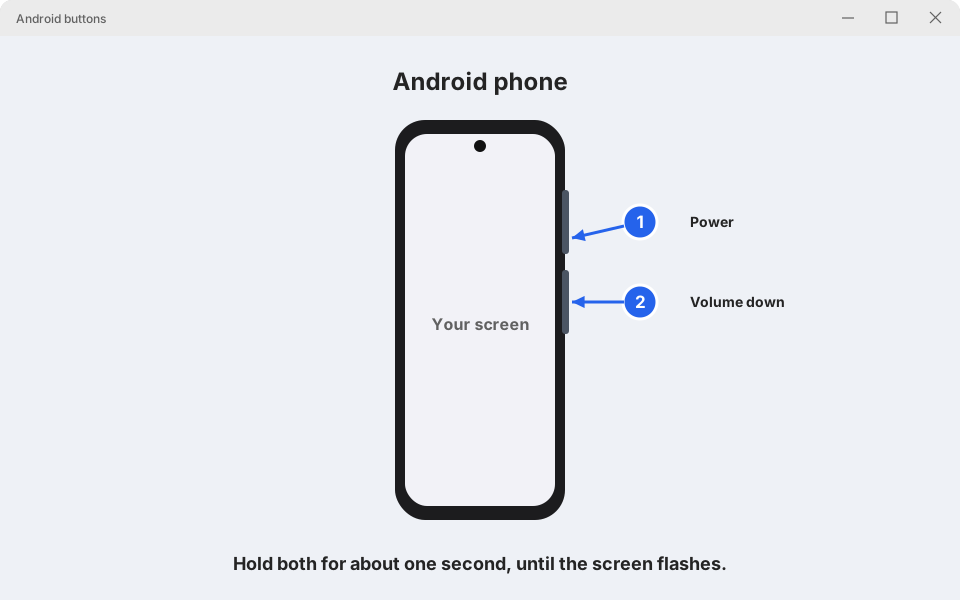
1 Power · 2 Volume downClick picture to enlarge -
Send it in WhatsApp or email
Open WhatsApp and your chat with us. Tap the paper-clip or + button, choose Gallery, and tap the newest picture (look in the Screenshots folder). Tap Send.
Computer frozen? Use your phone camera
If the computer is frozen, blue, or won't respond, you can't take a screenshot. A photo with your phone is just as good.
-
Hold your phone steady and photograph the whole screen
Stand back a little, so the whole screen fits in the picture. Switch off the flash. Tap the screen on your phone to focus. Keep the phone still.
Check the photo afterwards. Any error words or numbers must be easy to read. If they are blurry, take another one closer to the message. Then send the photo on WhatsApp.
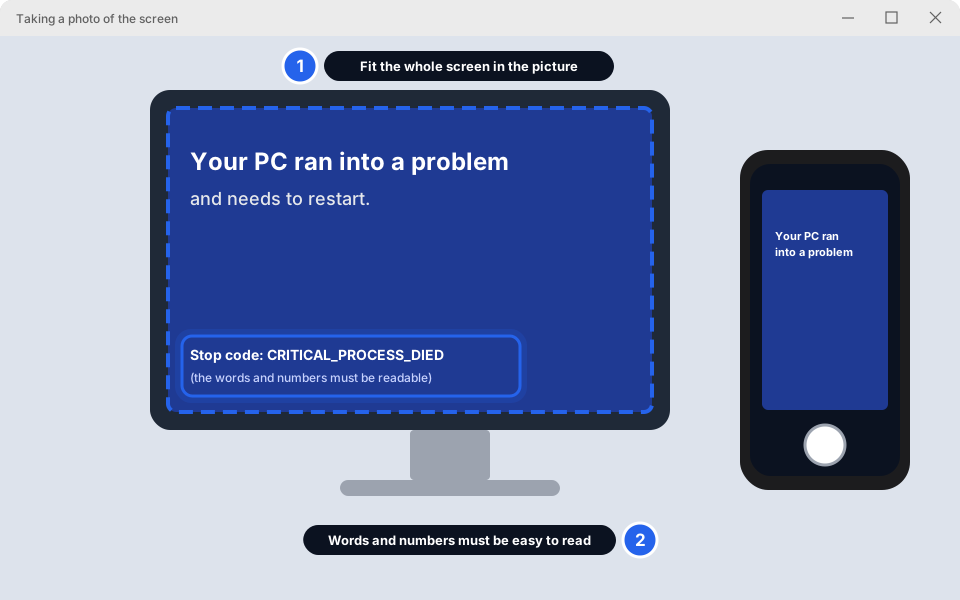
1 Whole screen in the photo · 2 Words are readableClick picture to enlarge
Now tell us what happened
With the picture, add one line: what you were doing, and what you expected to happen. Don't blank out passwords by hand. Just make sure none are showing before you send.
Still not working?
Nothing happens when I press Windows + Shift + S
Try the Start menu: type Snipping Tool, open it and click New. If that doesn't work either, take a photo of the screen with your phone.
I can't find my screenshot
Windows: open File Explorer, then Pictures › Screenshots. If it isn't there, it was only copied: take it again and click the notification, then Save. Mac: look on your desktop. iPhone: Photos app, Screenshots album. Android: Gallery or Photos, Screenshots folder.
The picture is blank or black
Some apps (video, banking, some browsers' private windows) block screenshots. Take a photo with your phone instead.
Ctrl + V doesn't paste the picture in my email
Click inside the body of the email first, not the Subject line, then press Ctrl + V. If it still doesn't work, save the screenshot (click the notification, then Save) and use Attach.
My phone gives me a different screenshot method
Some Android phones, such as Samsung, have extra shortcuts. The Power + Volume down buttons work on all of them. Not sure? Send us a photo and we'll talk you through it.