Why won't it send?
Many email systems refuse messages bigger than about 20 to 25 MB (Microsoft 365 allows about 35 MB by default, but the other person's system may be stricter), and attaching a file makes it roughly one third bigger behind the scenes. So a 17 MB video may already be too big. You might see Outlook say "the attachment is too large", or get an email back called Undeliverable with a code like 552 5.3.4.
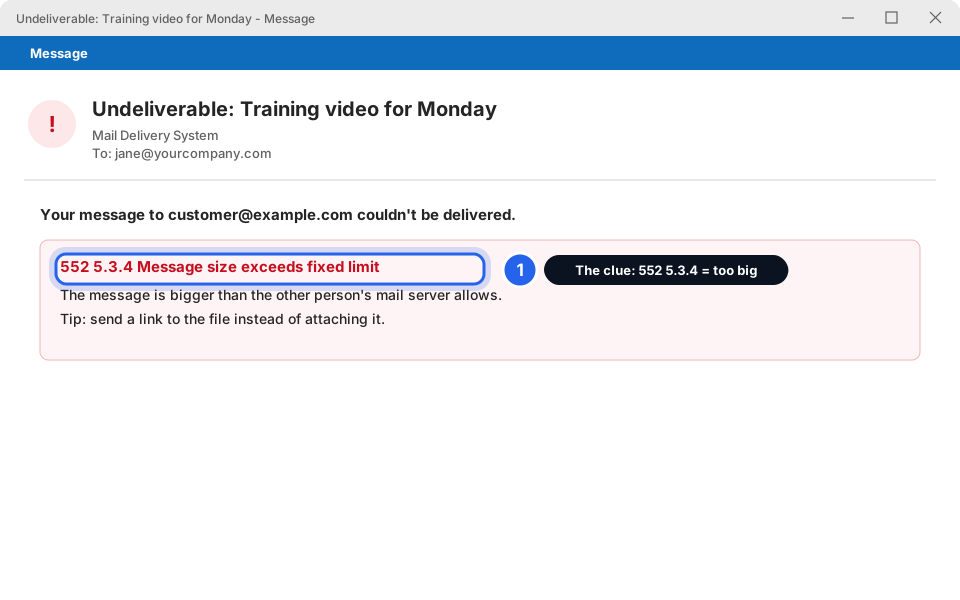
The fix is simple: don't attach the file. Send a link to it. The other person clicks the link and downloads the file. Your email stays tiny.
Want to know what other bounce messages mean? See My email bounced.
Pick the best way
Method 1: Send a OneDrive link
You put the file in OneDrive, ask OneDrive for a link, and paste that link into your email. Pick whichever way you find easier.
From File Explorer (Windows)
-
Put the file in your OneDrive folder
Open File Explorer (the yellow folder on your taskbar). In the left list, click OneDrive - Your Company. Drag your file in from wherever it is saved. If it's already in OneDrive, skip this step.
-
Wait for the green tick to appear
A small icon next to the file shows its progress. Blue arrows mean it's still uploading. A green tick means it's ready. Don't carry on until it has one. Big files can take several minutes.
-
Right-click the file and click Share
A menu pops up next to your mouse. Click Share. If you don't see it, click Show more options first.
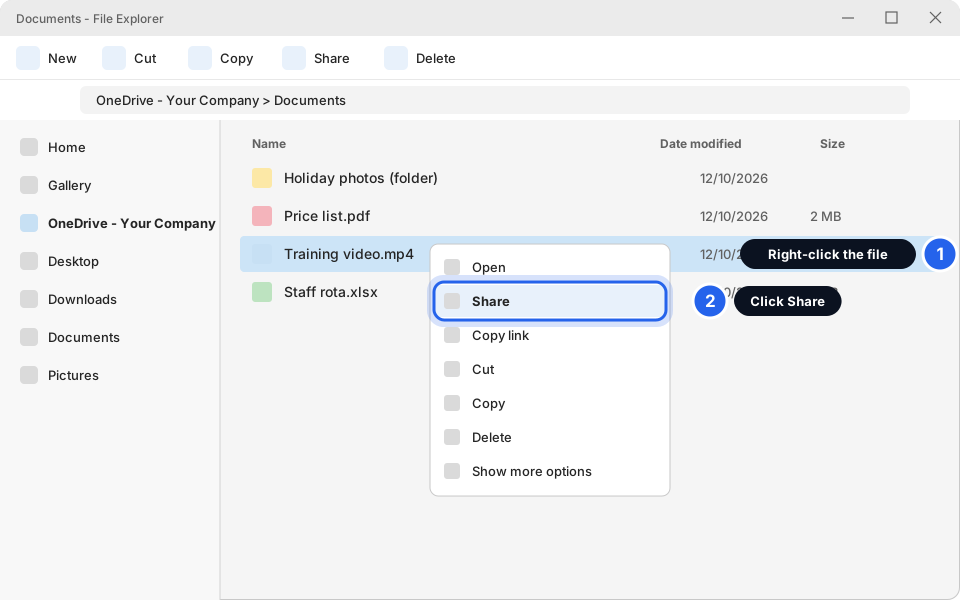
Right-click the file, then click Share.Click picture to enlarge -
In the Send link box, click the line under the file name
It probably says Anyone with the link can edit (or something similar). Clicking it lets you choose who can open the file.
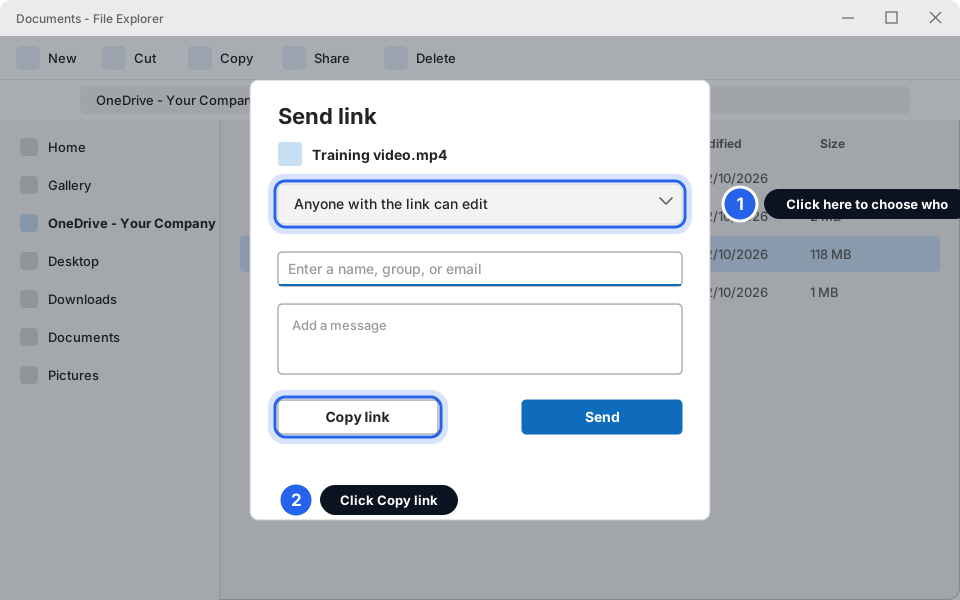
Click the permission line.Click picture to enlarge -
Choose who can open it, then click Apply
For a work file, pick Specific people and type the other person's email address later, or pick the People in your organisation choice (it may read People in Your Company with the link) for staff only. Switch Allow editing off so they can only look or download. Click Apply.
"Anyone" means anyone. If the link is forwarded or posted, whoever has it can open the file. For anything private, pick Specific people.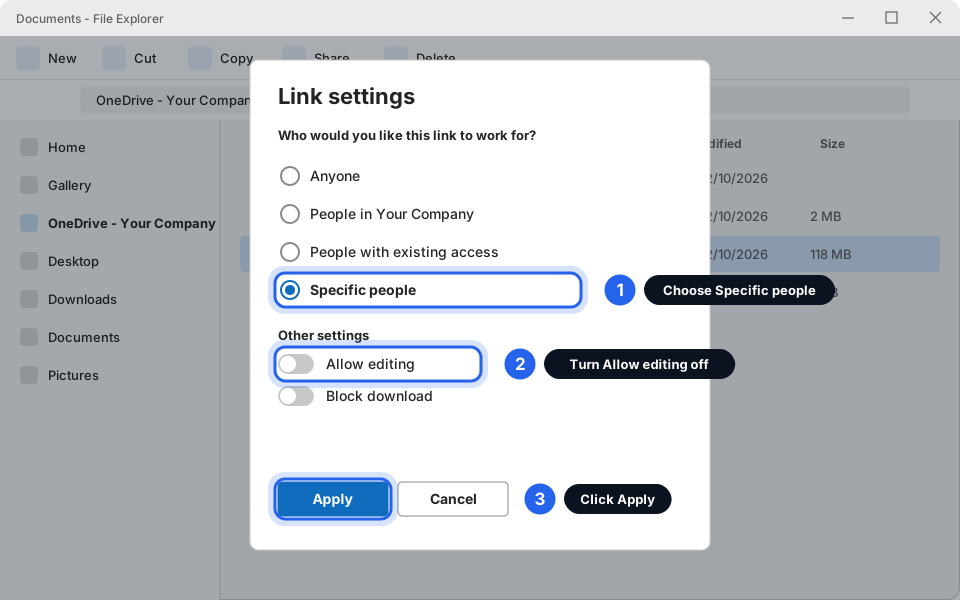
Pick who, switch Allow editing off, then click Apply.Click picture to enlarge -
Click Copy link
It's at the bottom left of the box. You'll see Link copied. If you chose Specific people, type their email address in the box and click Copy link or Send as it appears.
-
Paste the link into your email and click Send
Start a new email. Click in the message and press Ctrl and V together. The long web address appears. Add a line or two so they know what it is, then send.
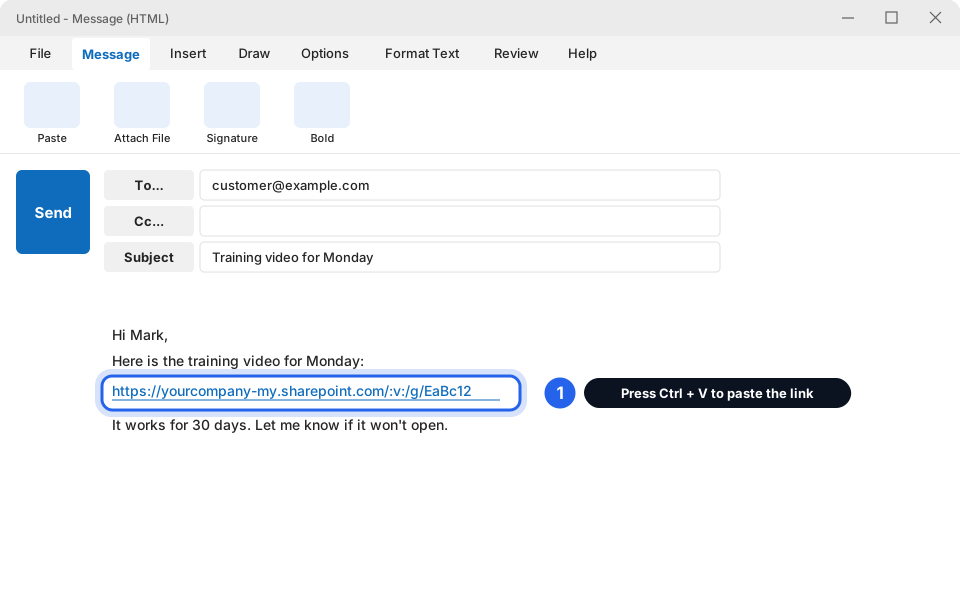
Press Ctrl + V to paste the link.Click picture to enlarge
On the OneDrive website
-
Go to office.com, sign in, and open OneDrive
Use your work email and password. Click the OneDrive icon on the left, then My files.
-
Upload the file
Click + New (or Add new) then Files upload, pick your file, and wait for the upload to finish. Or drag the file straight onto the page.
-
Click the file to select it, then click Share
The Share button is in the toolbar at the top. Then follow steps 4 to 7 in the File Explorer tab: choose who, copy the link, paste it into your email.
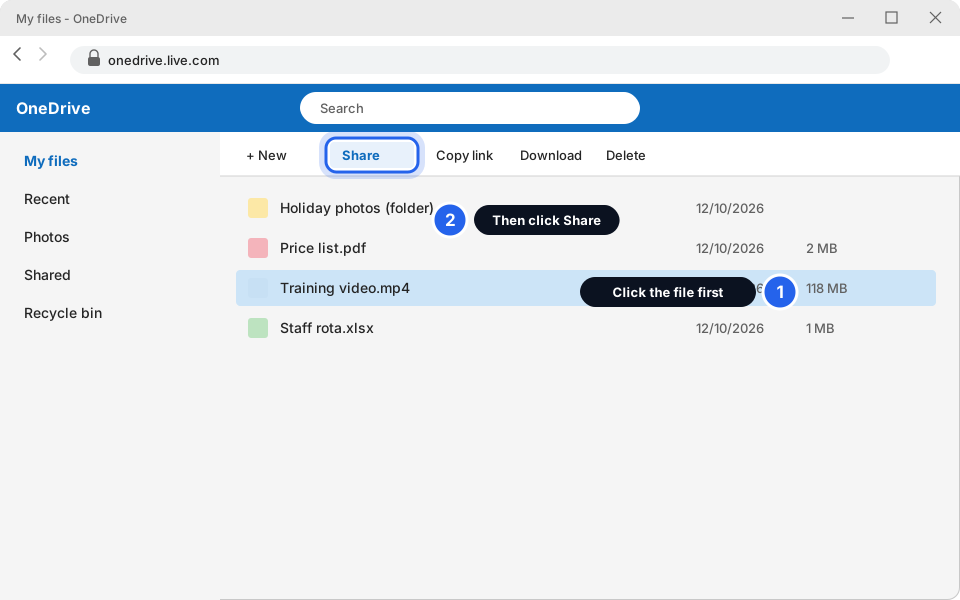
Click the file, then click Share.Click picture to enlarge
Or attach it from Outlook as a link
If the file is already in OneDrive, you can do it without leaving your email.
-
Start a new email and click Attach File
In Classic Outlook, it's on the Message tab. In New Outlook, it's on the Insert tab or the paperclip. Choose a file from Recent items, or click Browse cloud locations (it may say Browse Web Locations) and pick OneDrive.
-
Click the little arrow on the file, then Share as OneDrive link
The file appears above your message. Click the arrow next to its name. Choose Share as OneDrive link and not Attach as a copy. A link replaces the file. Outlook may also offer this on its own when it spots a big file, so pick the link choice. The wording can differ a little in your version.
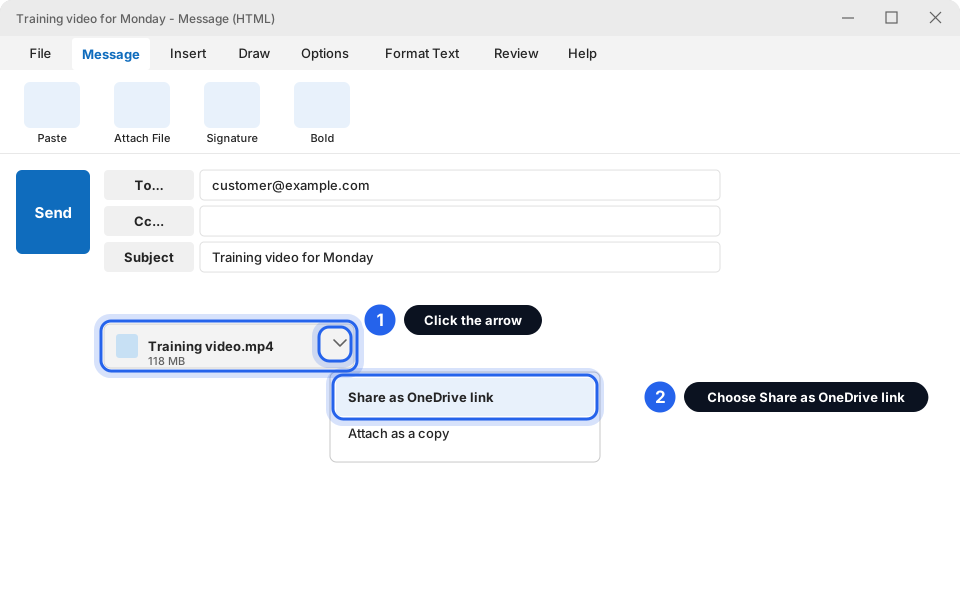
Click the arrow, then Share as OneDrive link.Click picture to enlarge
Method 2: Pack many files into one ZIP
A ZIP file is like a zipped-up box: lots of files in one tidy parcel. It also makes some files smaller (documents, spreadsheets), but photos and videos barely shrink.
-
Right-click the folder and click Compress to ZIP file
Find the folder (or select several files first by holding Ctrl while you click them). Right-click one. In Windows 11, click Compress to ZIP file. If you don't see it, click Show more options, then Send to › Compressed (zipped) folder.
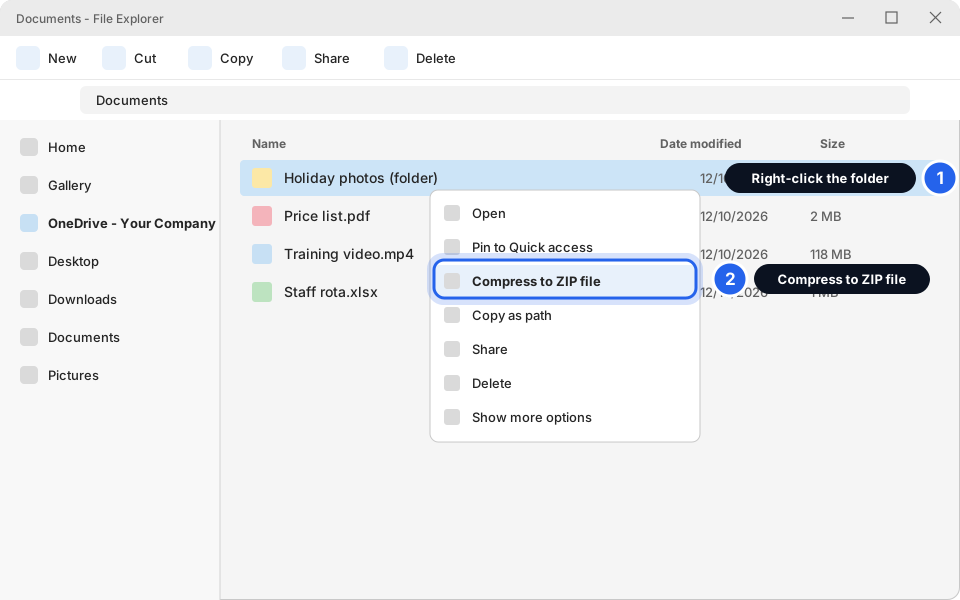
Right-click the folder, then click Compress to ZIP file.Click picture to enlarge -
Press Enter to keep the name
A new file with a zipper on it appears next to the folder. It has the same name, ending in .zip.
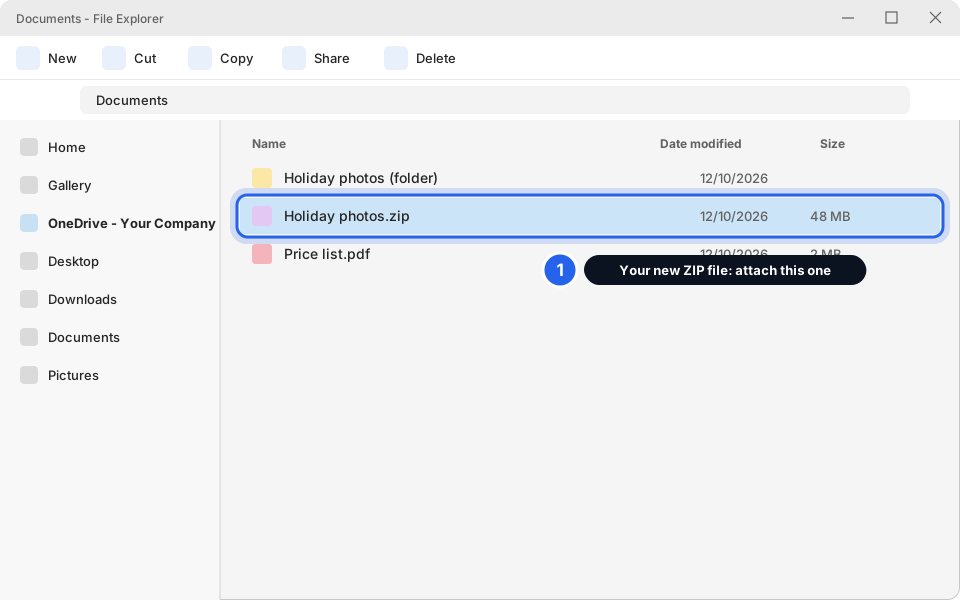
Your new ZIP file.Click picture to enlarge -
Check its size, then attach it
Right-click the ZIP file and choose Properties to see its size. Under about 15 MB: attach it to an email as normal. Over that: use Method 1 and share the ZIP file as a link.
Method 3: No OneDrive? Ask us first
If your email is Skytech-hosted and you don't have OneDrive, message us. We can tell you the best way for your business and, where it makes sense, help you set one up.
Free "send a big file" websites exist (WeTransfer is one example). They work, but treat them like posting a parcel with no lock:
Your file is on its way
Send yourself a test email first if it's your first time. Check the link opens without asking you to sign in.
Still not working?
The other person says the link won't open
If you chose Specific people, the link only works for the exact email address you typed. Ask them for the right one and share the file with that address, or choose a wider setting. Also check the upload finished: the file needs a green tick.
How do I stop sharing a file?
Open OneDrive on the website, find the file, and click the Share icon or Manage access. Remove the link or the person. Once it's removed, the old link stops working.
I don't see Share, or I don't have OneDrive
The file might not be in your OneDrive folder yet (check the left list for OneDrive - Your Company), or you may use Skytech-hosted email without OneDrive. Message us and say which.
My email still bounced with a size error
Check that the file isn't still attached as a copy. A link makes the email tiny. If you used a ZIP, check its size. Details of other bounces: My email bounced.
Outlook says my mailbox is full
That's a different problem. See Mailbox almost full: archive and clean up. Big attachments in Sent Items are often the cause.
The upload is very slow
Big videos need good internet. Keep your PC on and connected until the green tick shows. Don't close the lid or let it sleep. If it never finishes, message us.