Which kind of email do you have?
Your server settings (Option B only)
Skytech-hosted email only. Microsoft 365 users can skip this card. Use the Copy buttons to avoid typos.
- Server
- mail.yourcompany.com
- Port
- 993
- Security
- SSL/TLS
- Username
- you@yourcompany.com
- Server
- mail.yourcompany.com
- Port
- 587
- Security
- STARTTLS
- Username
- you@yourcompany.com
Incoming mail (IMAP)
Outgoing mail (SMTP)
Password: the same as your webmail password, for both incoming and outgoing. Can't send? Some phone networks block port 587. Try port 465 with SSL/TLS.
Pick your phone
On an iPhone
Option A: Microsoft 365 (Outlook app)
-
Install Microsoft Outlook from the App Store
Open the App Store, tap Search at the bottom, type Microsoft Outlook, and tap Get. Choose the one made by Microsoft Corporation. Already installed? Skip to the next step.
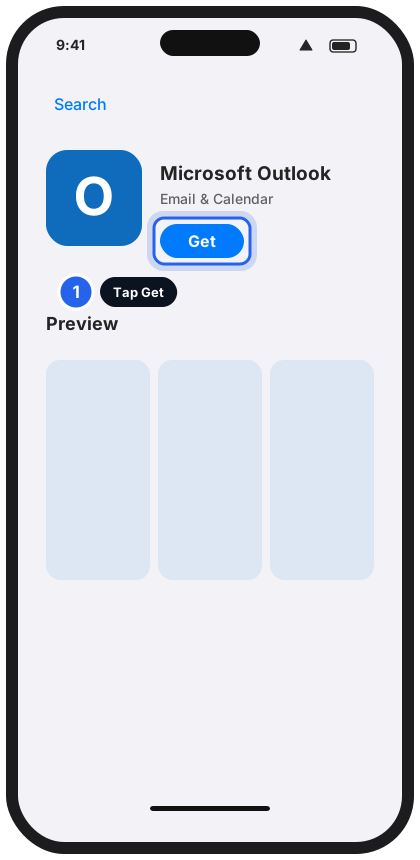
Tap Get.Tap to enlarge -
Open Outlook and type your email, then tap Continue
If Outlook asks to add an account, type you@yourcompany.com. If it shows you a different address already, tap Add Account or Add another account first.
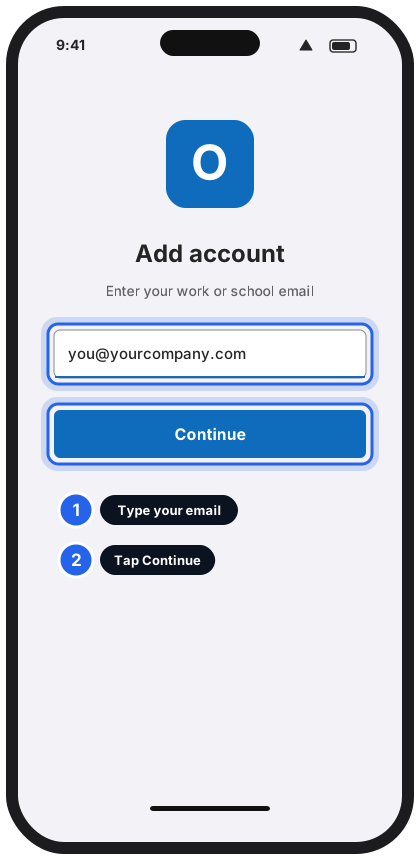
Type your email, then tap Continue.Tap to enlarge -
Type your password and tap Sign in
A Microsoft sign-in page appears inside the app. This is normal.
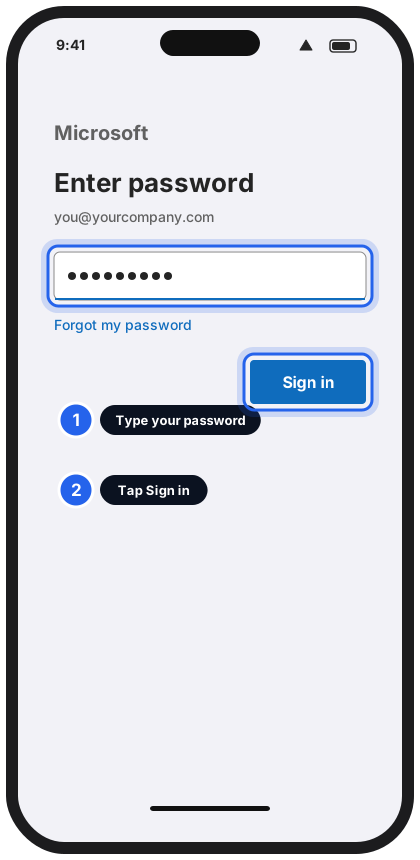
Enter your password, then tap Sign in.Tap to enlarge -
Approve the sign-in if your phone asks
If the screen shows a 2-digit number, open the Microsoft Authenticator app, type that number, and tap Yes. No Authenticator yet? Message us.
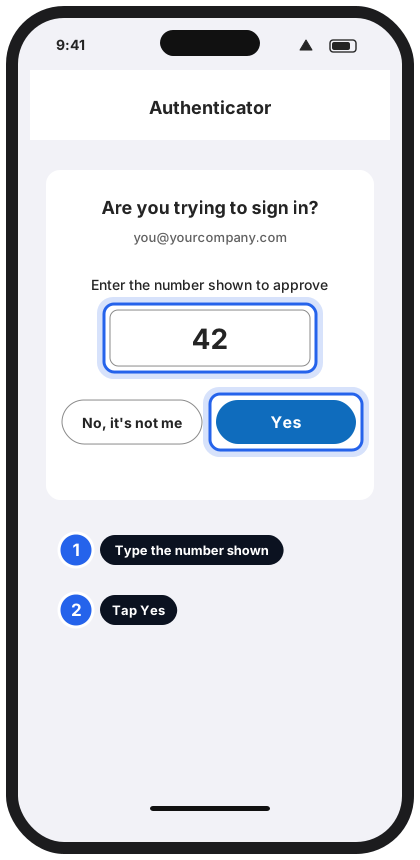
Type the number from the sign-in screen, then tap Yes.Tap to enlarge -
Answer any extra questions: keep it to Outlook only
You may see "Add another account?" (tap Maybe Later) or a request to turn on notifications (tap Allow if you want alerts for new mail).
On your own phone: if you see a message that your organisation wants to manage your device or register it, don't just tap through. Choose the option that adds only Outlook if there is one. If Outlook won't continue without it, message us before you agree. -
Your inbox appears. You're finished!
New mail arrives in the Mail tab. The first sync can take a few minutes.
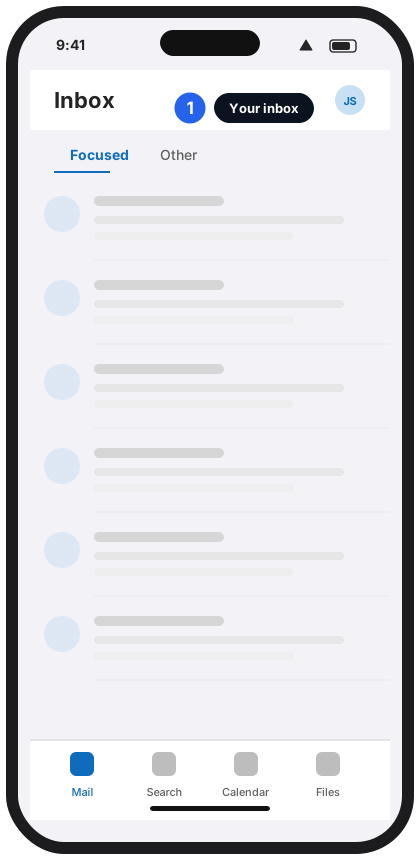
Your inbox is ready.Tap to enlarge
Option B: Skytech-hosted email (built-in Mail app)
-
Open Settings and tap Apps
Settings is the grey cog icon. Apps is near the bottom of the list. Swipe up to find it.
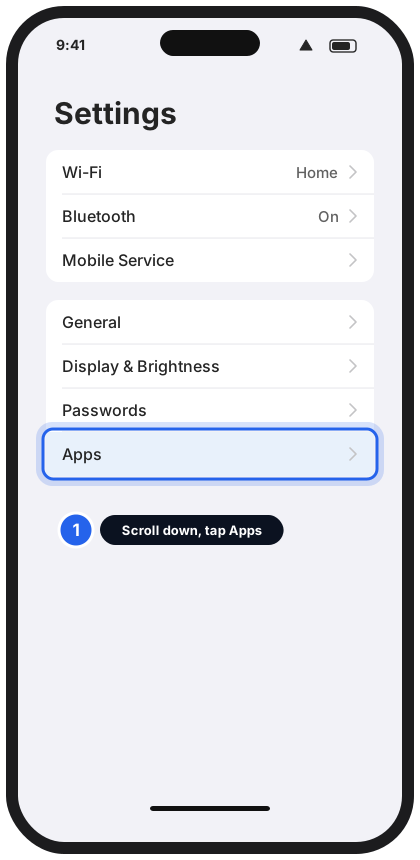
Scroll down, then tap Apps.Tap to enlarge -
Tap Mail
It's in the list of apps.
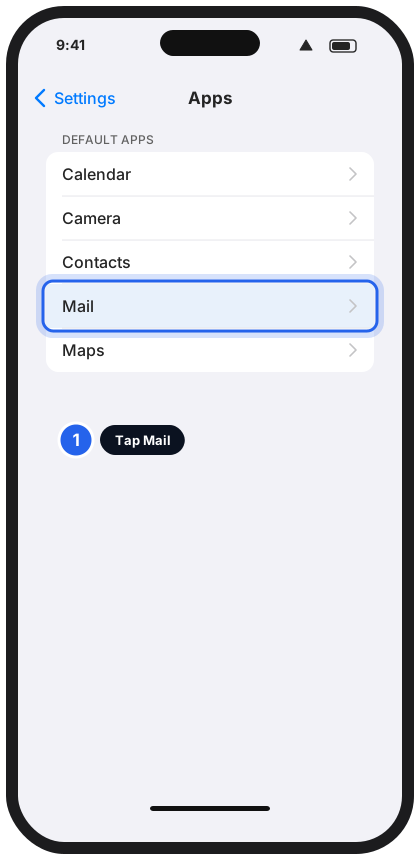
Tap Mail.Tap to enlarge -
Tap Mail Accounts
It's the first row.
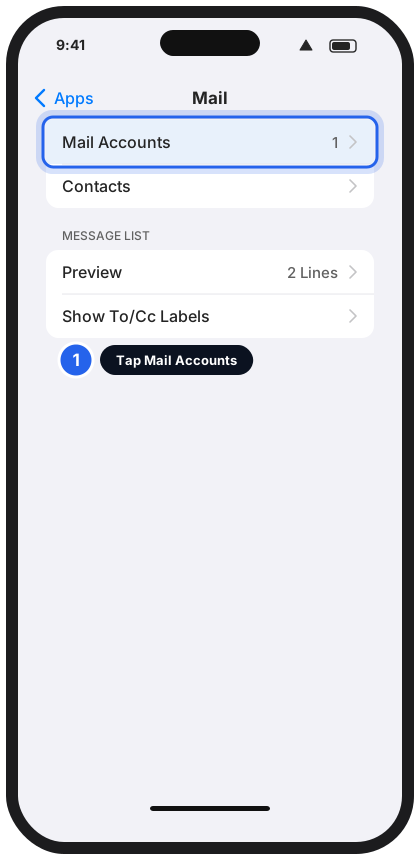
Tap Mail Accounts.Tap to enlarge -
Tap Add Account
It's under any accounts you already have.
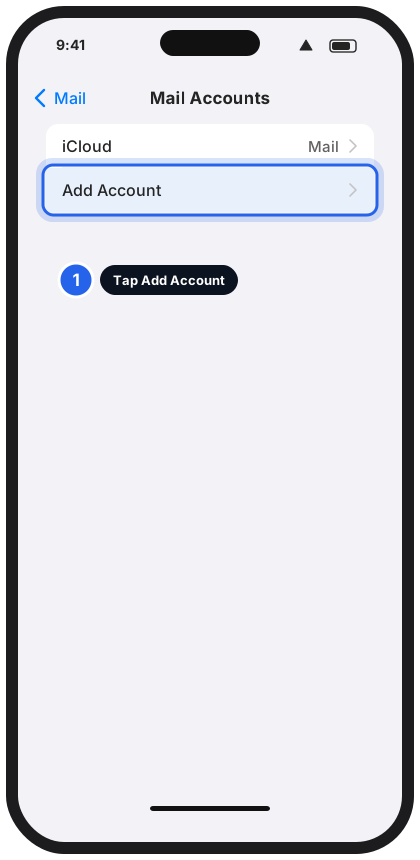
Tap Add Account.Tap to enlarge -
Tap Other
It's the last item. Don't tap Microsoft Exchange or Outlook.com.
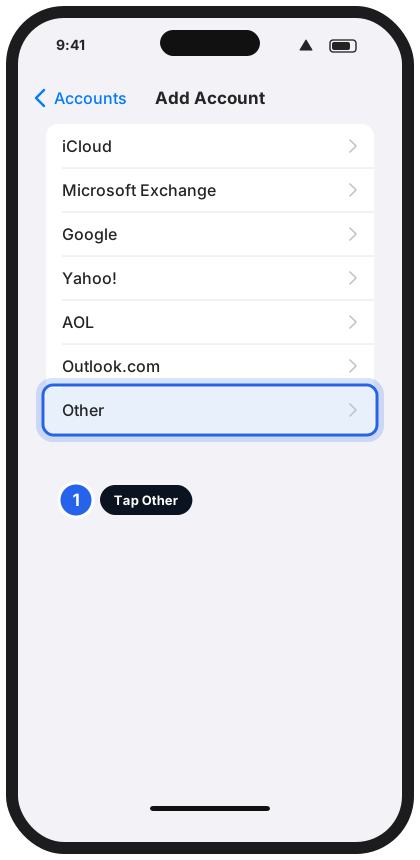
Tap Other.Tap to enlarge -
Tap Add Mail Account
It's at the top, under MAIL.
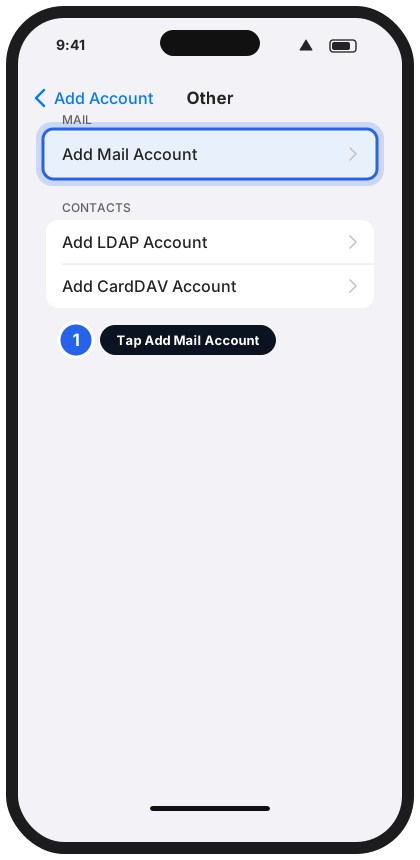
Tap Add Mail Account.Tap to enlarge -
Type your details and tap Next
Name: your name. Email: you@yourcompany.com. Password: your email password. Description: anything, like Work email. Then tap Next in the top-right corner.
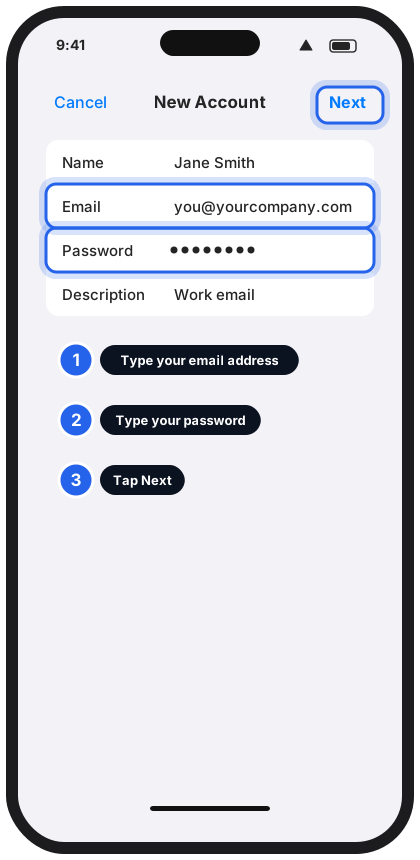
Fill in the form, then tap Next.Tap to enlarge -
If the iPhone asks for server settings, choose IMAP and type them in
If it finds your settings, it skips this step. If it shows the screen below, make sure IMAP is selected (not POP). Copy the incoming and outgoing settings from your settings card above, including your full email address as the user name. Then tap Save.
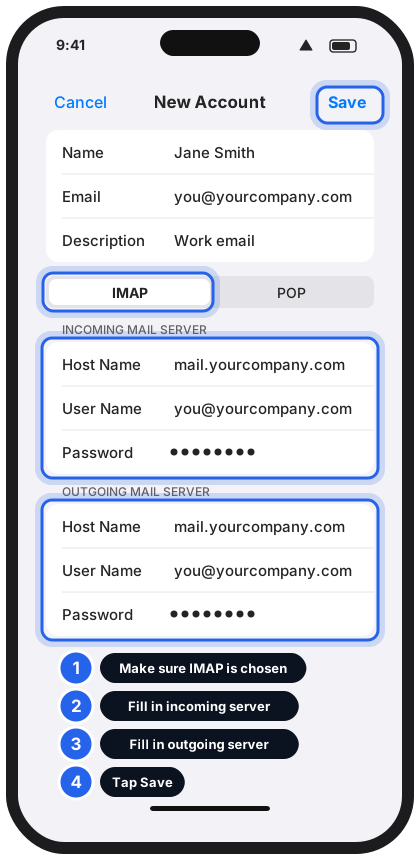
Check IMAP, fill both servers, then tap Save.Tap to enlarge -
Leave Mail switched on and tap Save
Open the Mail app on your home screen. Your inbox should fill in within a minute or two.
On an Android phone
Option A: Microsoft 365 (Outlook app)
-
Install Microsoft Outlook from Google Play
Open Play Store, search for Microsoft Outlook, and tap Install. Choose the one made by Microsoft Corporation. Already installed? Skip to the next step.
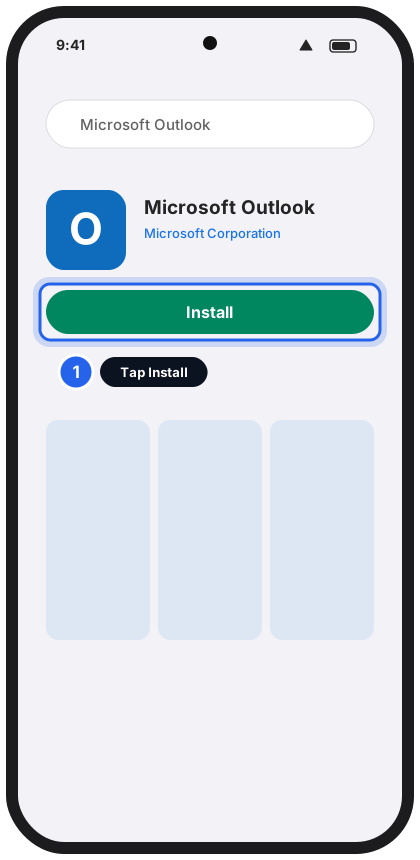
Tap Install.Tap to enlarge -
Open Outlook, type your email, and tap Continue
Type you@yourcompany.com. If Outlook offers to use a Google account on your phone, tap Skip, Not now or Add another account.
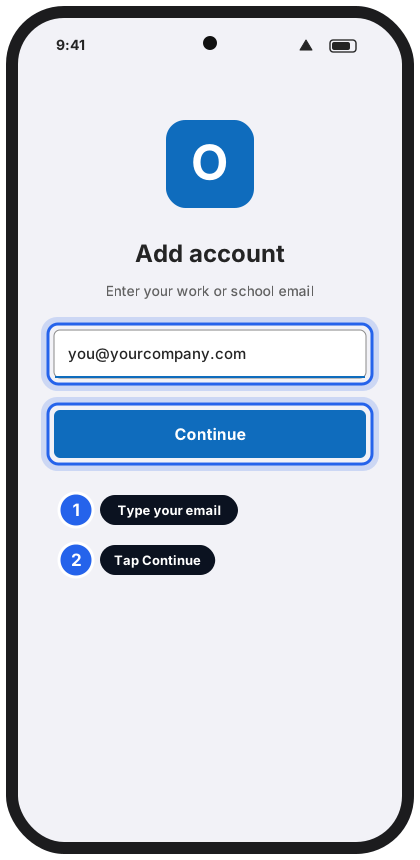
Type your email, then tap Continue.Tap to enlarge -
Type your password and tap Sign in
A Microsoft sign-in page appears in the app. This is normal.
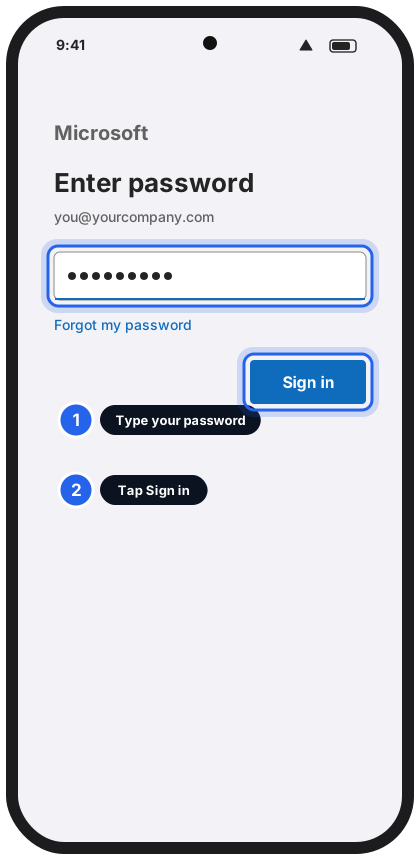
Enter your password, then tap Sign in.Tap to enlarge -
Approve the sign-in if your phone asks
If the screen shows a 2-digit number, open the Microsoft Authenticator app, type that number, and tap Yes. No Authenticator yet? Message us.
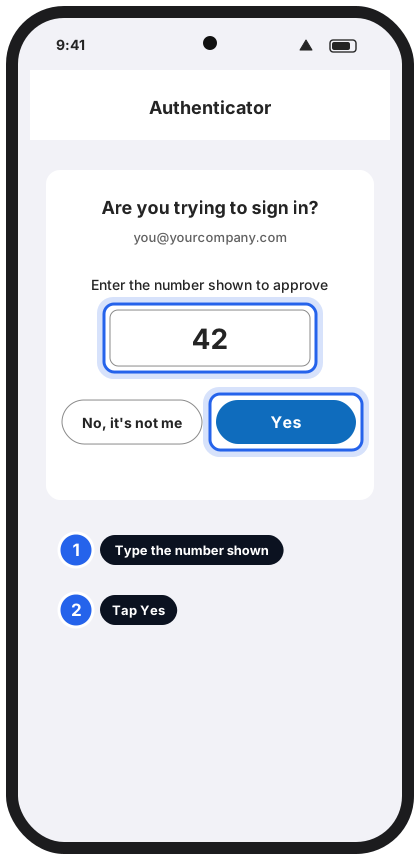
Type the number from the sign-in screen, then tap Yes.Tap to enlarge -
Answer any extra questions: keep it to Outlook only
You may see "Add another account?" (tap Maybe Later) or a request to turn on notifications (tap Allow for alerts).
On your own phone: if you're told your organisation needs to manage your device, or to activate a device administrator, don't just tap through. Choose the option that adds only Outlook if there is one. If Outlook won't continue without it, message us before you agree. -
Your inbox appears. You're finished!
New mail arrives in the Mail tab at the bottom. The first sync can take a few minutes.
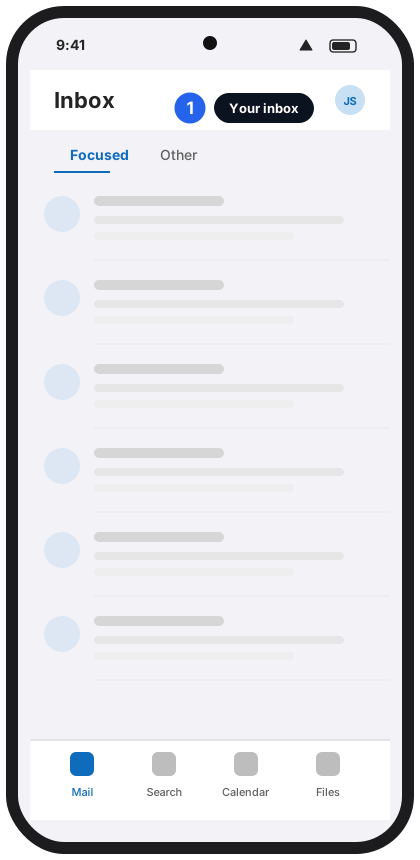
Your inbox is ready.Tap to enlarge
Option B: Skytech-hosted email (Gmail app)
-
Open Gmail and tap your picture in the top-right corner
Then tap Add another account.
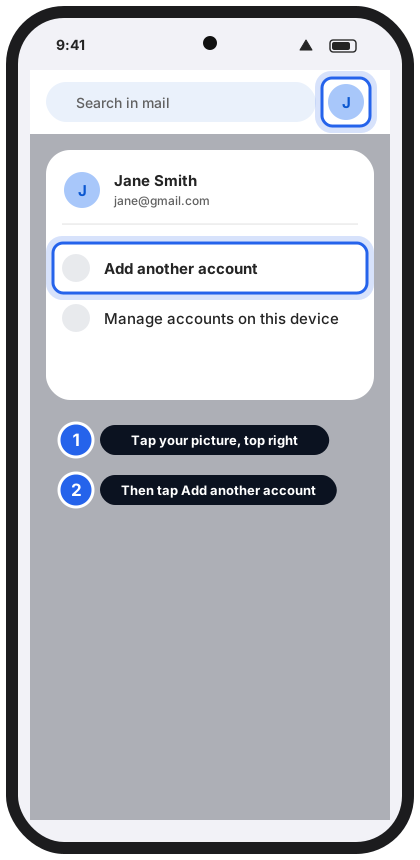
Tap your picture, then Add another account.Tap to enlarge -
Tap Other
It's the last choice. Don't tap Google, Outlook or Exchange.
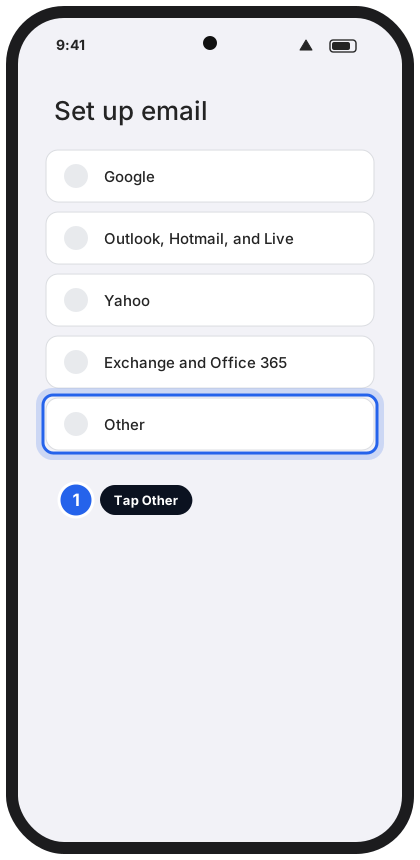
Tap Other.Tap to enlarge -
Type your email address and tap Next
Type you@yourcompany.com.
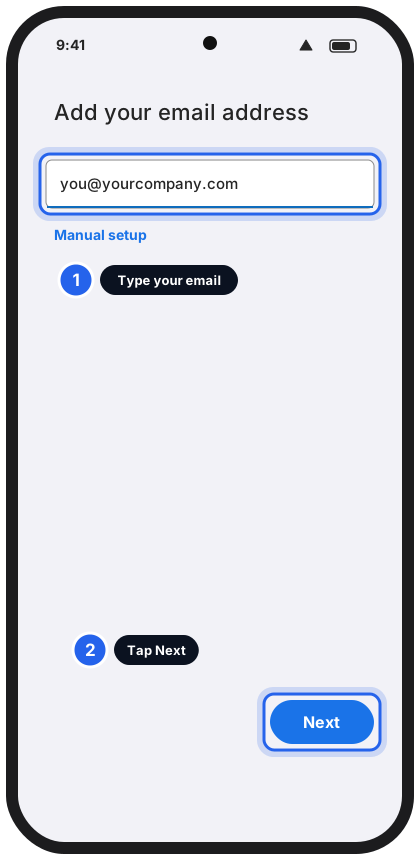
Type your email, then tap Next.Tap to enlarge -
Tap Personal (IMAP)
Not POP3, and not Exchange. On some versions of the Gmail app the choice is worded Other (IMAP) or IMAP. Pick the IMAP one.
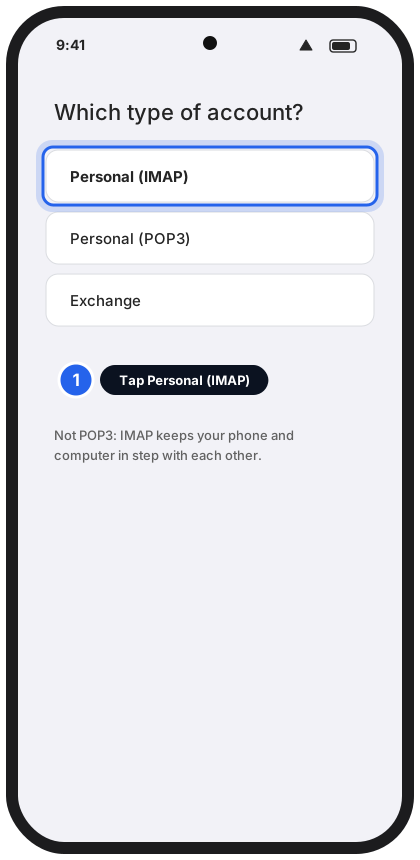
Tap Personal (IMAP).Tap to enlarge -
Type your password, then fill in the incoming settings and tap Next
Type your email password if asked. Then Username = your full email address, Password = your email password, Server = mail.yourcompany.com. If your version also asks for Port and Security type, use 993 and SSL/TLS.
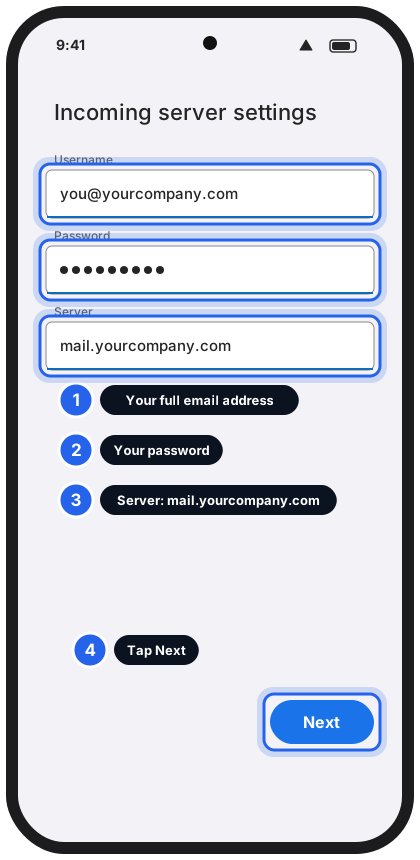
Fill in the incoming settings, then tap Next.Tap to enlarge -
Fill in the outgoing settings and tap Next
Keep Require sign-in ticked. Username = your full email address, Password = your email password, SMTP server = mail.yourcompany.com. If your version asks for Port and Security type, use 587 and STARTTLS. If sending fails later, try 465 and SSL/TLS.
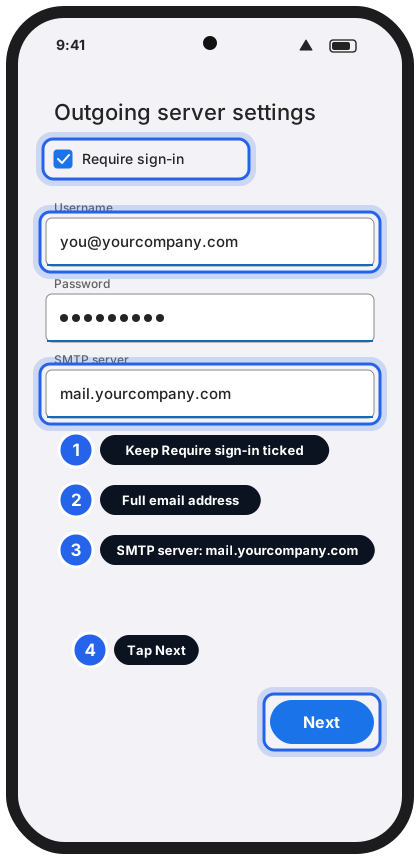
Fill in the outgoing settings, then tap Next.Tap to enlarge -
Choose your options and tap Next, then Done
Leave Sync frequency as it is and tick Notify me when email arrives if you want alerts. If Gmail asks you to name the account, type something like Work email, then tap Done.
Your work email is on your phone
Ask someone to send you a test email, then reply to it from your phone to check that sending works too.
On a Mac
Short version. If you'd like a full picture guide for Mac, message us and tell us which app you use.
Still not working?
It says my password is wrong
Check Caps Lock and type it again slowly. Skytech-hosted email: test it at https://webmail.yourcompany.com. If that fails too, message us. Microsoft 365: sign in at outlook.office.com. If that works, close the app completely and try again. Forgotten it? See Reset your Microsoft 365 password.
I can receive email but can't send
Check the outgoing settings: username must be your full email address, with the same password, port 587 and STARTTLS. Still stuck? Try 465 and SSL/TLS. Some mobile networks block 587.
My phone says "Cannot get mail" or "Cannot verify server identity"
Check that the server name is exactly mail.yourcompany.com, with no spaces and no www. Don't tap Continue on a security warning. Message us.
My phone shows different emails to my computer
One of them was probably set up as POP. Remove that account and add it again as IMAP, using the steps above. Message us if you need help.
The Authenticator approval never arrives
Open the Microsoft Authenticator app yourself and look for the approval there. Make sure your phone has signal and Wi-Fi. If you have a new phone, see Reset your password and set up Authenticator.
How do I remove my work email from a phone?
iPhone built-in Mail: Settings › Apps › Mail › Mail Accounts, tap the account, then Delete Account. Outlook app: tap your picture or the Settings gear, tap the account, then Delete Account. If a phone is lost, message us straight away.