First: is it just you, or everyone?
Ask a colleague near you to try the internet, or a website like google.com, on their computer or phone (on the same Wi-Fi). Then match your situation:
Then: the checklist for just you
-
Make sure Wi-Fi is on and Airplane mode is off
Click the Wi-Fi icon (or the small speaker and battery icons beside it) in the bottom-right corner of your screen, next to the clock. A panel opens.
- The Wi-Fi tile should be blue (on). If it's grey, click it once to turn it on.
- The Airplane mode tile should be grey (off). If it's blue, click it once to turn it off.
Some laptops also have a Wi-Fi key or an airplane key on the keyboard row (it can look like an aeroplane). If that's been pressed by accident, press it again.
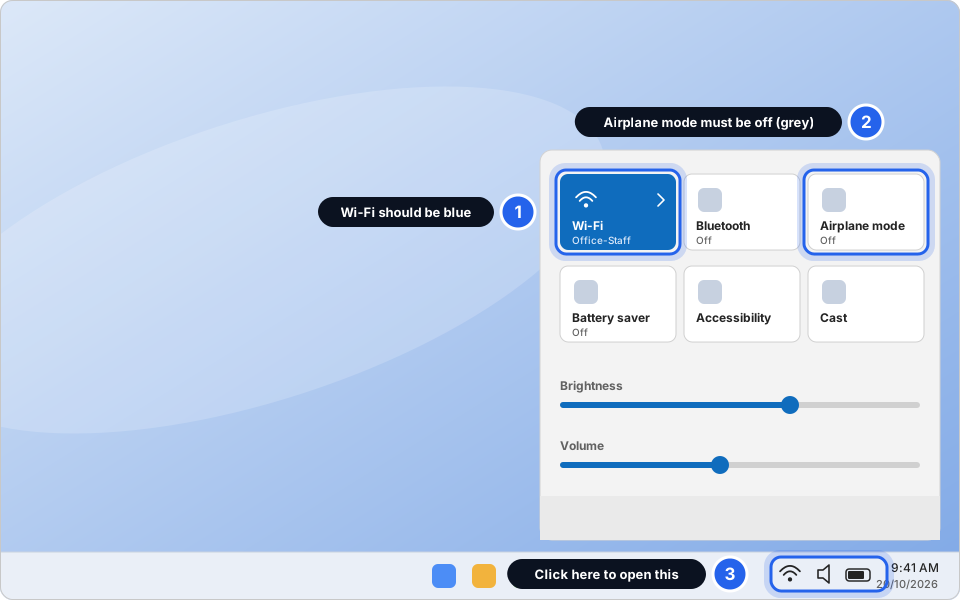
1 Wi-Fi blue · 2 Airplane mode grey · 3 Open the panel hereClick picture to enlarge -
Check you're on the staff Wi-Fi, not guest
In the same panel, click the small arrow > on the Wi-Fi tile to see the list of networks. The one that says Connected is the one you're using. Your office's network names will be different from the ones in the picture.
The staff network is the one for work. If you're on the guest network, click the staff network and click Connect. Printers and office systems only work on the staff Wi-Fi. If you aren't sure which one is which, or it asks for a password you don't have, ask your manager or message us.
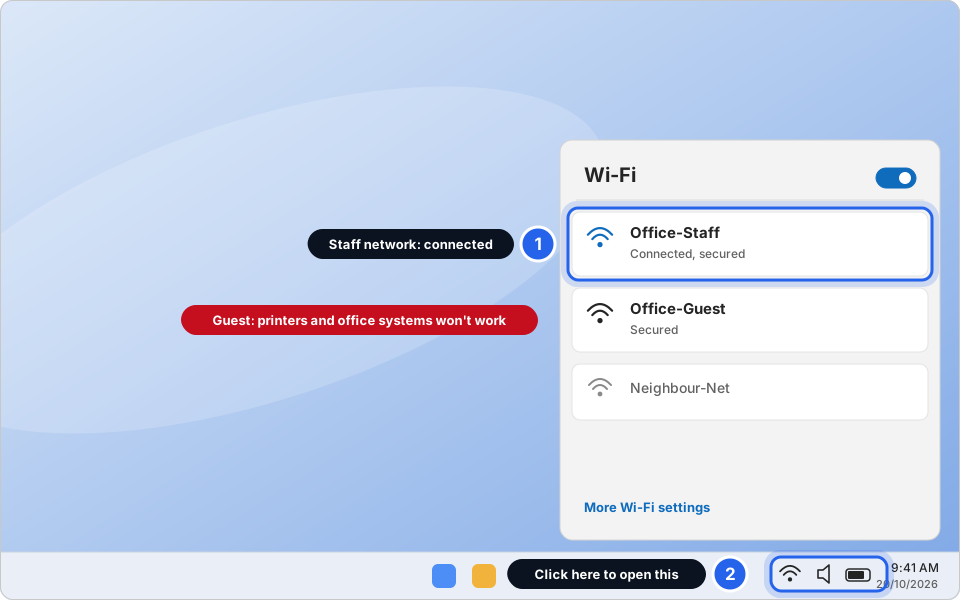
1 Staff network connected · 2 Open the list from hereClick picture to enlarge -
Forget the network, then join it again
If it says Connected but nothing loads, or it says No internet, the saved connection may be confused. Let's start fresh.
Click Start › Settings. Click Network & internet on the left, then Wi-Fi.
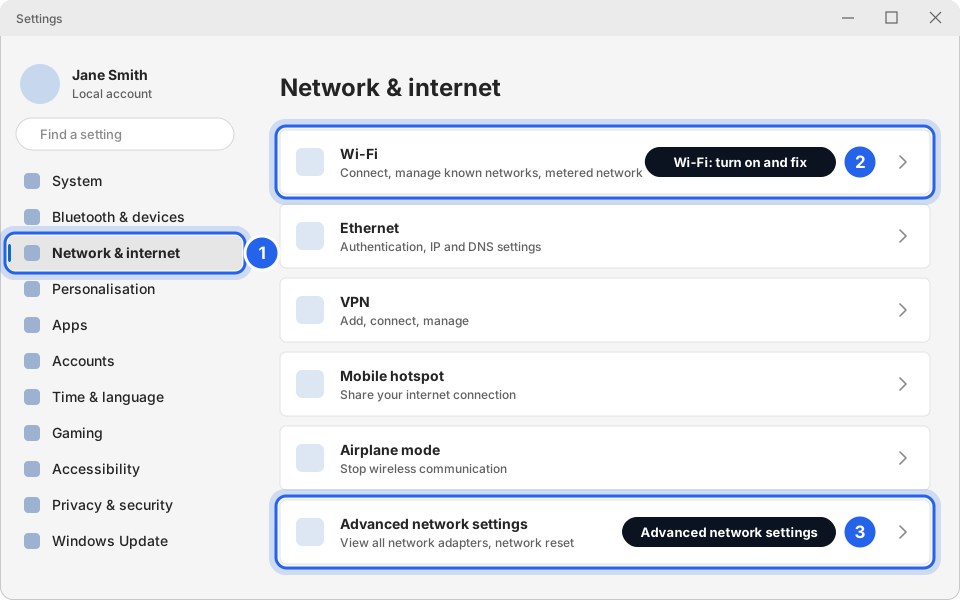
1 Network & internet · 2 Wi-Fi · 3 Advanced network settingsClick picture to enlarge On the Wi-Fi page, check the switch at the top says On, then click Manage known networks.
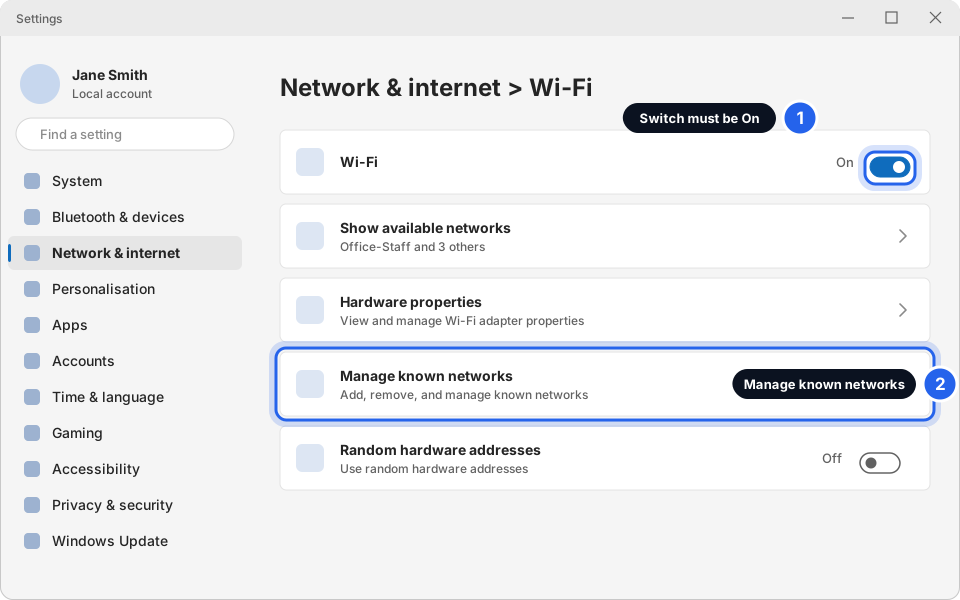
1 Switch On · 2 Manage known networksClick picture to enlarge Click Forget next to your office's staff network. Then click the Wi-Fi icon again, click the staff network, click Connect, and type the Wi-Fi password if it asks. Only forget the network if you know the password or someone can give it to you.
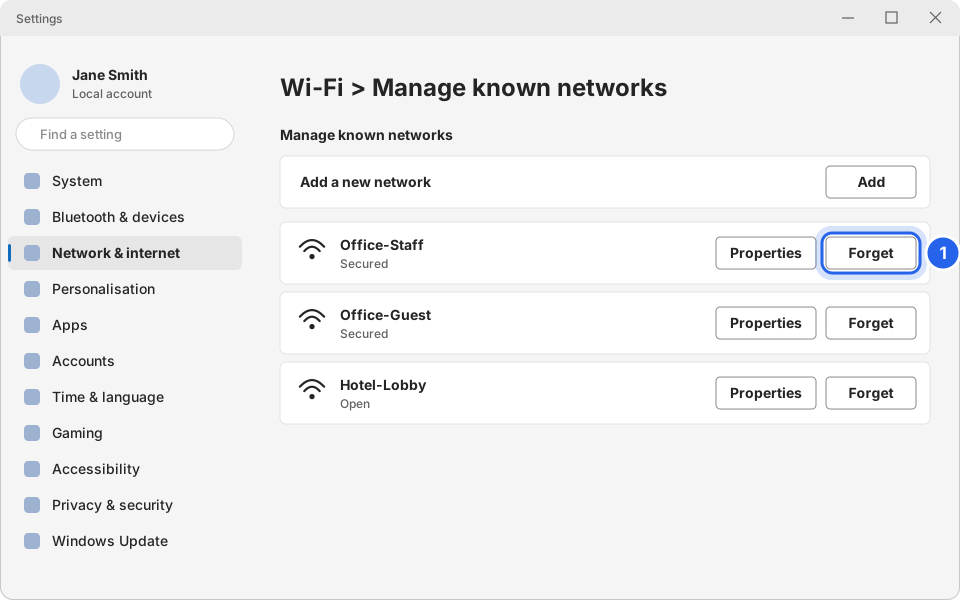
1 Click ForgetClick picture to enlarge No password to hand? Skip this step and message us. We won't ever ask you to send a password by email or text. -
Check the Wi-Fi adapter isn't switched off
No Wi-Fi icon, or the list of networks never appears? The computer's Wi-Fi adapter may be disabled. Go to Settings › Network & internet › Advanced network settings. Under Network adapters, look for Wi-Fi. If it says Disabled, click Enable.
Don't click Network reset on this page unless we ask you to. It deletes all your saved networks.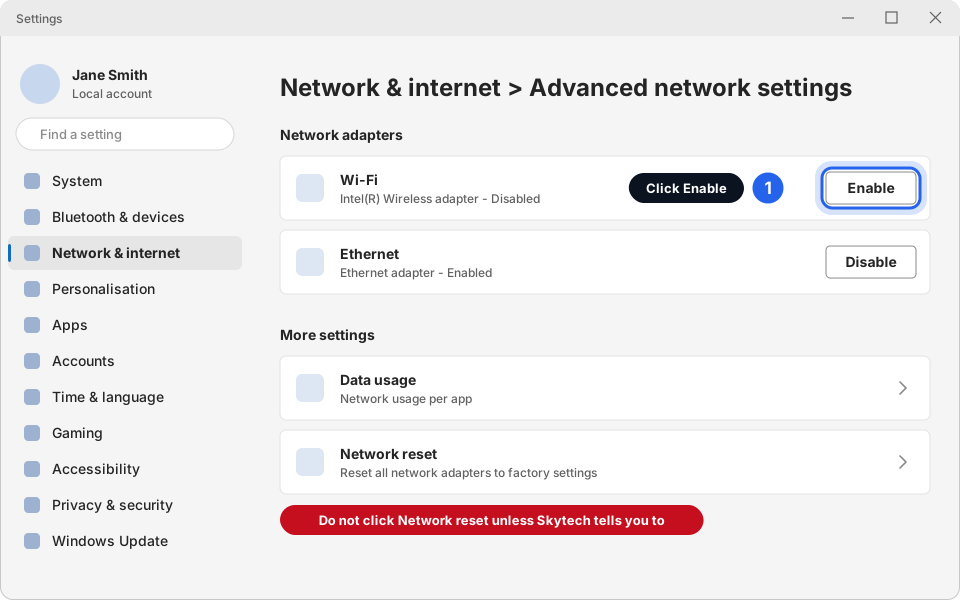
1 Click EnableClick picture to enlarge -
On a wired computer? Check the network cable
Look at the back of the computer (or the side of a laptop). Find the cable going into the network socket.
- Push the plug in firmly until it clicks. Do the same at the other end, at the wall socket or the little desk box.
- Small lights next to the socket should be on or blinking. No lights usually means no connection.
- If the plug is loose, cracked or the cable is kinked, tell us. The cable may need replacing.
Only touch the cable at your own desk. Don't unplug or move cables in the comms room or server cupboard.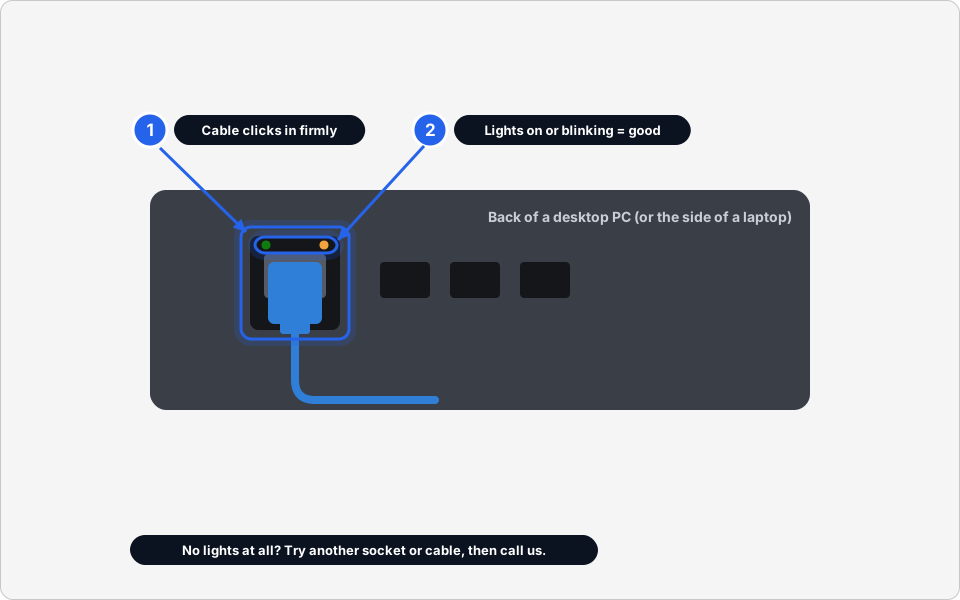
1 Cable clicked in · 2 Lights on or blinkingClick picture to enlarge -
Restart your computer
Save your work. Click Start, then the Power button, then Restart (not Shut down). Wait for it to come back, wait a minute for it to reconnect, then try a website again.
-
Restart the modem or router (only if we or your manager say it's OK)
If everyone is offline, restarting the modem or router can help. But some offices have special equipment, and restarting in the wrong order can make things worse. So only do this if Skytech or your manager says it's OK.
If you've been told to: unplug its power cable (not the network cables), wait 30 seconds, plug the power back in, and then wait 5 minutes for all the lights to settle. Don't press any reset buttons with a pin.
Never unplug or move cables in the comms room or server cupboard. One wrong plug can take down the whole building's internet, phones and tills.
Back online?
Try a website you haven't visited today (an old page may just be saved in your browser). If it works, you're done. If not, message us with what you tried.
Good to know
Still not working?
It says "Connected, no internet"
Your computer is connected to the Wi-Fi, but the Wi-Fi isn't reaching the internet. Ask a colleague if they have the problem too. If everyone does, message us. If it's just you, forget the network and rejoin (step 3) and restart your computer (step 6).
Wi-Fi works on my phone but not on my computer
That points to your computer, not the internet. Work through steps 1 to 4, and restart the computer. If the staff Wi-Fi works on your phone but the computer still won't join, message us.
A website won't load but others do
That website may be down, or blocked. Try it on your phone using mobile data. If it also fails, the website itself has a problem. If it works on your phone's mobile data but not in the office, message us the web address.
The internet works but my email or an office program won't
That's a different problem. For email, see Email not working? Fix it in 5 minutes. For printers, see Printing and scanning basics.
Someone unplugged a cable in the comms room
Don't plug things back in yourself. Message us. Tell us exactly what you saw (a photo of the cables, as they are, helps). The plugs often go back to specific sockets and the wrong order can make things worse.