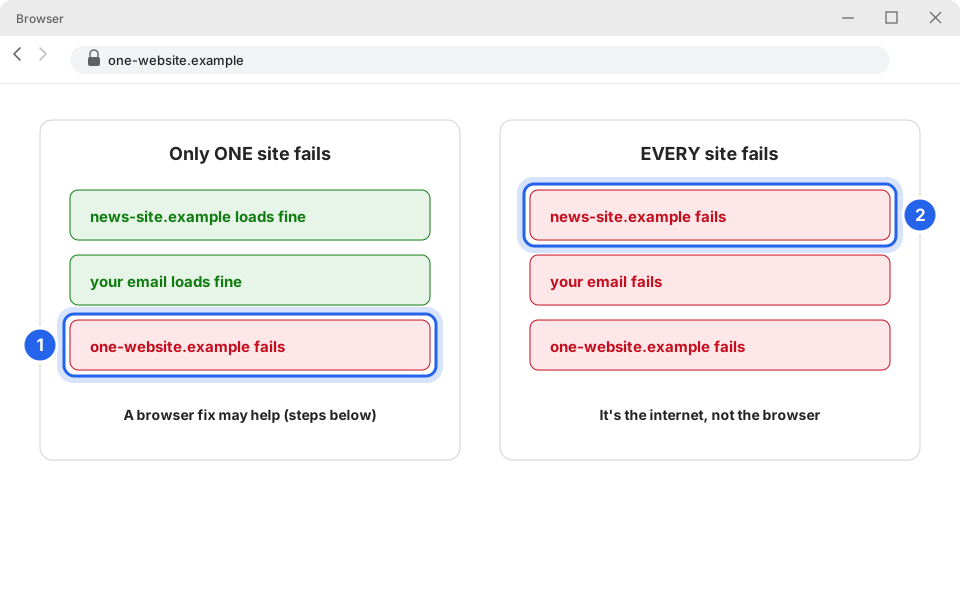
Is it one site, or every site?
Open a different website, such as a news site. That tells you where the problem is.
Fixes, in order
Try each step, then check the page again before going on.
-
Refresh the page
Press F5 on your keyboard, or click the circle arrow beside the address bar. Still wrong? Do a hard refresh: hold Ctrl and press F5. That loads a fresh copy instead of an old saved one.
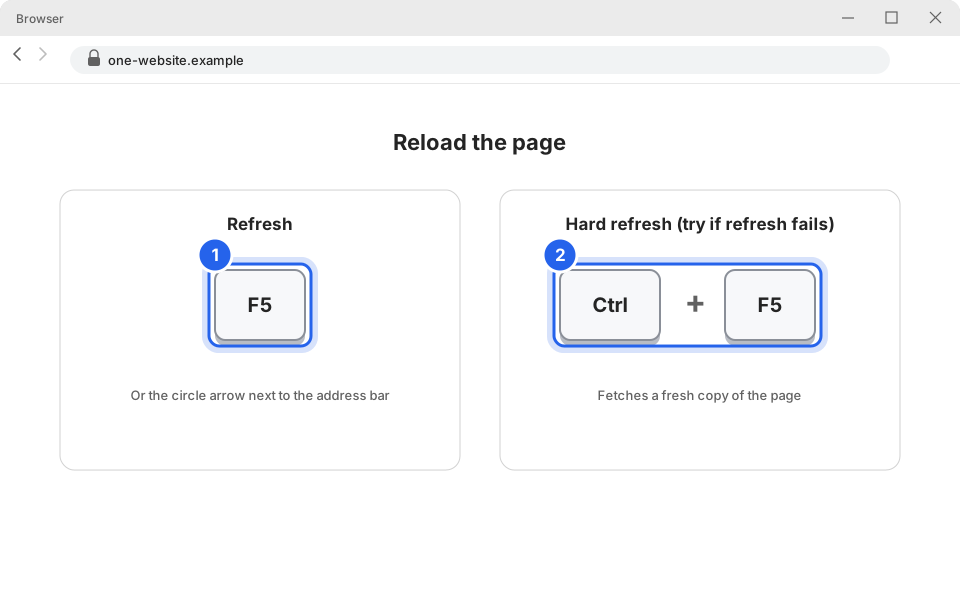
1 Refresh · 2 Hard refreshClick picture to enlarge -
Try a private window
Press Ctrl + Shift + N. In Edge this opens an InPrivate window and in Chrome an Incognito window. Type the website address there. A private window starts clean, with no saved cookies and no extensions (Edge and Chrome turn extensions off there unless you allowed them).
If the site works there, the problem is saved data or an extension in your normal window. Do steps 3 and 4. If it fails there too, skip to step 5.
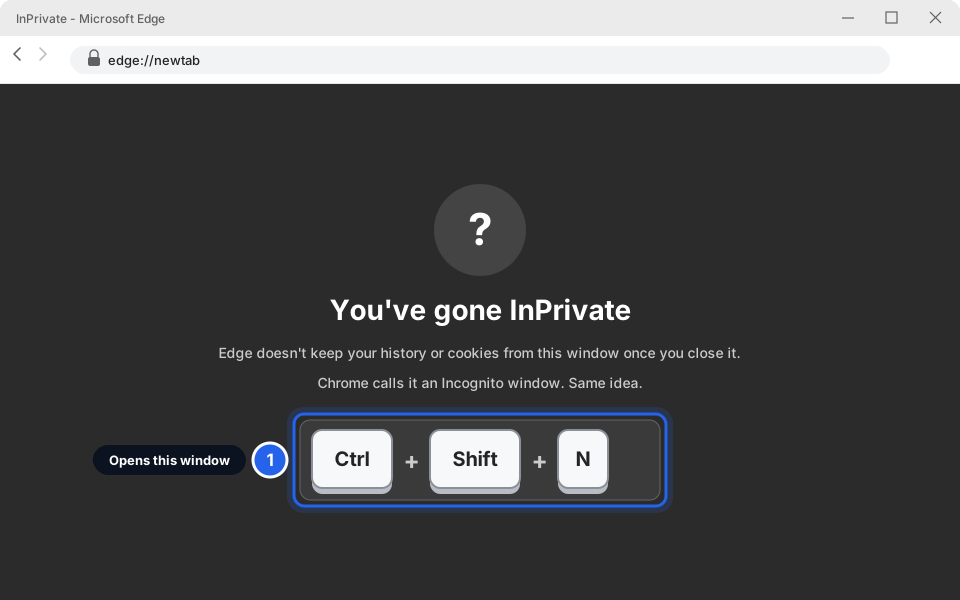
1 Ctrl + Shift + NClick picture to enlarge -
Clear cookies and cache
Press Ctrl + Shift + Delete to open the delete window. If that doesn't open it, use the menu steps for your browser.
In Microsoft Edge
-
Open Settings
Click the three dots at the top right, then Settings. Click Privacy, search, and services on the left. Find Clear browsing data (some versions say Delete browsing data) and click Choose what to clear.
-
Choose what to delete
Set Time range to All time. Tick Cookies and other site data and Cached images and files. Leave Passwords unticked. Click Clear now.
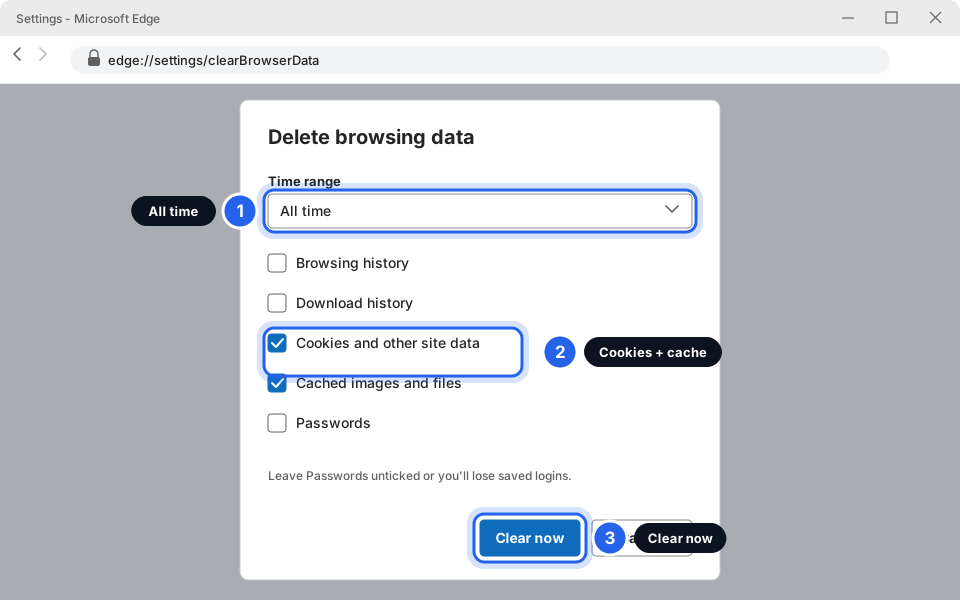
1 All time · 2 Cookies + cache · 3 Clear nowClick picture to enlarge
In Google Chrome
-
Open Settings
Click the three dots at the top right, then Settings. Click Privacy and security on the left, then Delete browsing data.
-
Choose what to delete
On the Basic tab, set Time range to All time. Tick Cookies and other site data and Cached images and files. Click Delete data.
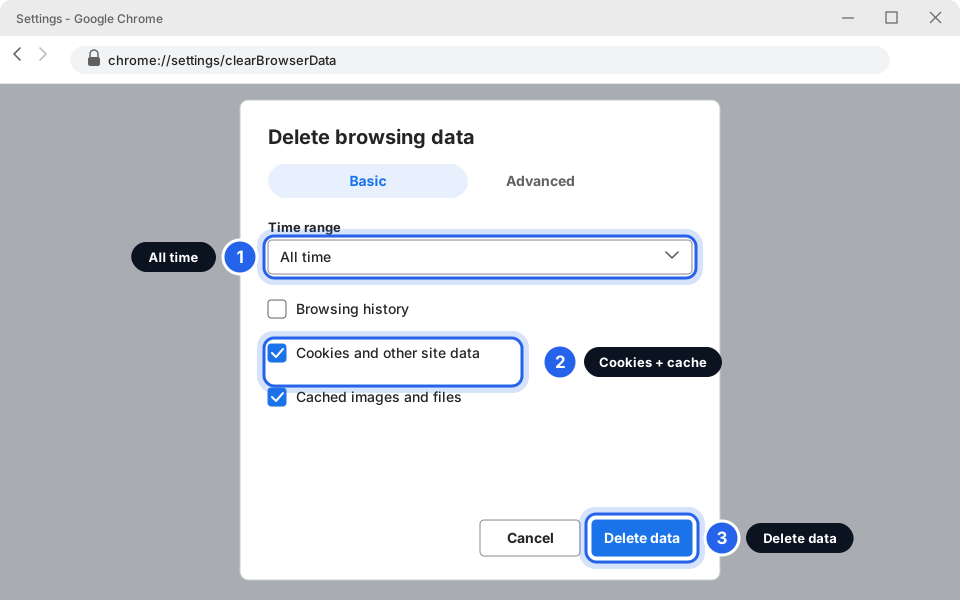
1 All time · 2 Cookies + cache · 3 Delete dataClick picture to enlarge
What you'll lose: you will be signed out of websites and some site settings reset. Your bookmarks and (if you left it unticked) saved passwords stay. Make sure you know your passwords first (see Strong passwords). Want to keep it light? Use Last 24 hours instead of All time. -
-
Turn off extensions
Extensions are little add-ons (coupon finders, PDF tools). Some break websites. In the address bar type edge://extensions (Edge) or chrome://extensions (Chrome) and press Enter. Switch each extension off, then reload the page. If it works, switch them back on one at a time to find the culprit, and message us about it.
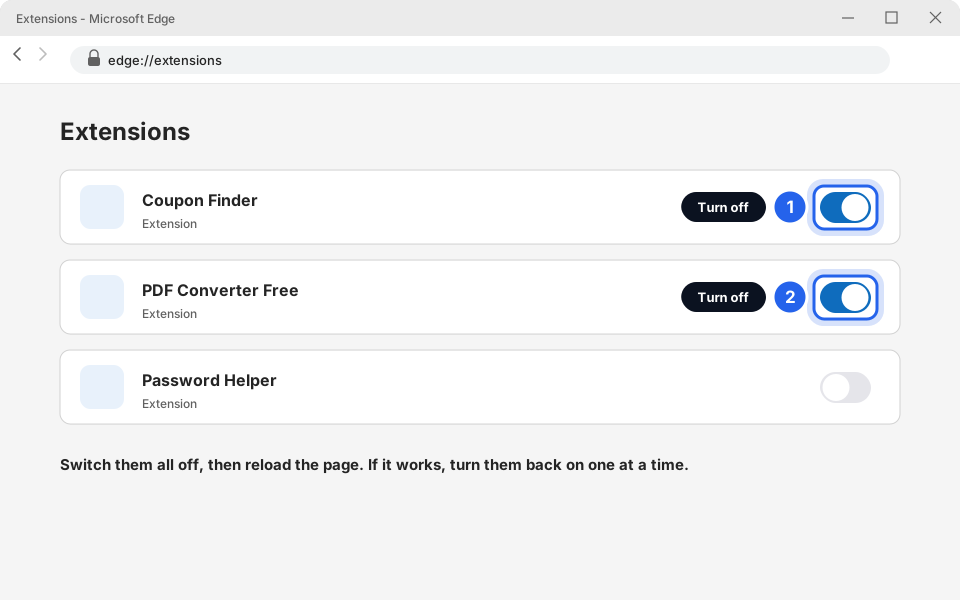
1 Switch off · 2 Switch offClick picture to enlarge -
Update your browser
An old browser can fail on new websites. Type edge://settings/help (Edge) or chrome://settings/help (Chrome) into the address bar and press Enter. It checks for updates by itself. If it asks you to Restart, save your work first.
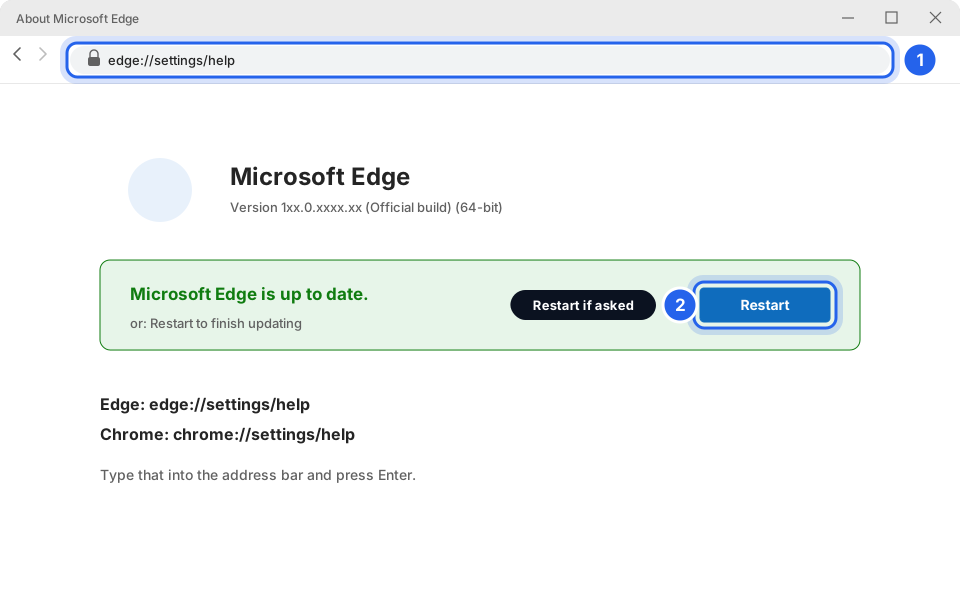
1 Address to type · 2 Restart if askedClick picture to enlarge -
Restart the computer, then try once more
Click Start, then Power, then Restart. If the site still fails, message us with the website address and a screenshot (see Take a screenshot).
A pop-up says "Your computer is infected, call this number"
-
Close the browser
Press Alt + F4 to close the window. If it won't close, press Ctrl + Shift + Esc to open Task Manager, click your browser (Microsoft Edge or Google Chrome) in the list, then click End task.
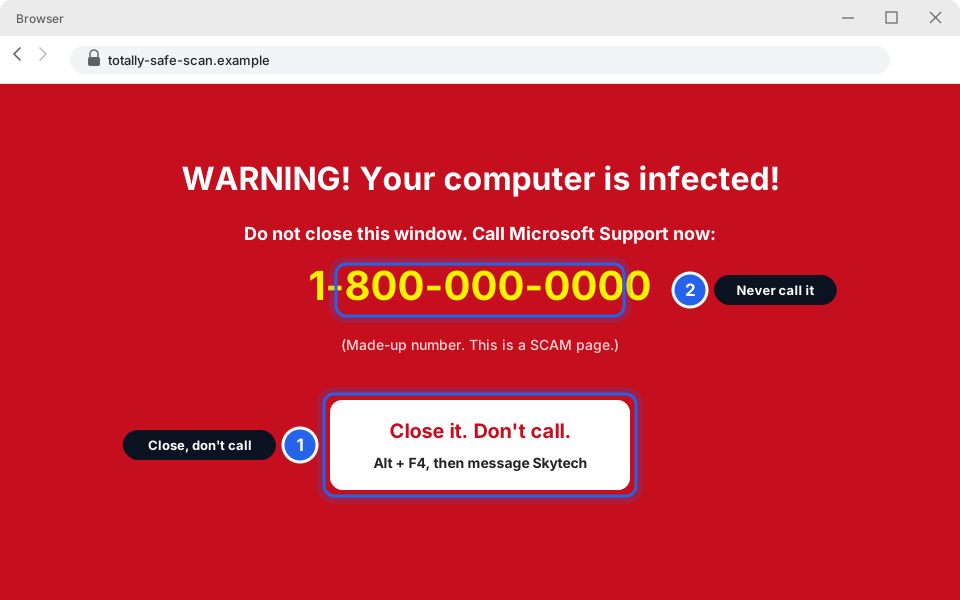
1 Close it · 2 Don't callClick picture to enlarge -
Message Skytech
Tell us what you saw. Do not reopen the same page. If the browser asks Restore pages? when you open it again, ignore it or close it with the X; do not click Restore. If you already called, or typed in a password or card number, tell us right away.
"Your connection isn't private"
This full-page warning means the browser could not prove the website is who it says it is. Sometimes the computer's clock is wrong. Sometimes someone is interfering with the connection, which is more likely on public Wi-Fi.
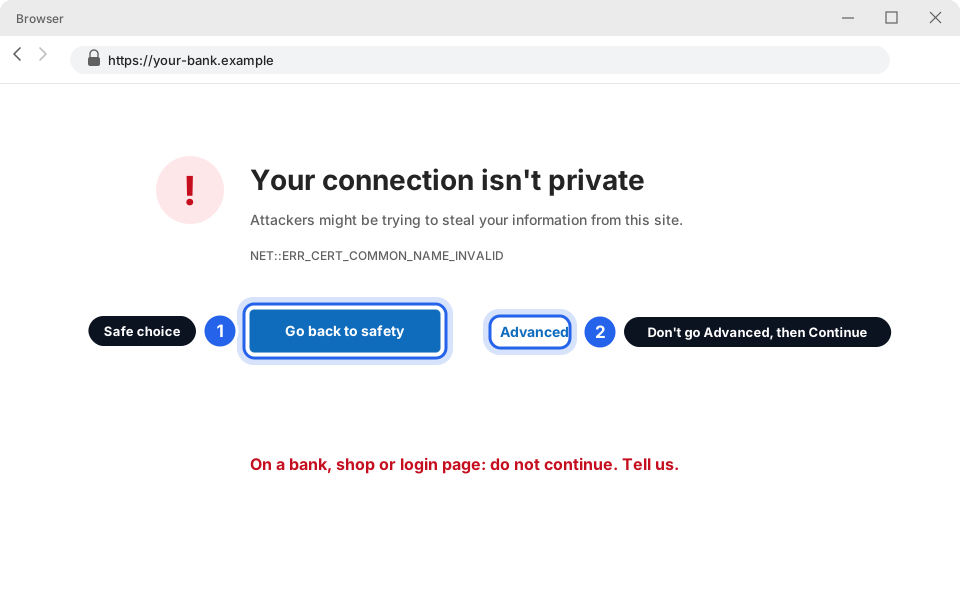
- On a bank, shop or any sign-in page
- Click Go back to safety. Do not click Advanced and continue. Tell us.
- Every site shows it
- Check the date and time in the bottom-right corner are right. If they are wrong, tell us.
- On hotel or airport Wi-Fi
- Don't continue. Switch to your phone's hotspot (see 5 safety habits).
Back in business
If the page now loads, you're done. If not, message us with the website address and what you see.
Still not working?
It works on my phone but not on my computer.
That points to your computer's browser. Repeat the fixes above, especially a private window and extensions. If that doesn't help, message us.
It works in Edge but not Chrome (or the other way round).
Use the one that works for now, and tell us. The other browser likely has an extension or old saved data causing it.
The page loads but looks broken or is missing buttons.
Do a hard refresh (Ctrl + F5), then clear the cache (step 3).
A site says I must turn off my ad blocker.
Some sites do. For work websites you trust, you can pause the blocker for that site. For anything else, close the page. If unsure, ask us first.
I called the number on a scary pop-up.
Stop talking to them and message us right away. Don't give any information or let them connect to your computer. If you did, tell us immediately.