Why your password matters
Your password protects your email, your files and (often) your customers' details. Criminals do not usually "guess" passwords one by one. They get lists of passwords stolen from other websites in data breaches, then try those same passwords on email, banks and shops.
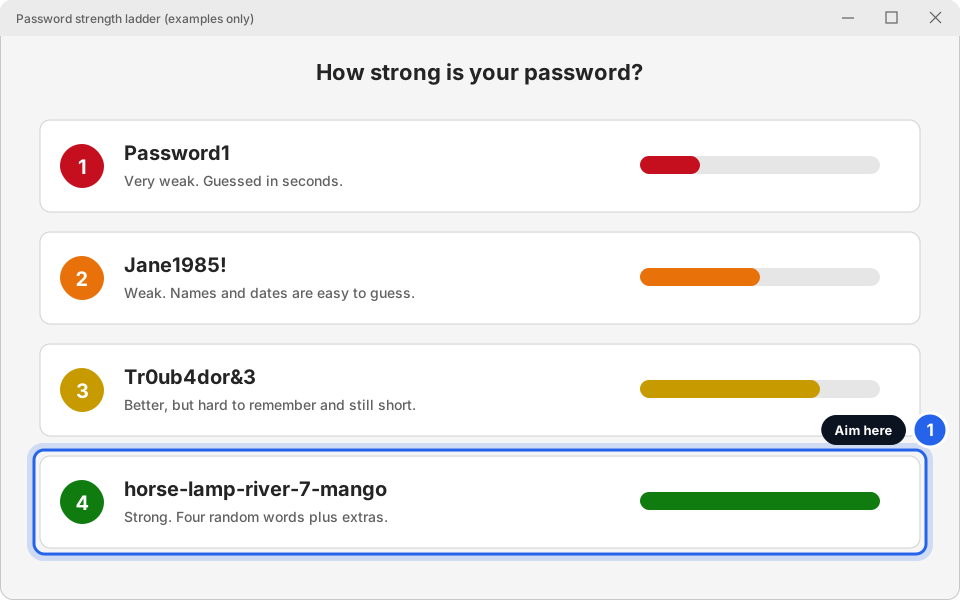
That is why a long password you use only once beats a short clever one you use everywhere. Here is the ladder from weak to strong.
Make a passphrase (the easy way)
A passphrase is a few random words joined together. It is long, so it is hard to crack, but easy to remember.
-
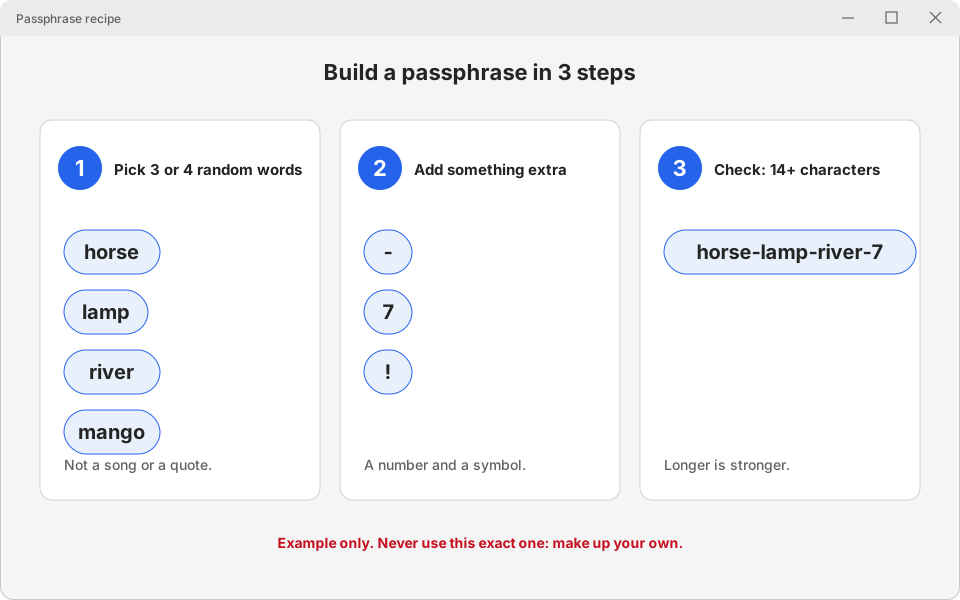
Pick 3 or 4 random words
Choose words that have nothing to do with each other and nothing to do with you. Look around the room, or open a book at any page and point. Not a song title, a quote, your pet's name, your child's name or your birthday.
Good (made-up examples): horse-lamp-river-mango. Bad: Jane1985!, Password1, Hotel2026. Please never use the examples on this page. Make your own. -
Add something extra
Put a number and a symbol in, for example between the words or at the end: horse-lamp-river-7-mango!
-
Check it is at least 14 characters long
Count the letters, numbers and dashes. 14 or more is a good target. Longer is always stronger.
1 Words · 2 Extra · 3 LengthClick picture to enlarge
Four rules that stop most break-ins
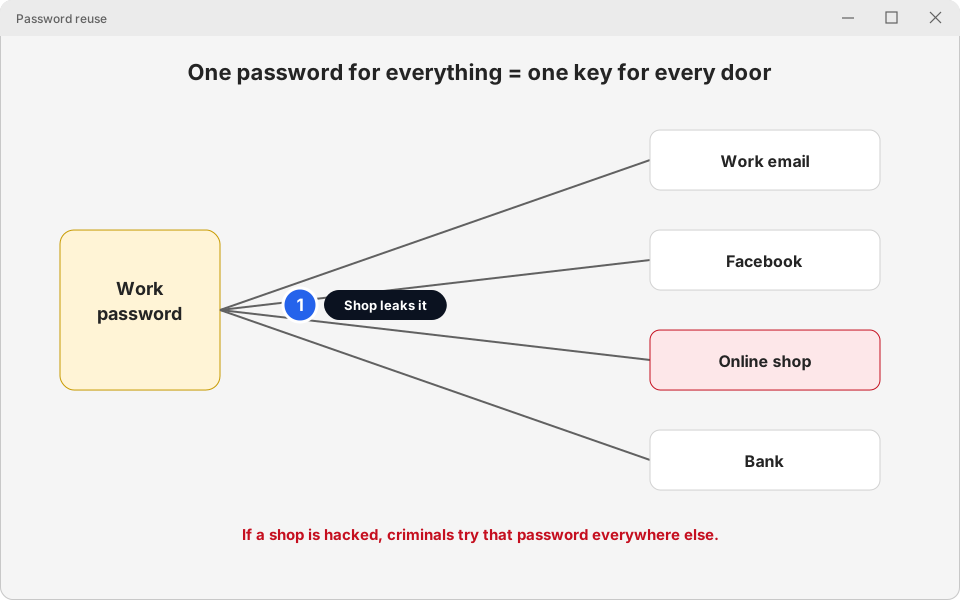
- Never reuse your work password
- Your work password is only for work. If a shop or social media site is hacked, criminals try that password on work email next.
- One password per account
- That sounds like a lot to remember, which is exactly what a password manager (below) is for.
- Don't write it on a sticky note
- Not on the screen, not under the keyboard. Anyone walking past the front desk can read it.
- Don't share it by WhatsApp or email
- Messages sit on phones and servers for years. Skytech will never ask you for your password by email or text, so if someone does, it is not us.
Has my password been in a breach?
A website called haveibeenpwned.com lets you type in your email address and tells you if it appeared in a known data breach. It is a free, widely used service run by a security researcher. Never type your password into it, only your email address.
If your email appears there, it does not mean you were hacked today. It means a password you used on that site could be out there. Change it there, and anywhere else you reused it.
Password managers: let the computer remember
A password manager is a locked safe on your computer or phone. It makes long random passwords for you, remembers them, and fills them in when you sign in. You only remember one strong passphrase (the key to the safe).
- Built into your browser
- Microsoft Edge and Google Chrome can save and fill passwords for you when you sign in with a Microsoft or Google account. Nothing to install.
- Built into your iPhone
- The Passwords app on iPhone (iOS 18 and newer) keeps your saved passwords. It fills them in for Safari and your apps.
- Dedicated apps
- Programs such as Bitwarden and 1Password work on every computer and phone. Many people use one of these. We are naming them as examples, not as a recommendation.
-
Check that your browser offers to save passwords
In Edge, type edge://wallet/passwords in the address bar and press Enter (or click the three dots, Settings, Profiles, Passwords). Make sure Offer to save passwords and passkeys is switched on (older versions say Offer to save passwords). Your saved logins are listed underneath. In Chrome, the same page is chrome://password-manager/settings.
Use a work account on work computers. If your browser syncs passwords to a personal Microsoft or Google account, your work logins end up in your personal account. If you're not sure how your browser is signed in, ask us before saving work passwords.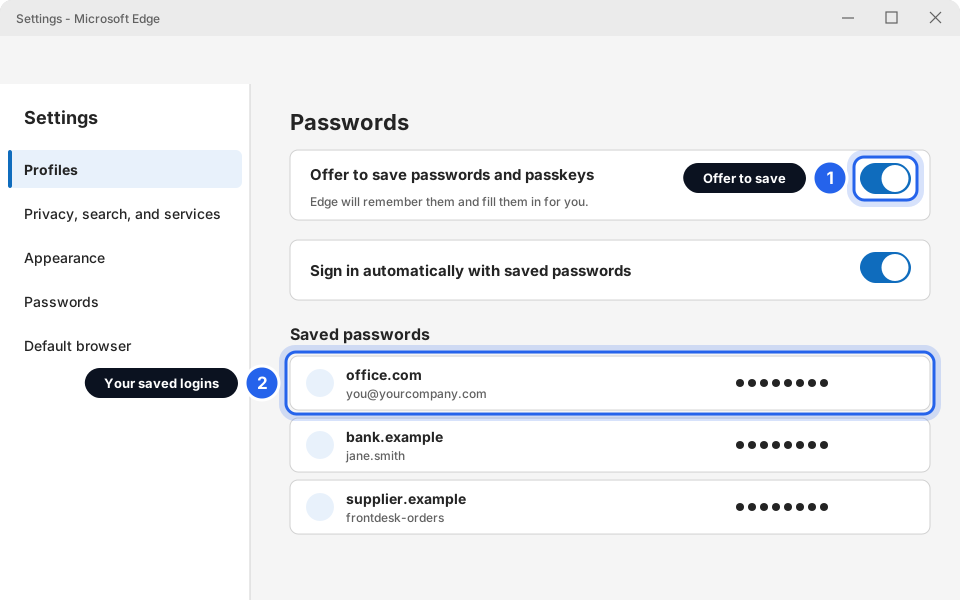
1 Offer to save passwords and passkeys · 2 Saved loginsClick picture to enlarge -
Protect the safe with one strong passphrase
Whichever manager you use, the key to it is the passphrase you made above (and your computer's own sign-in). Don't reuse it anywhere else.
Shared logins (front desk, till, shared mailbox)
It is common for several people to use one login. That is risky: nobody knows who did what, and when someone leaves, you cannot easily lock them out.
Don't share passwords by WhatsApp or on a note. Do ask us for a safer way. Often each person can have their own login to a shared mailbox or system. See Using a shared mailbox.
Turn on two-step verification
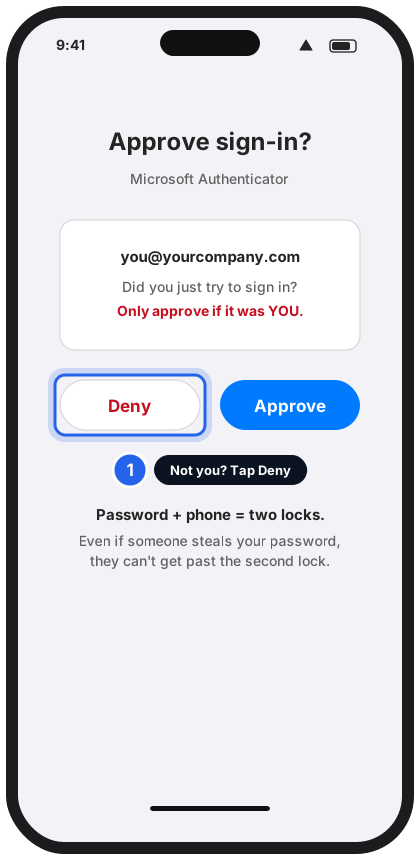
Even a great password can be stolen. Two-step verification adds a second lock: after your password, you approve the sign-in on your phone. A thief with only your password cannot get in.
For Microsoft 365 work accounts, set it up with the Authenticator app: Reset your Microsoft 365 password & set up Authenticator. Turn it on for your personal email and banking too, if they offer it.
Only tap Approve when you just tried to sign in. If a prompt appears and you did nothing, tap Deny and message us.
Strong and sorted
A long passphrase, used once, kept in a password manager, with two-step verification on. That beats almost every attack.
Still not sure?
Do I have to change my password every month?
Not usually. A strong password that has not been in a breach does not need frequent changes. Do change it straight away if you think someone knows it, if you typed it on a page you now doubt, or if your company asks you to.
I clicked a link and typed my password. What now?
Change your password straight away from the real sign-in page (type the address yourself), then message us. Don't wait. See How to spot a scam email.
Is it safe to let the browser save my passwords?
For most people it is much safer than reusing one password everywhere. Lock your screen when you walk away (see 5 habits), because anyone at an unlocked computer can see what is saved.
I forgot my Microsoft 365 password.
Try aka.ms/sspr. If that page says you can't reset, message us. Skytech will never ask for your password by email or text.
My team shares one login. Can you help?
Yes, message us. We can often give each person their own sign-in instead.