What is a shared mailbox?
It's a mailbox that belongs to a team, not one person, for example info@yourcompany.com, sales@yourcompany.com or reservations@yourcompany.com. Several people can read the same inbox and reply from the same address, so nothing gets missed when someone is away.
Step 1: Ask us for access
We have to switch it on for you. Two quick things make it fast: the exact address, and whether you also need to send from it or only read it. Click Copy, paste it into WhatsApp or email, and fill in the blanks.
Step 2: Open the shared mailbox
Wait for us to say it's done. Then close Outlook completely and open it again. Pick your version below. Not sure which you have? Classic Outlook has a File tab in the top-left corner. New Outlook doesn't.
In Classic Outlook
-
Close Outlook, wait a minute, then open it again
Click the X in the top-right corner of the Outlook window. Open Outlook again from the Start menu.
-
Look in the folder list on the left
Scroll down below your own name. Classic Outlook usually adds the shared mailbox by itself. You'll see info@yourcompany.com as a second name.
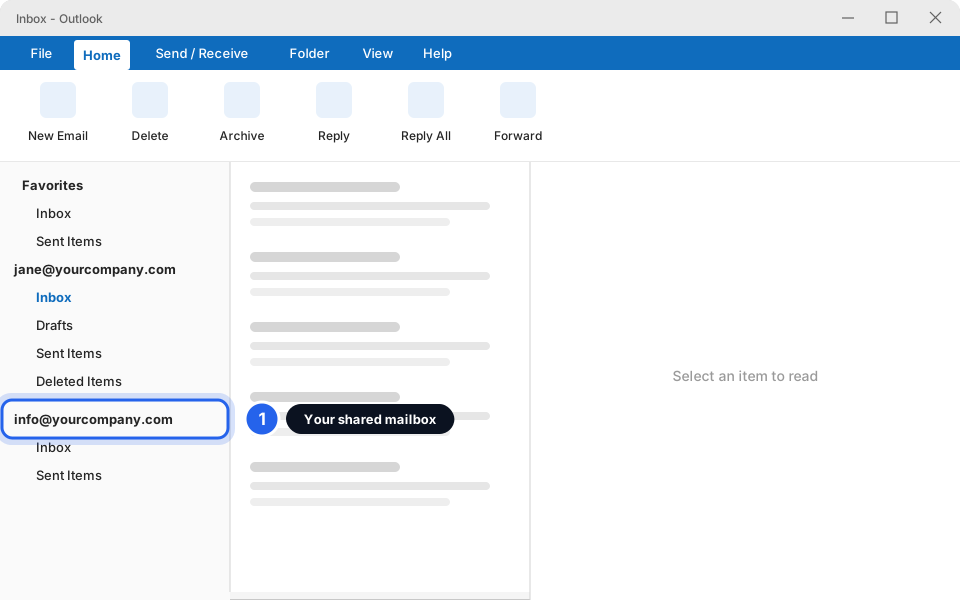
Your shared mailbox sits below your own.Click picture to enlarge -
Click the little arrow, then click Inbox
The arrow is next to the shared name. It opens the folders. Click Inbox to read the team's email.
-
Not there yet? Wait, then restart once more
It can take up to an hour after we add you. Close and reopen Outlook every so often. If it's still missing after an hour, see the questions at the bottom.
In New Outlook
-
Close and reopen New Outlook
Click the X in the top-right corner, then open Outlook again. The shared mailbox may already be in the folder list (often under Shared with me). If so, click the little arrow next to it and click Inbox. You're done.
-
If it isn't there, right-click your name
In the folder list on the left, right-click your name or email address. Click Add shared folder or mailbox. The menu may be worded a little differently in your version.
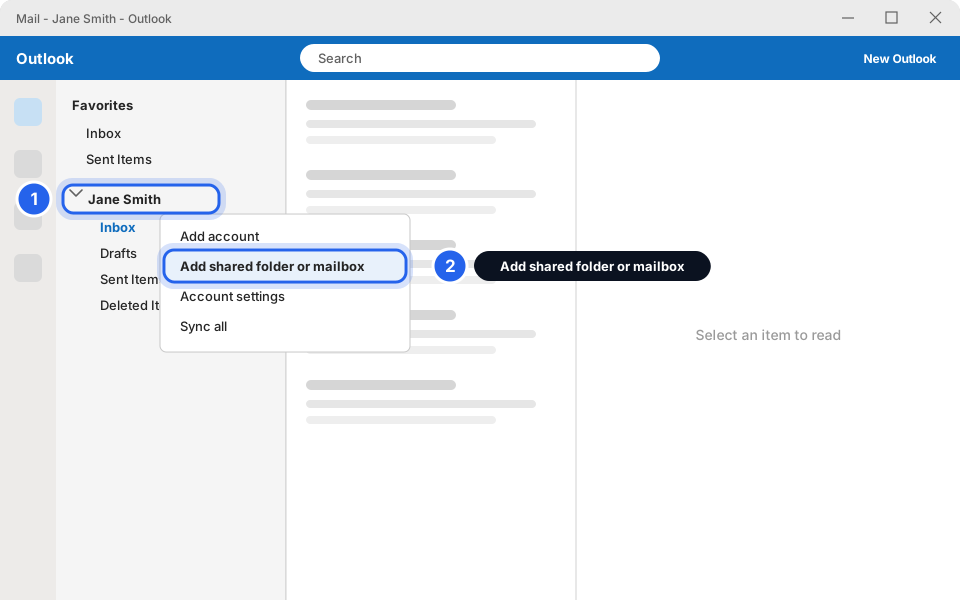
Right-click your name, then click the option.Click picture to enlarge -
Type the shared address and click Add
Type info@yourcompany.com exactly. Use the address, not a person's name.
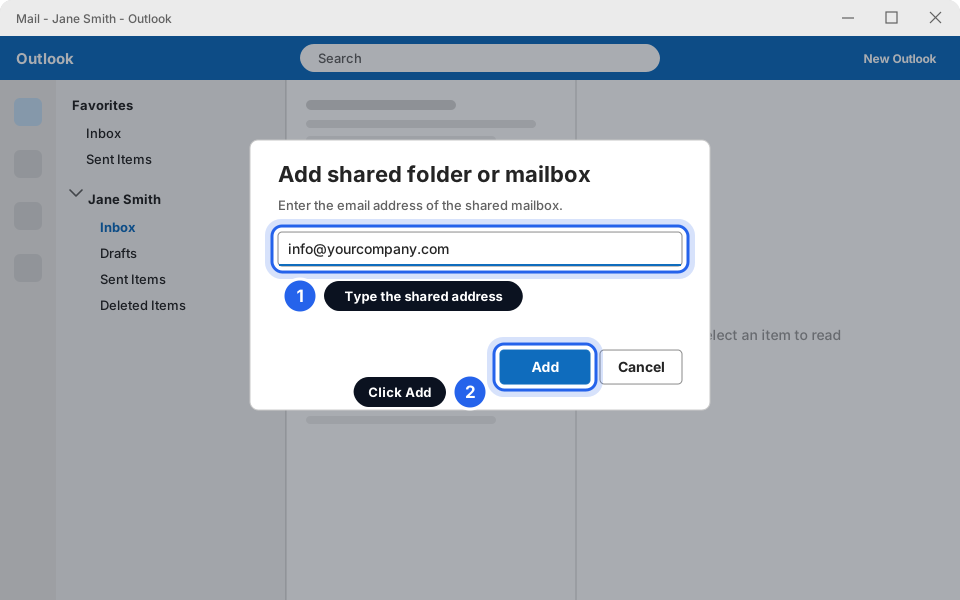
Type the address, then click Add.Click picture to enlarge -
Find it in the folder list
It appears below your own mailbox. Click the little arrow, then Inbox.
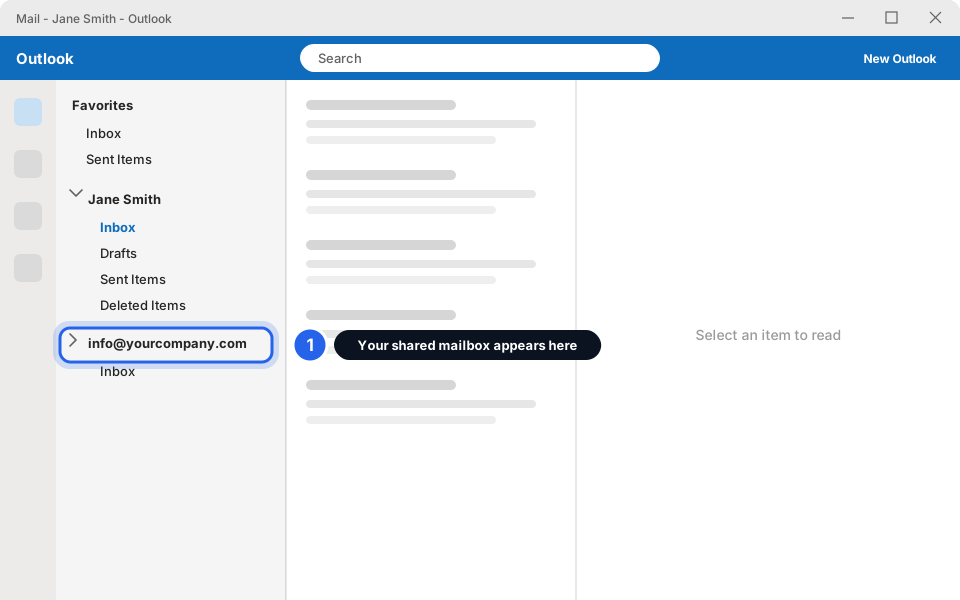
Your shared mailbox appears here.Click picture to enlarge
In Outlook on the web
-
Go to outlook.office.com and sign in
Use your own work email and password, the same as always.
-
Click your picture (or initials) in the top-right corner
A small menu drops down.
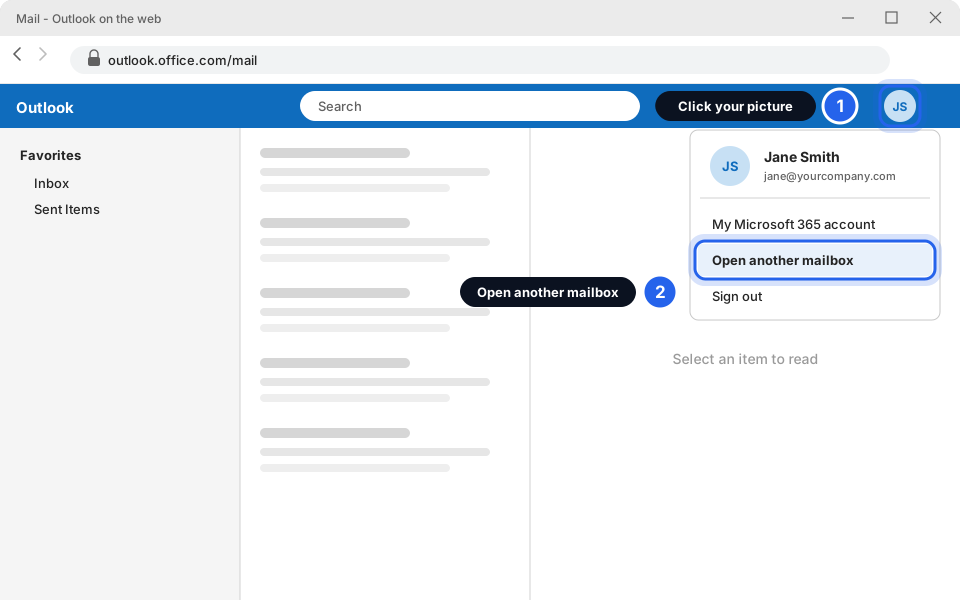
Click your picture, then Open another mailbox.Click picture to enlarge -
Click Open another mailbox, type the address, click Open
Type info@yourcompany.com. The shared mailbox opens in a new browser tab. Keep that tab open while you work.
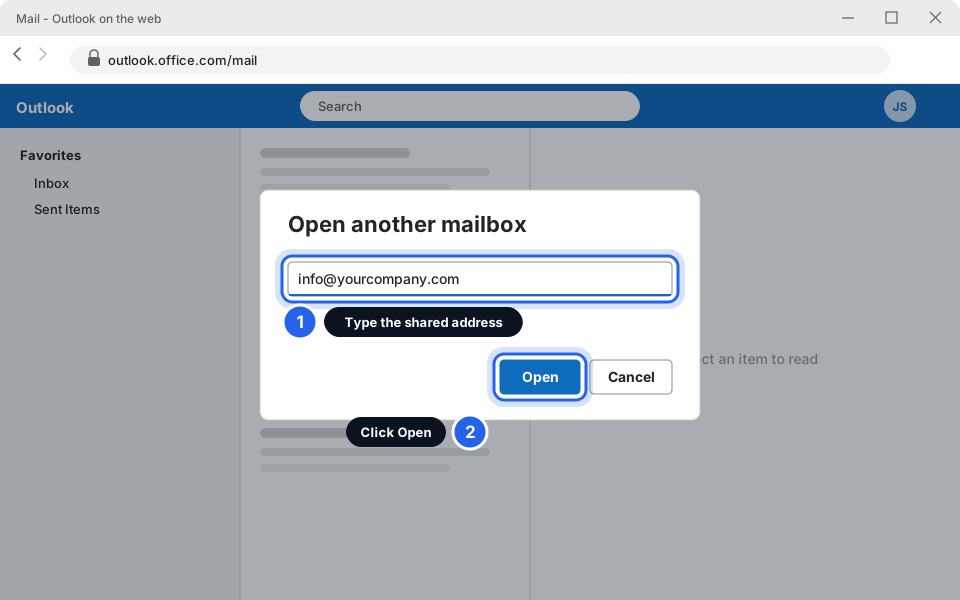
Type the address, then click Open.Click picture to enlarge
Step 3: Send email from the shared address
This is the part people miss. If you just click New Email, Outlook sends it from your own address. To send as info@yourcompany.com, you have to show the From box and pick it.
Sending from the shared address in Classic Outlook
-
Click New Email
Start a new message in the normal way.
-
Click the Options tab
It's in the strip of tabs along the top of the new message window.
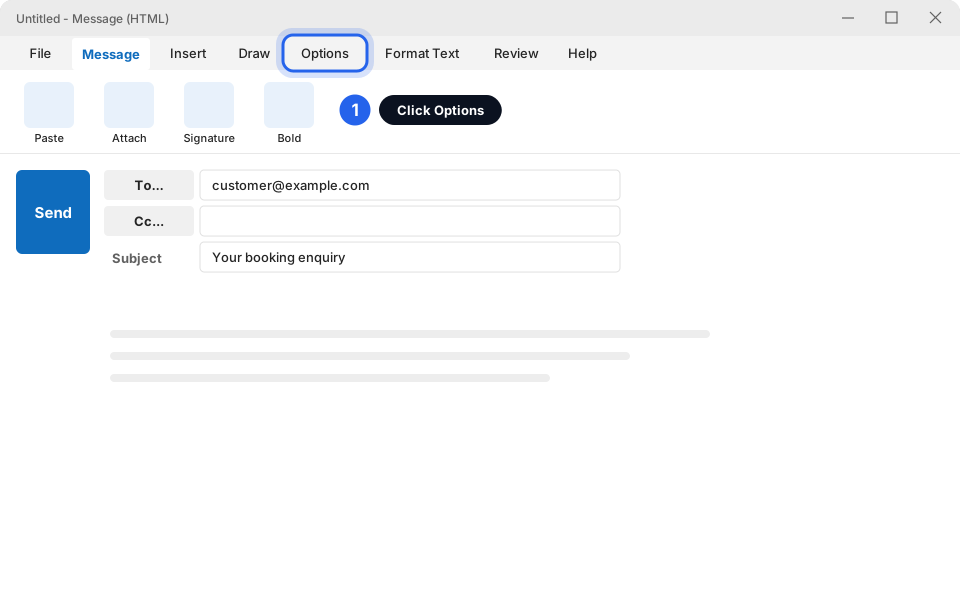
Click Options.Click picture to enlarge -
Click From
It's in the Show Fields group, next to Bcc. A From line now appears above To.
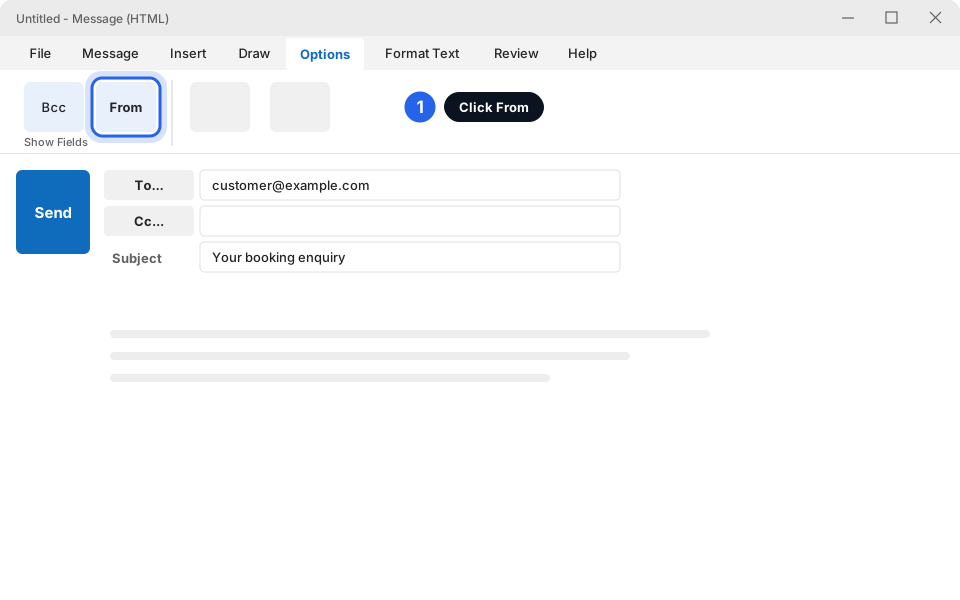
Click From.Click picture to enlarge -
Click the From box and pick the shared address
Choose info@yourcompany.com. Then write your email and click Send.
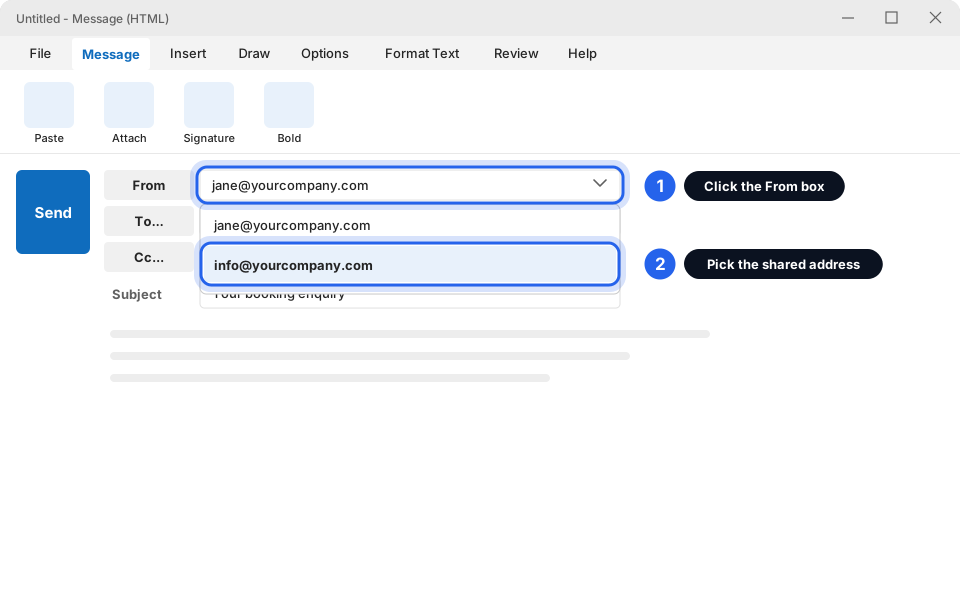
Pick the shared address.Click picture to enlarge
Sending from the shared address in New Outlook
-
Click New mail
Start a new message in the normal way.
-
Click the three dots (…), then Show From
The three dots are in the toolbar of the new message. A From line now appears above To.
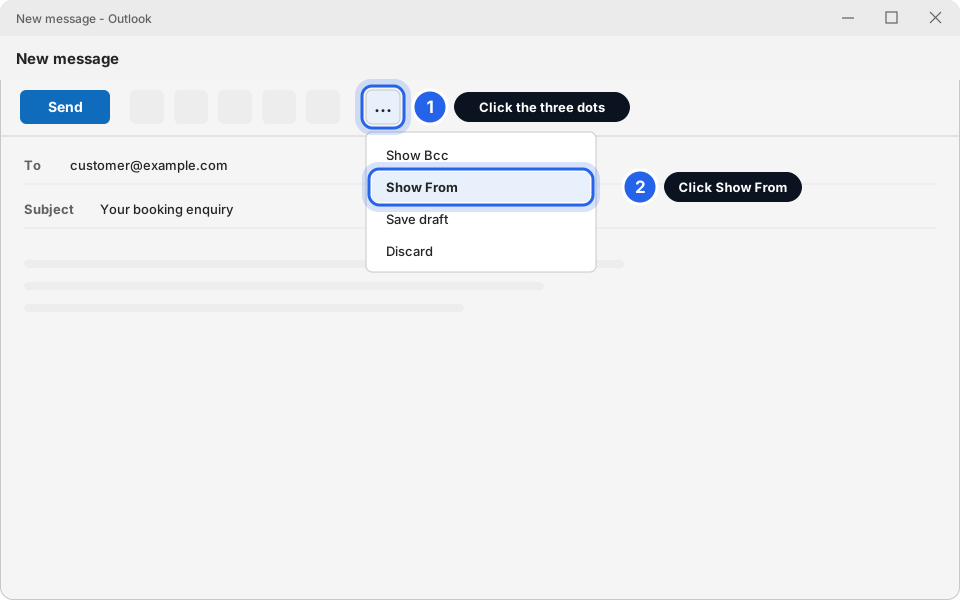
Click the three dots, then Show From.Click picture to enlarge -
Click the From line and pick the shared address
Choose info@yourcompany.com. Then write your email and click Send.
Pick the shared address. (Classic and New look alike here.)Click picture to enlarge
Where do my sent emails go?
Normally, a message you send from the shared address is saved in your own Sent Items, not the shared mailbox's. Your teammates therefore can't see what was sent, and they might reply twice.
If you want everyone to see replies in the shared mailbox's Sent Items, ask us whether we can switch that on for the mailbox. Until then, a handy habit is to CC the shared address on important messages.
You're set up
Open the shared Inbox, read and reply, and always check the From line before you click Send.
Still not working?
My shared mailbox disappeared
It happens, usually after a restart, an update, or a change to your account. Try these in order:
- Close Outlook completely and open it again.
- Wait 15 to 30 minutes and restart Outlook once more.
- Try Outlook on the web (steps above). If it opens there, your access is fine and only Outlook on your PC needs a refresh.
- Still missing? Message us the address and which Outlook you use. Don't delete and re-add your own account.
It's been over an hour and I still can't see it
First check that we've told you access is switched on. Then restart Outlook. If we have confirmed it and it still doesn't show, message us. A refresh on our side usually fixes it.
The From box isn't showing in my new message
Outlook hides it by default. Show it once and it stays visible. Classic: Options › From. New Outlook: three dots … › Show From (or Options › Show From, depending on your version).
Customers see "Jane on behalf of info@"
That means your access is send on behalf, not send as. Message us and ask for send as if you want mail to look like it comes from the shared address alone.
Can I use the shared mailbox on my phone?
The Outlook app on iPhone and Android can show shared mailboxes. If it isn't there, message us. Setting up your own email on a phone is covered in Add your work email to your iPhone or Android.
Outlook asks me for a password for the shared mailbox
It shouldn't. A shared mailbox has no password. If you see a sign-in box, sign in with your own email and password. If it keeps asking, message us.