Why requests get delayed
Almost every delay has the same cause: something was missing from the request. We then have to ask, wait for an answer, and ask again. A complete first message avoids that.
New starter
Click Copy, paste it into an email or WhatsApp message, and fill in every line. Delete anything that doesn't apply.
Leaver
Same idea. Make sure you decide what happens to their email before you send it. That's the most common thing we have to ask about.
How to send it
-
Paste the template and fill it in
Open a new email (or a WhatsApp message to us). Paste the template. Fill in each line. Use a clear subject line, for example New starter: Jane Smith, starts Monday 2 November.
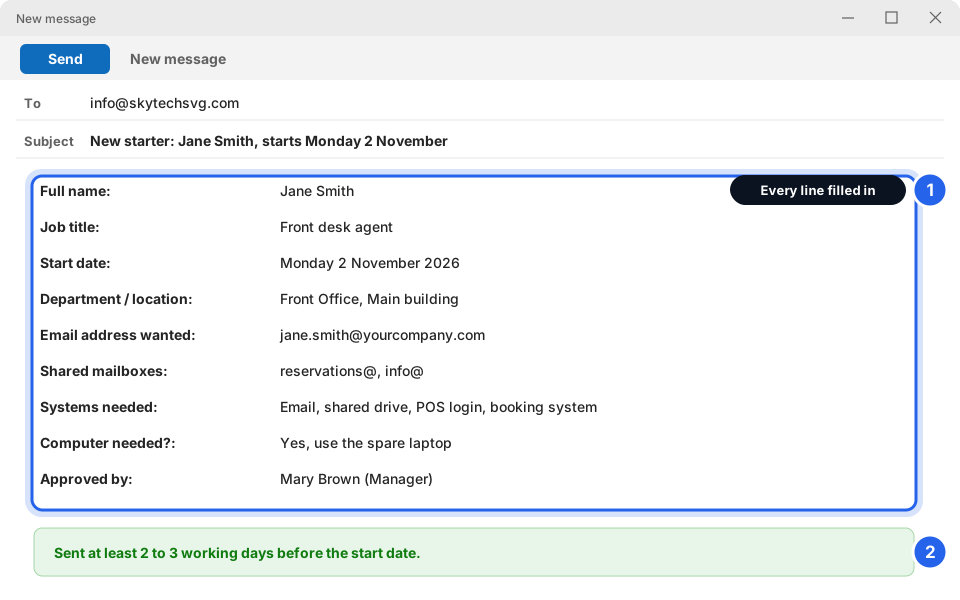
1 Every line filled in · 2 Sent in good timeClick picture to enlarge -
Send it to info@skytechsvg.com or on WhatsApp
Email info@skytechsvg.com, or message us on WhatsApp +1 784 492 3795. Either way, send one complete message. If you change something later, reply to the same message so everything stays together.
-
Give us enough notice
Please send the request at least 2 to 3 working days before the start date or last day. The more notice, the smoother it is. Last-minute starters may not be ready on day one.
-
Keep the first-day details private
We'll tell you when the account is ready. Give the new person their sign-in details in person or by phone. Skytech will never ask for a password by email or text.
Someone leaving today? Contact us straight away
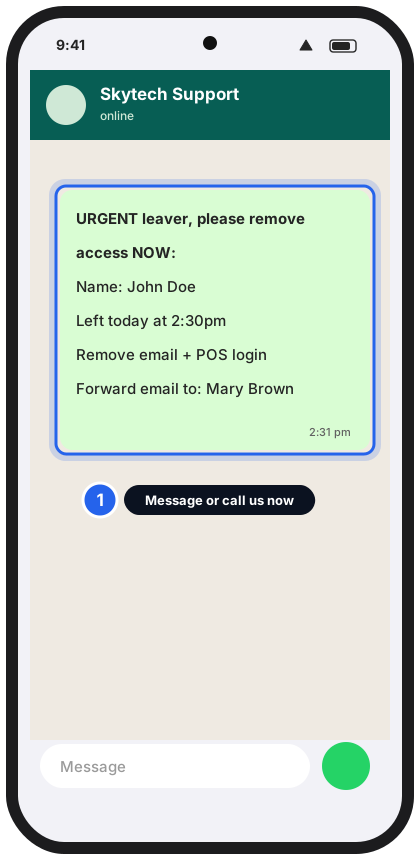
For same-day leavers, such as a dismissal where access must be cut right now, don't wait for an email. Phone or WhatsApp us immediately and tell us the person's name and what to switch off. Then send the written leaver request afterwards. We'll remove access first and sort out the details second.
Still not sure?
Can you set up a new person using the same settings as someone else?
Often yes. Write "same access as [colleague's role]" in the request. Use a job title or role. Please don't include anyone's password.
What happens to a leaver's email and files?
That's up to you, and it's why we ask. Common choices: forward new mail to a colleague, turn the mailbox into a shared mailbox, or set an out-of-office message. Tell us in the leaver request.
The new person is starting tomorrow. Is it too late?
Send it anyway, as complete as you can, and message us on WhatsApp to say it's urgent. We'll do our best, but we can't promise everything will be ready.
A staff member has a new job title or moved to another department
Send a message with the person's name, the date, and which access to add or remove. You can use the new starter template and write "change to existing account" at the top.
Who is allowed to make these requests?
Please send requests from a manager, or include the manager's approval in the message. That's what the Approved by line is for.