Choose your steps
In Classic Outlook
-
Open Outlook and click File
It is the first tab, in the top-left corner.
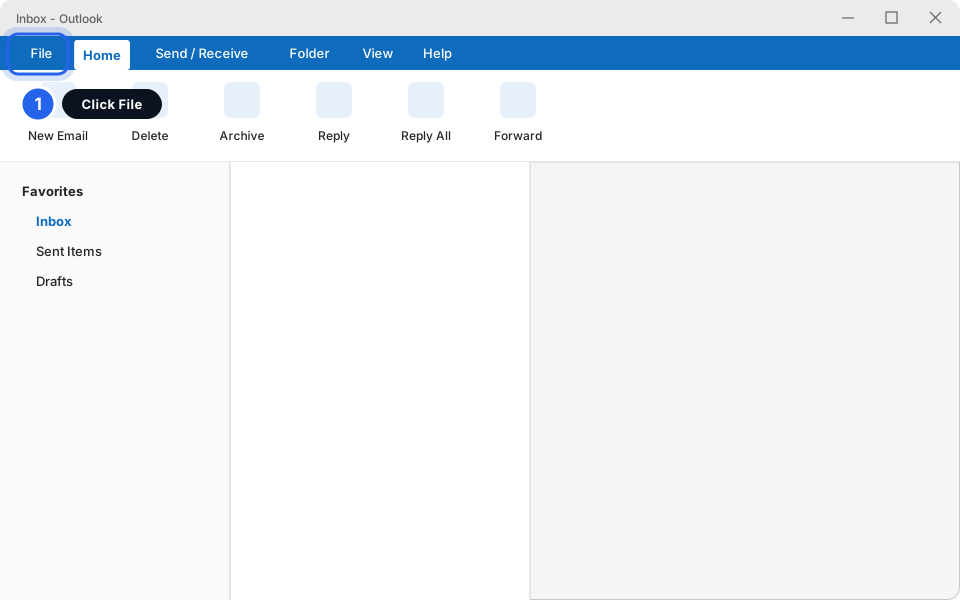
Click File.Click picture to enlarge -
Click Options
It is near the bottom of the blue list on the left.
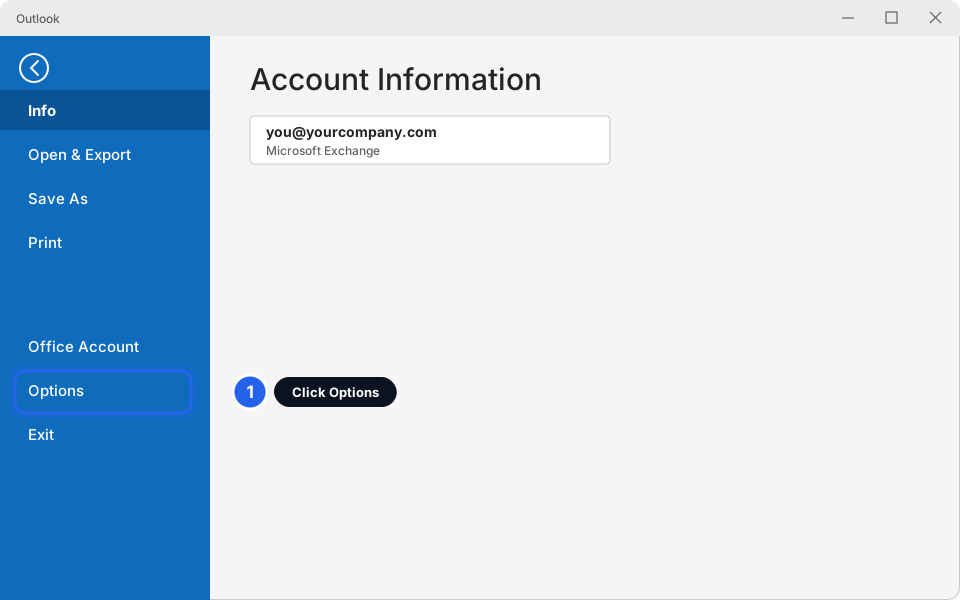
Click Options.Click picture to enlarge -
Click Mail, then Signatures...
In the box that opens, click Mail on the left. Then click the Signatures... button next to Create or modify signatures for messages.
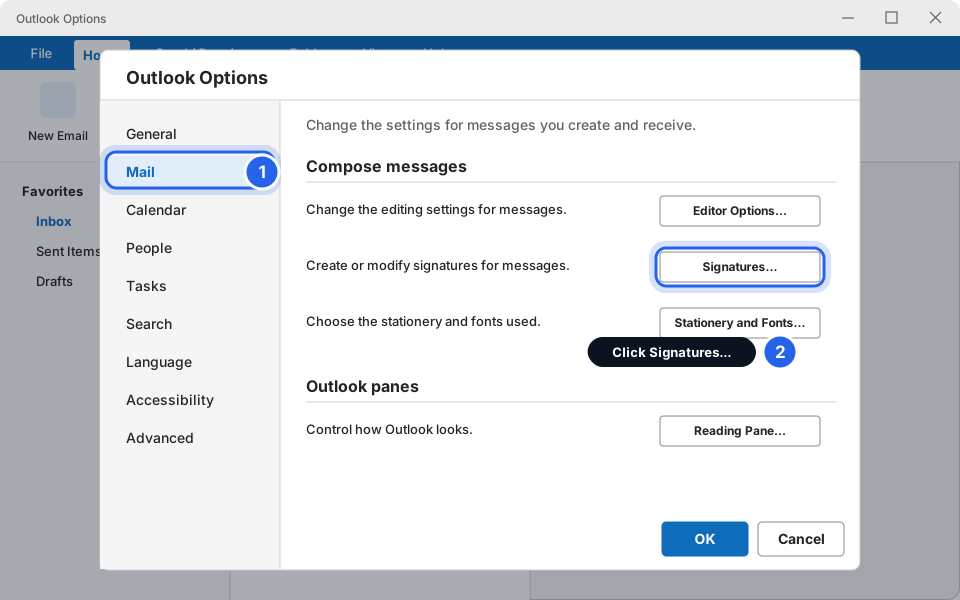
Click Mail, then Signatures...Click picture to enlarge -
Click New and type a name
Click New under the list. A small box asks for a name. Type something simple like Work signature, then click OK. The name is only for you. Nobody sees it.
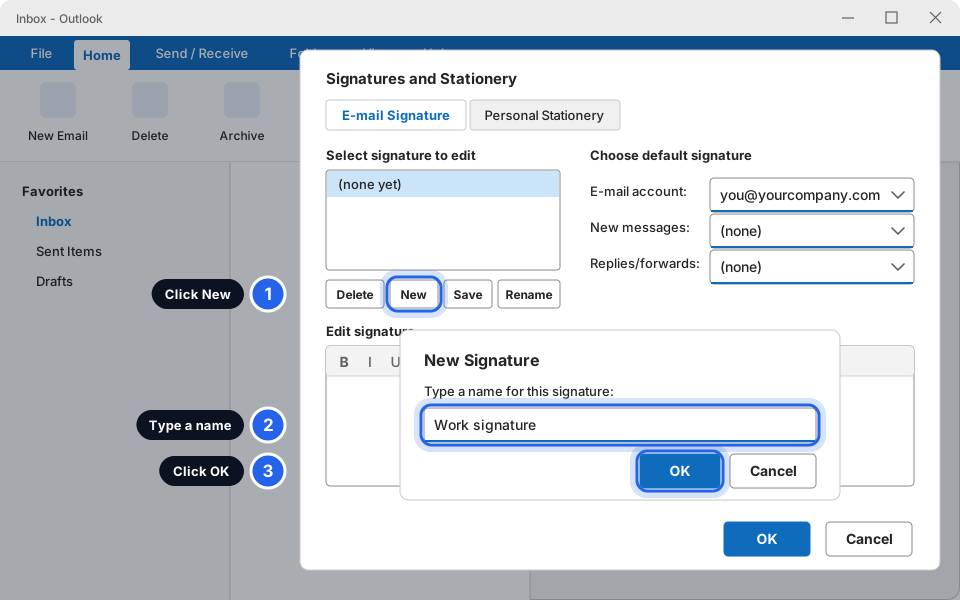
New, type a name, OK.Click picture to enlarge -
Type your signature in the big box
Click in the Edit signature box at the bottom and type your details. You can copy the example further down.
-
Choose where it is used, then click OK
On the right, under Choose default signature:
- 2. E-mail account: pick your email address.
- 3. New messages: pick your signature.
- 4. Replies/forwards: pick a short one, or (none). A short reply signature keeps long email chains tidy.
- 5. Click OK twice to close both boxes.
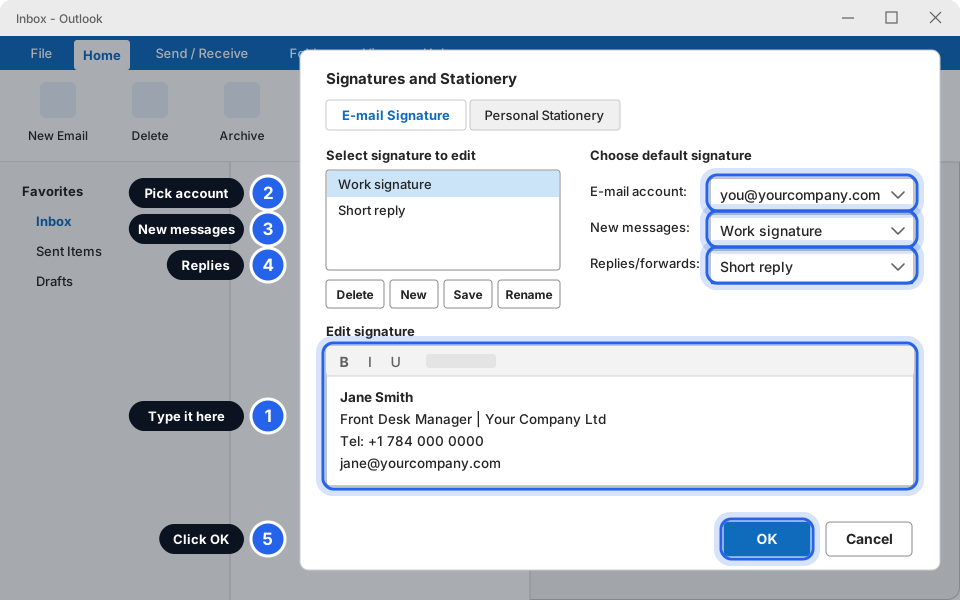
Numbers 1 to 5 in this picture.Click picture to enlarge -
Test it: click New Email
Your signature should appear at the bottom of the new message. If it does not, repeat the steps and check the New messages drop-down.
In New Outlook or Outlook on the web
-
Click the gear icon
It is in the top-right corner of New Outlook or Outlook on the web.
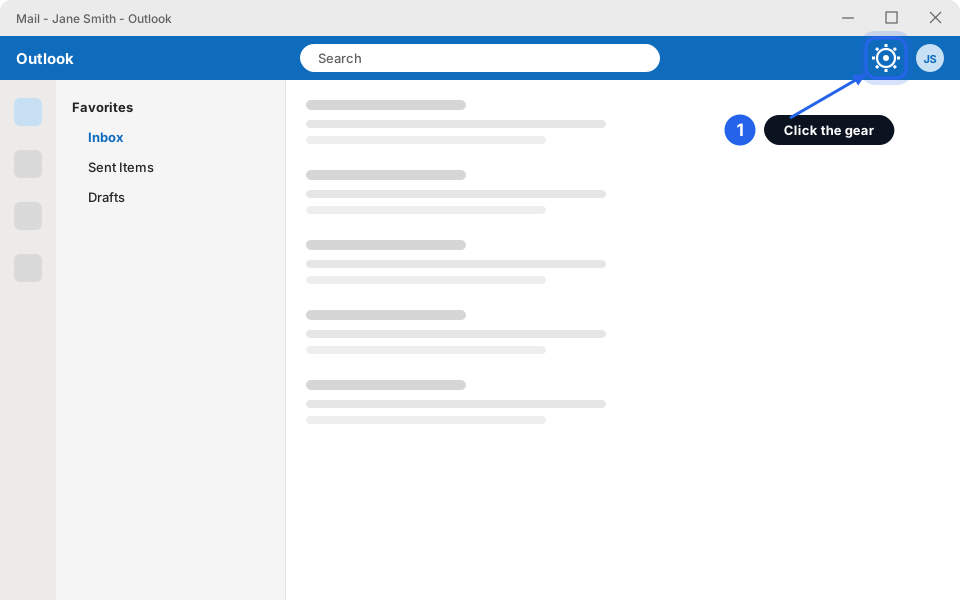
Click the gear.Click picture to enlarge -
Click Accounts, then Signatures
On some versions it is under Mail and then Compose and reply. Look there if you do not see Accounts.
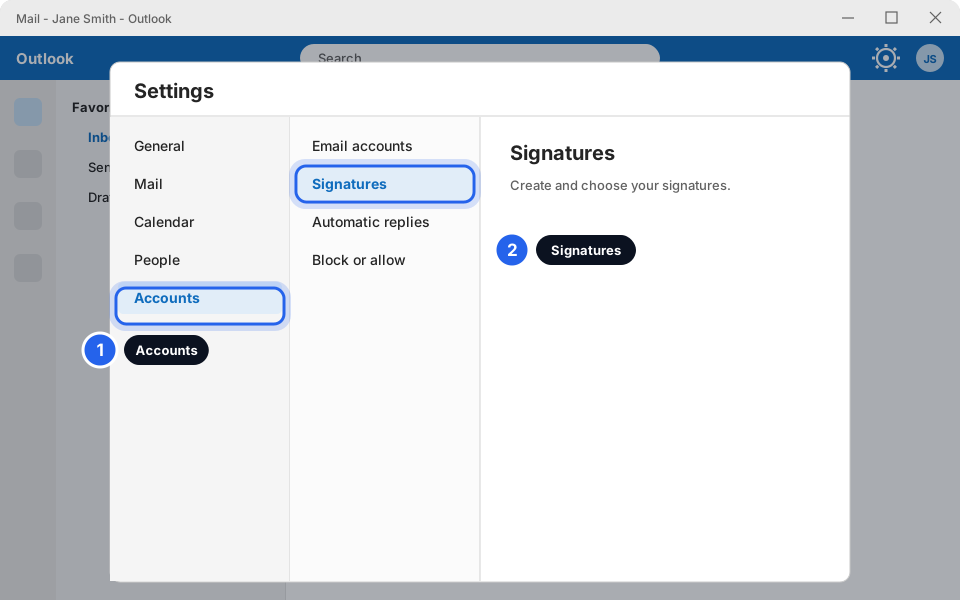
Accounts, then Signatures.Click picture to enlarge -
Click Add signature and type your details
- 1. Click Add signature (older versions say + New signature).
- 2. Type a name for it, such as Work signature.
- 3. Type your signature in the box.
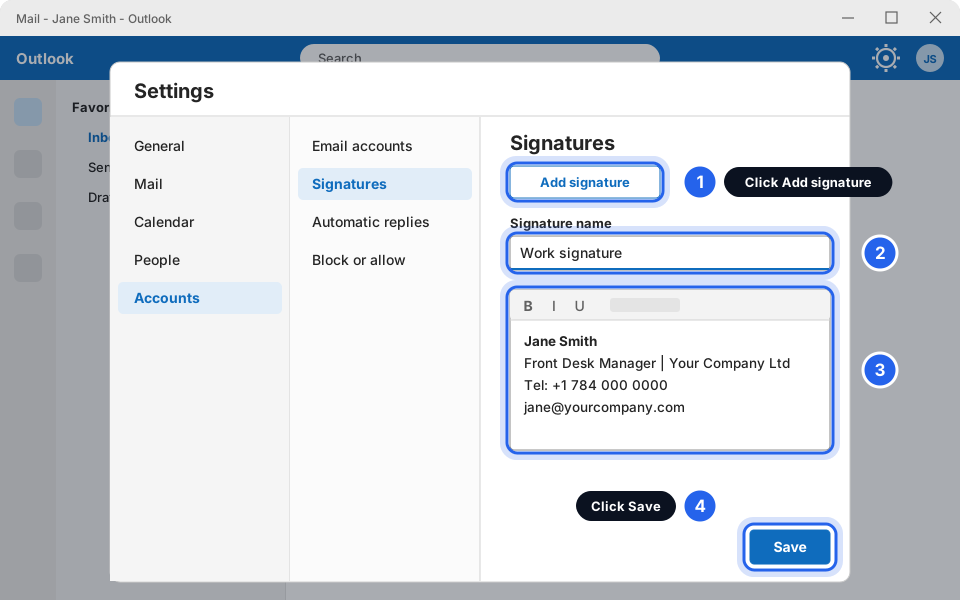
Numbers 1 to 3 (then Save, number 4).Click picture to enlarge -
Choose your defaults and click Save
Scroll down to Select default signatures. Choose your signature for New messages, and a short one (or none) for Replies/forwards. Tick Automatically include my signature if you see it. Then click Save.
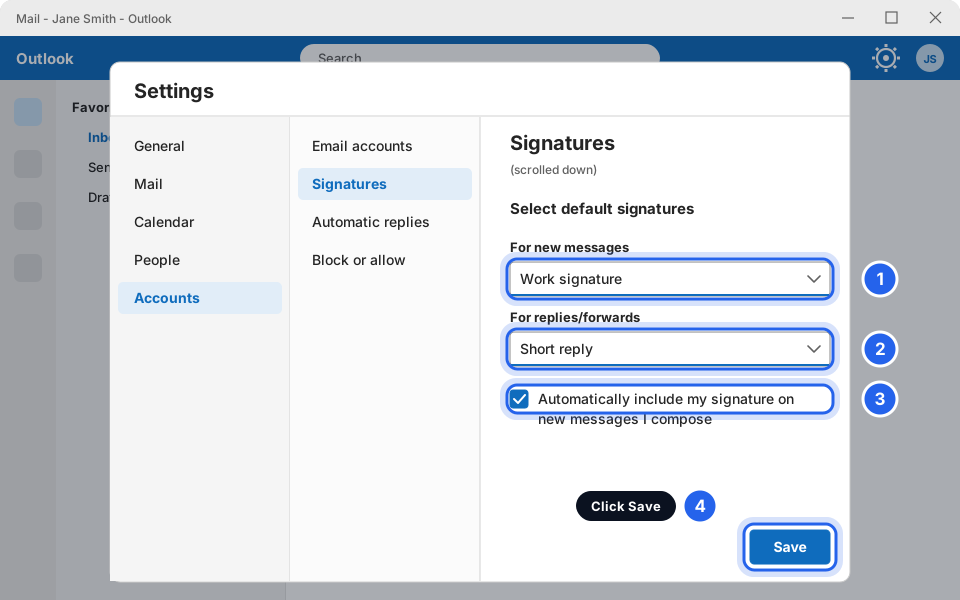
Pick the defaults, then Save.Click picture to enlarge
In the Outlook app on your phone
-
Tap your picture, then the gear
Tap the round picture or initials in the top-left corner. Then tap the gear at the bottom-left.
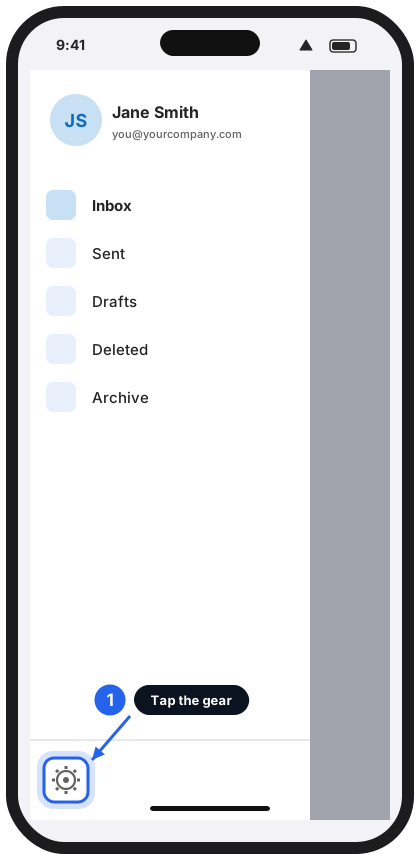
Tap the gear.Tap to enlarge -
Tap Signature
Scroll down to Preferences (or Mail) and tap Signature.
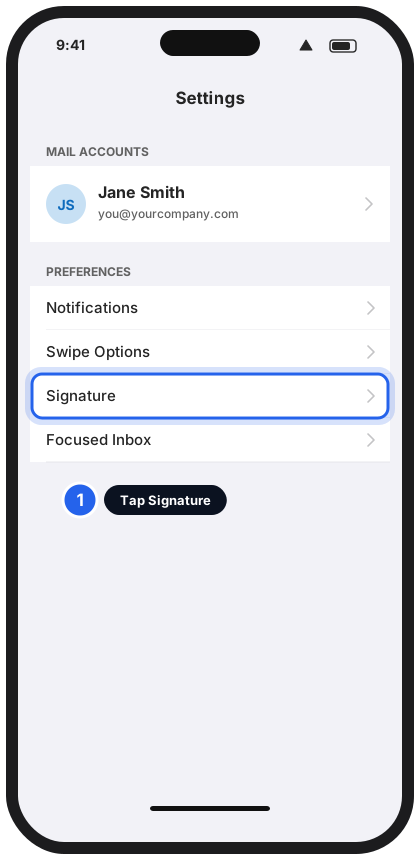
Tap Signature.Tap to enlarge -
Type your signature and go back to save it
Delete the standard line (it says Get Outlook for iOS or Get Outlook for Android). Type your name, title and phone number. Tap the Back arrow or the tick at the top to save. If you see Per Account Signature and have more than one account, switch it on to give each account its own.
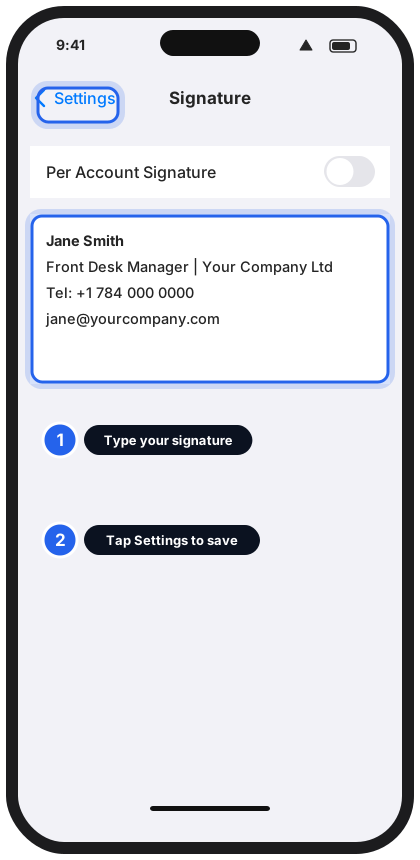
Type it, then go back.Tap to enlarge
What a good signature looks like
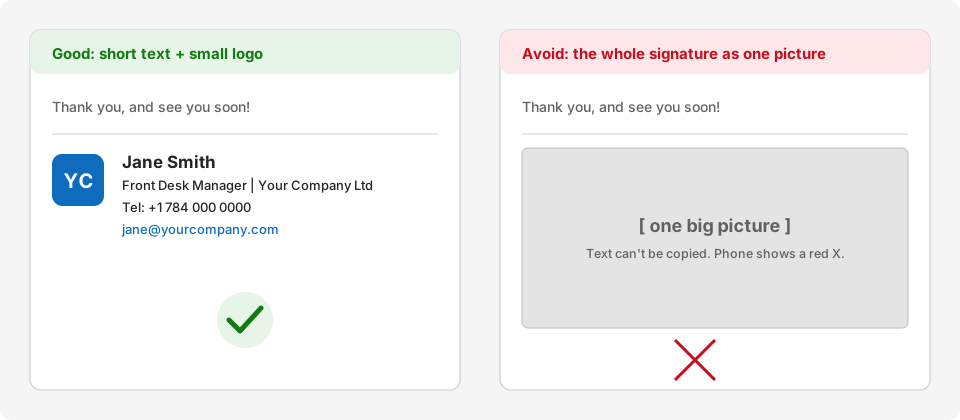
- Keep it short. Four to six lines is plenty.
- Use text, not a picture of text. Pictures can be blocked, look blurry on phones and cannot be copied.
- A small logo is fine. Keep it small so it does not push your message down.
- Include: your name, job title, company, and a phone number.
- Do not add long legal notices, quotes or your home address.
Example to copy and change
Short version for replies
Your signature is set
Send an email to yourself to check how it looks, on your computer and on your phone.
Still not working?
My signature does not appear on new emails
Open your signature settings and check the New messages drop-down. It must show your signature name, not (none). In Classic Outlook, also check that the right E-mail account is chosen at the top.
It shows on my computer but not on my phone
Your phone app keeps its own signature. Follow the Phone app tab and type it there.
My logo shows as a red X or an attachment
Some email programs block pictures. Keep the logo small and put your name and phone number in text. Do not use the whole signature as one picture.
The signature appears twice
You may have it set for both new messages and replies, or you typed it into the message by hand. Choose (none) for replies, or delete the extra copy.
I cannot find Signatures in my settings
The name or place changes between versions. Look under Mail and Compose and reply. If you still cannot find it, message us a screenshot (see Take a screenshot).