Choose your steps
In Classic Outlook (Microsoft 365)
-
Open Outlook and click File
It is the first tab, in the top-left corner of the Outlook window.
No Automatic Replies button on the next screen? That happens when your email is Skytech-hosted (IMAP) email. Classic Outlook can only do automatic replies for Microsoft 365 accounts. Use the Webmail tab instead.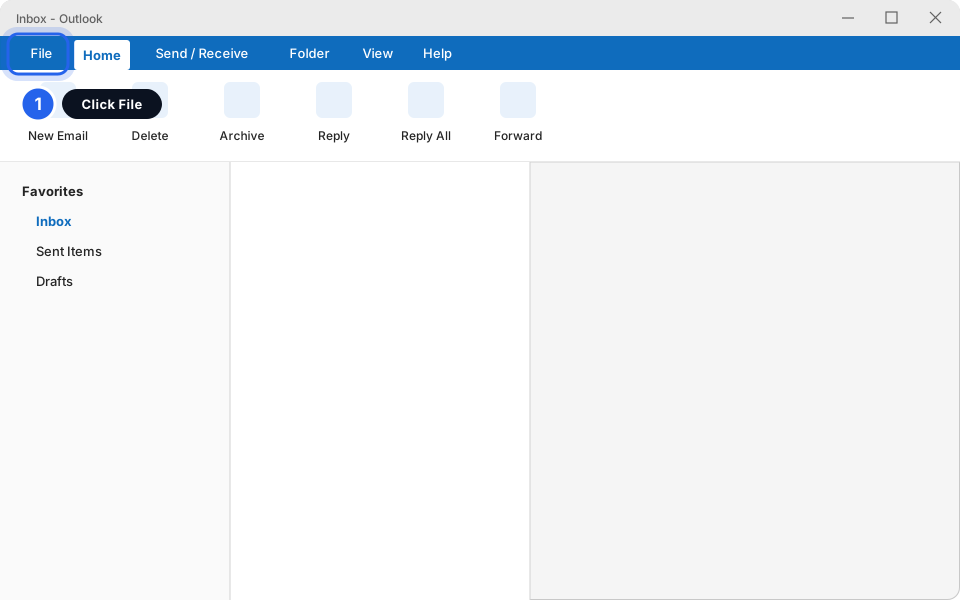
Click File.Click picture to enlarge -
Click Automatic Replies
You will be on the Info page. The button sits in a box called Automatic Replies (Out of Office).
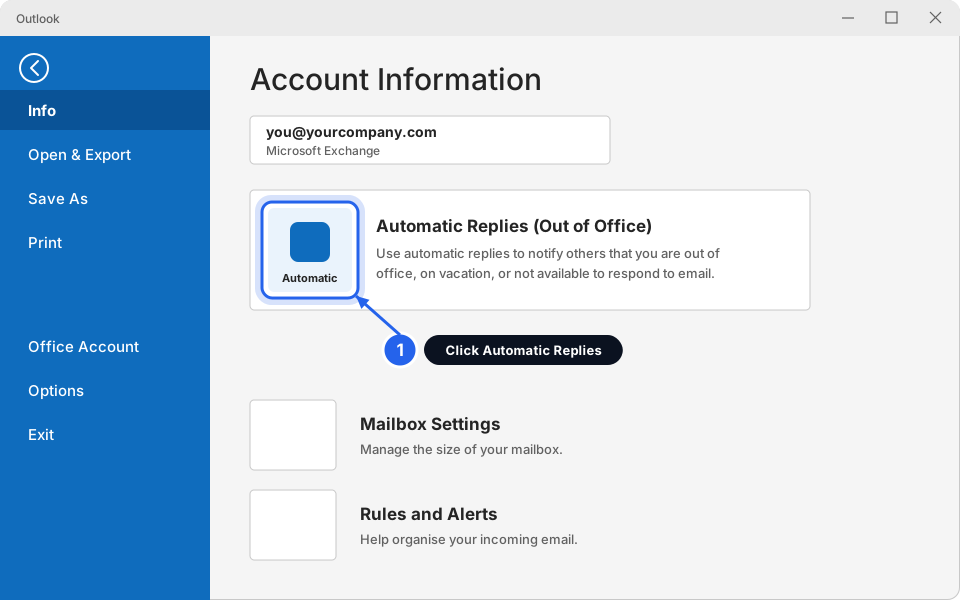
Click Automatic Replies.Click picture to enlarge -
Turn it on and choose your dates
A box opens. Do these three things (the numbers match the picture):
- 1. Click Send automatic replies.
- 2. Tick Only send during this time range. This is what makes it switch itself off.
- 3. Choose a Start time and an End time. Set the end for the morning you are back.
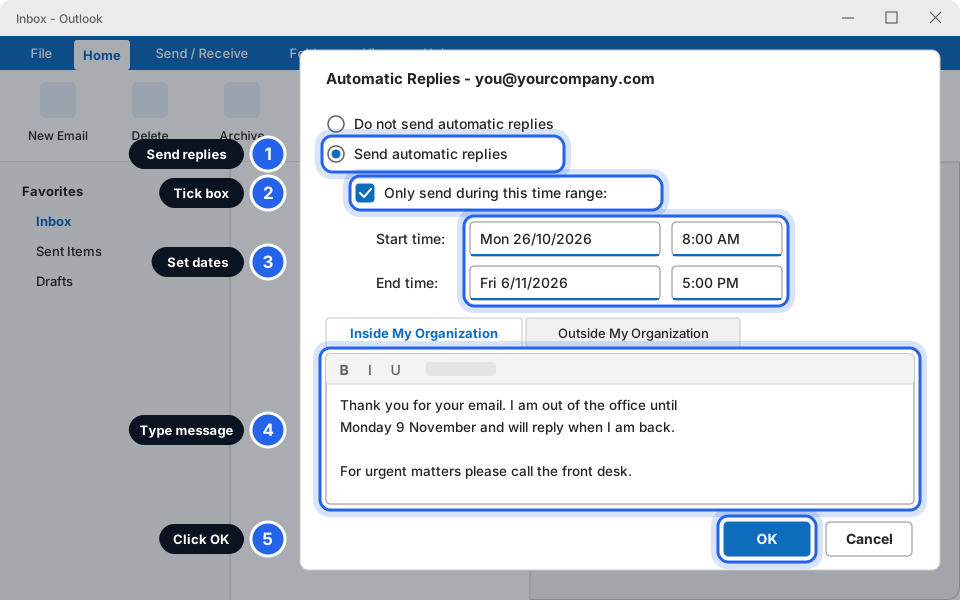
Numbers 1, 2 and 3 in this picture.Click picture to enlarge -
Type your message
Click in the big white box under the Inside My Organization tab and type your message (picture number 4). This is what your own colleagues will see. You can copy the example further down.
-
Click Outside My Organization and set the message for everyone else
This is the second tab, just above the message box. Tick Auto-reply to people outside my organization, then pick who gets it:
- My contacts only sends it only to people saved in your contacts.
- Anyone outside my organization sends it to customers, suppliers and everyone else. Choose this one if you want guests and customers to know you are away.
Type the message customers should see. Keep it polite and do not share anything private.
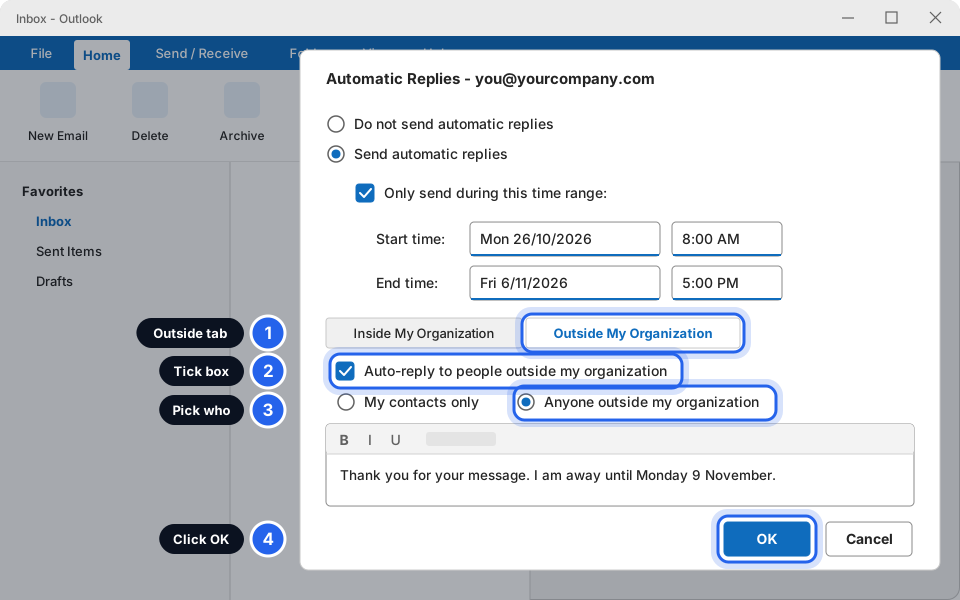
Pick the tab, tick the box, choose who.Click picture to enlarge -
Click OK
The OK button is at the bottom right of the box. Outlook may show a bar across the top saying Automatic Replies are being sent. That means it worked.
-
To turn it off early: open the same box and click Do not send automatic replies
Go to File, click Automatic Replies, choose Do not send automatic replies, then click OK. If you set an end time you do not need to do this: it stops by itself.
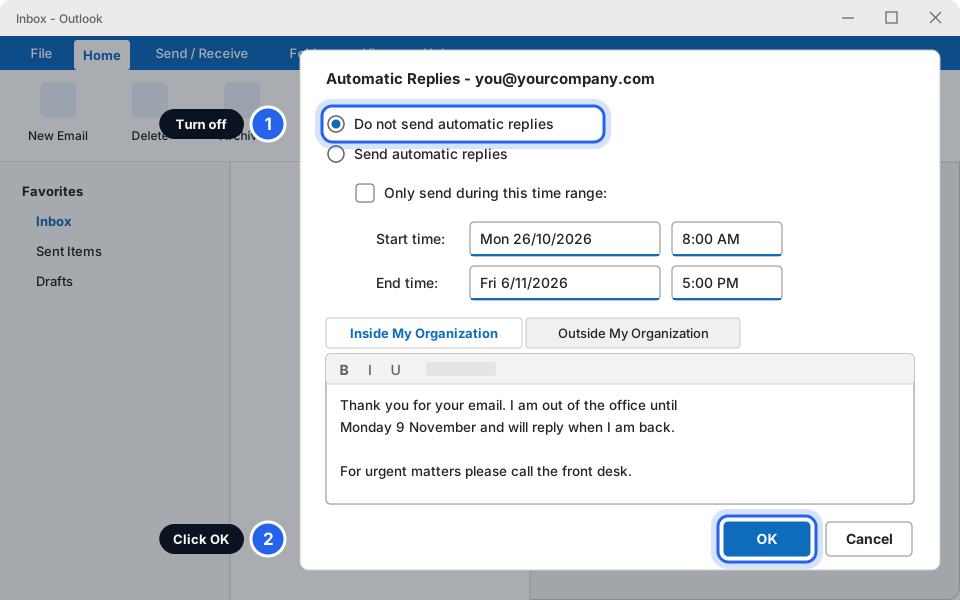
Choose Do not send automatic replies, then OK.Click picture to enlarge
In New Outlook or Outlook on the web
-
Click the gear icon
It is in the top-right corner of New Outlook. The same steps work in Outlook on the web (outlook.office.com), where the path is Settings, then Account, then Automatic replies. New Outlook does not offer automatic replies for IMAP (Skytech-hosted) accounts, so use the Skytech webmail tab for those.
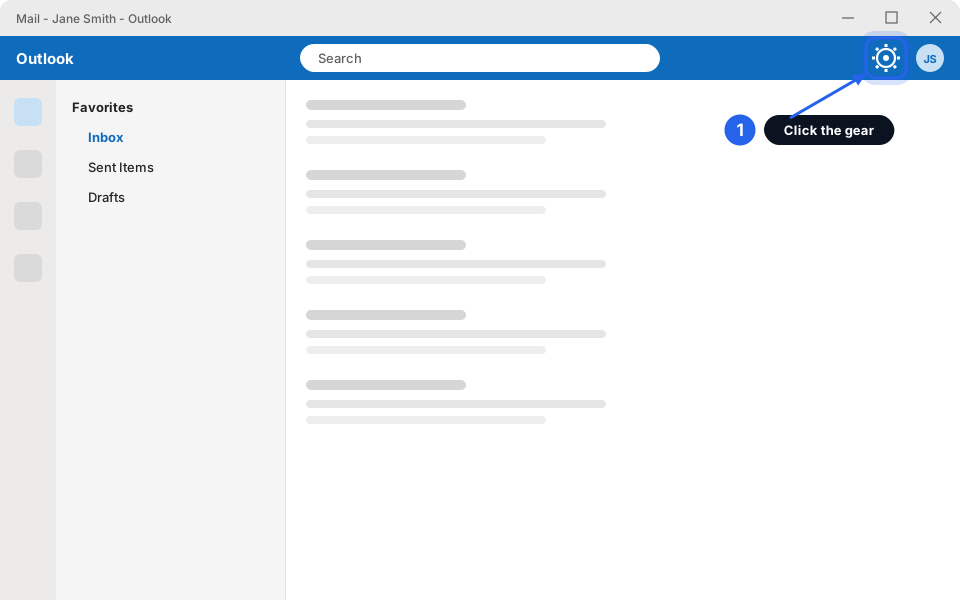
Click the gear.Click picture to enlarge -
Click Accounts, then Automatic replies
A Settings box opens. Click Accounts on the left, then Automatic replies in the next column. On some versions it is under Mail instead, so check there if you do not see it.
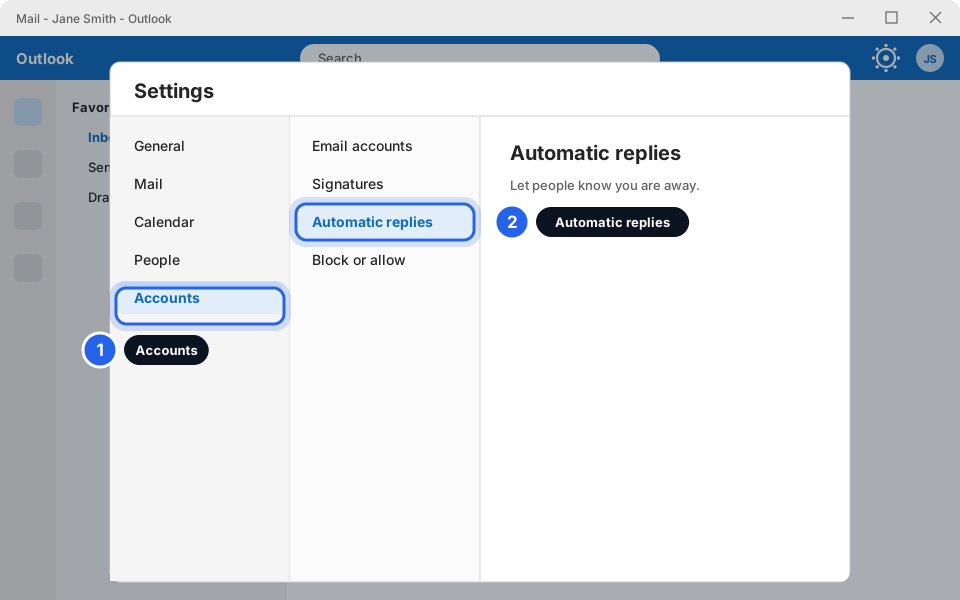
Accounts, then Automatic replies.Click picture to enlarge -
Turn it on and choose your dates
- 1. Switch on Automatic replies.
- 2. Tick Send replies only during a time period.
- 3. Choose the Start and End date and time.
- 4. Type your message in the box under Send replies inside your organization.
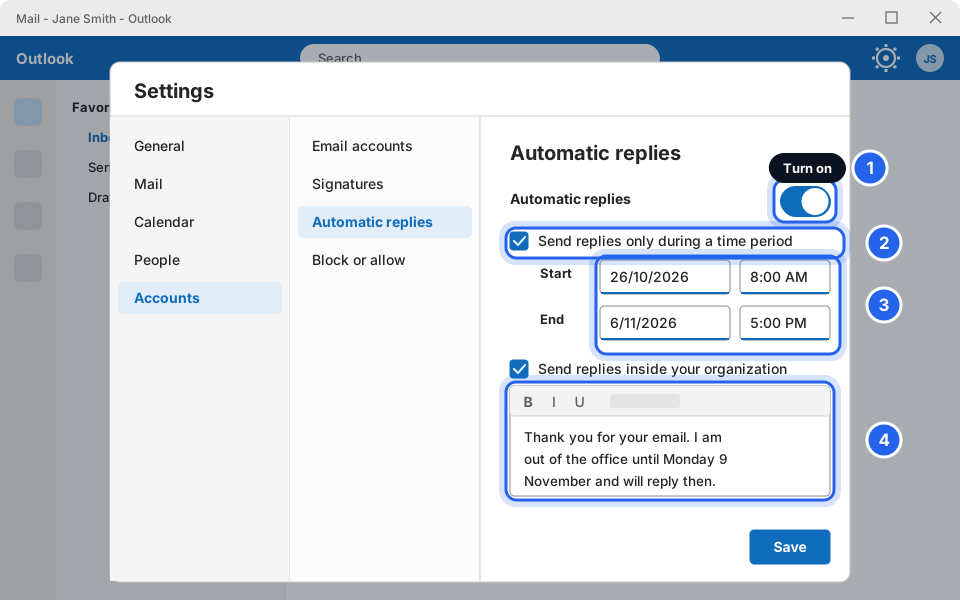
Numbers 1 to 4 in this picture.Click picture to enlarge -
Scroll down and set the reply for people outside your company
Tick Send replies outside your organization. To reach customers and suppliers who are not in your contacts, leave Send replies only to contacts unticked. Type the message customers should see, then click Save.
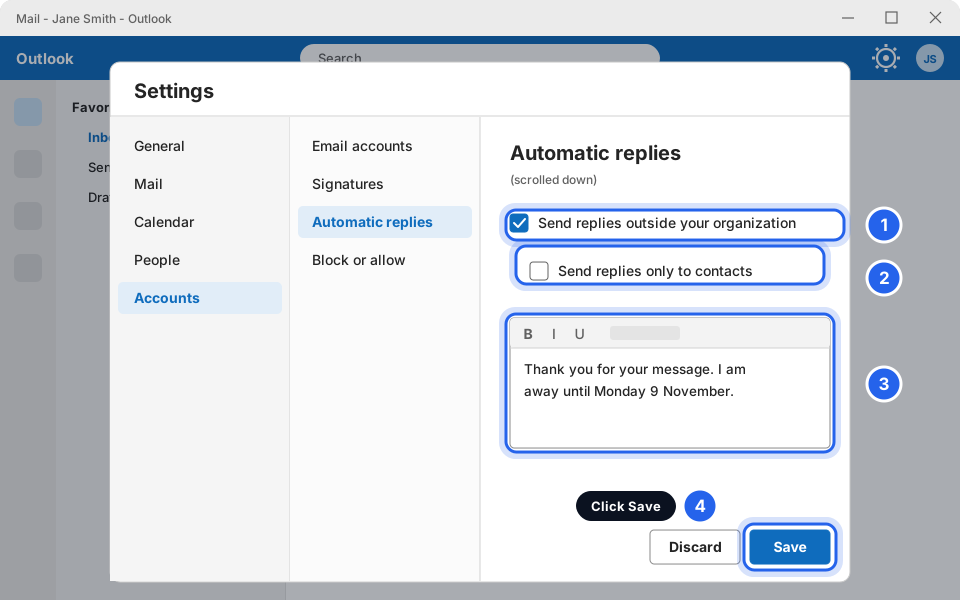
Tick the box, choose who, then Save.Click picture to enlarge -
To turn it off early: switch it off and click Save
Go back to Automatic replies, switch Automatic replies to off, and click Save. If you set an end time it turns off by itself.
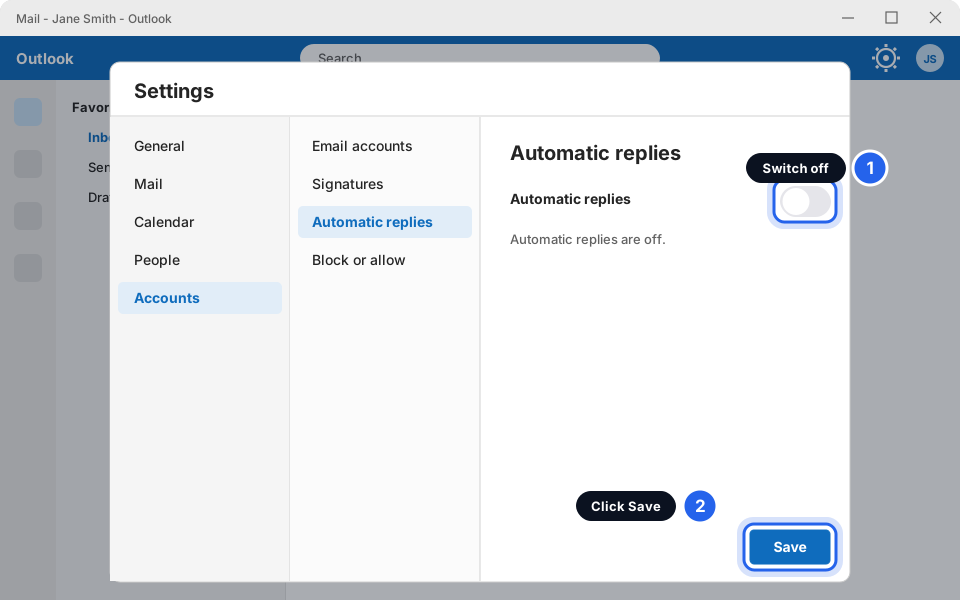
Switch it off, then Save.Click picture to enlarge
In Skytech-hosted webmail
-
Open your webmail and sign in
Open a web browser and go to webmail.yourcompany.com (use your own company name). Sign in with your full email address and your email password.
Not sure of your webmail address? Message us and we will send it. Skytech will never ask for your password. -
Click Settings, then Out of Office
Settings is the gear or cog on the left edge. In the list, click Out of Office. On some setups this is called Vacation instead. If you cannot find either, message us and we will turn it on for you.
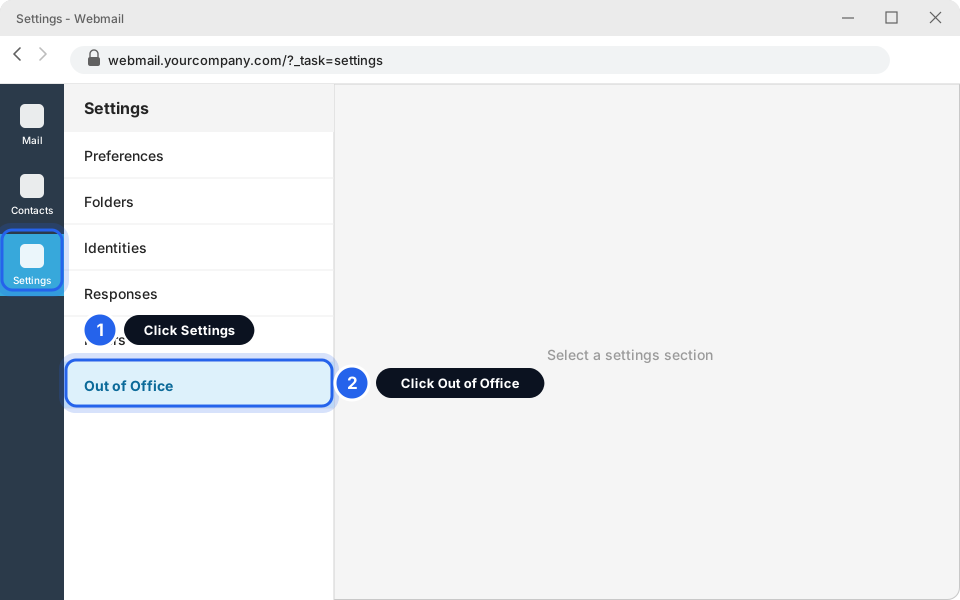
Settings, then Out of Office.Click picture to enlarge -
Fill in the form
- 1. Set Status to On.
- 2. Choose a Start date (the day you leave).
- 3. Choose an End date (the day you are back) so it turns itself off.
- 4. Type a short Subject and your Message.
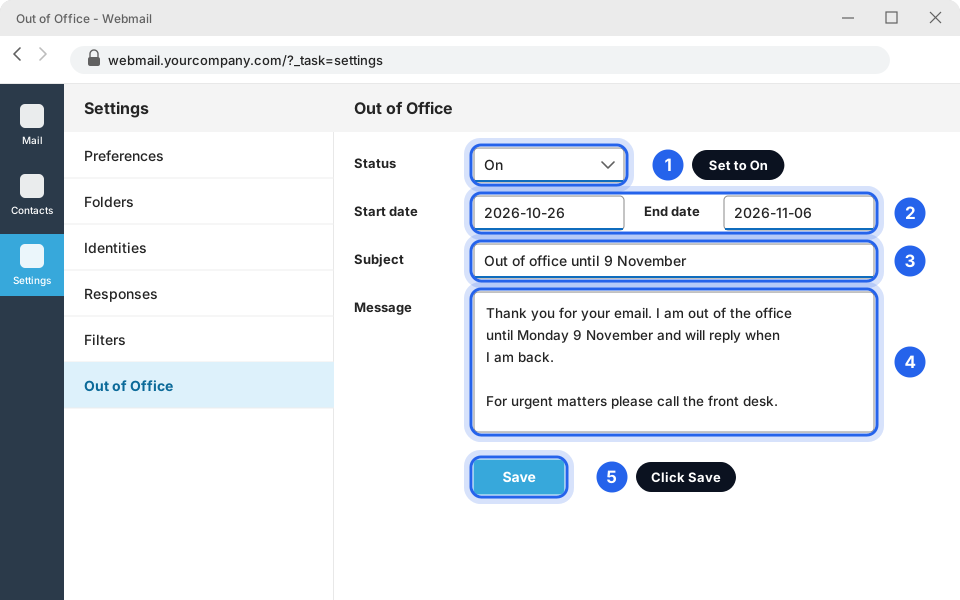
Numbers 1 to 4, then Save (number 5).Click picture to enlarge -
Click Save
The Save button is under the message box. Wait for a green message saying it was saved. Webmail sends one message for everyone who writes to you, including people outside your company.
-
To turn it off early: set Status to Off and click Save
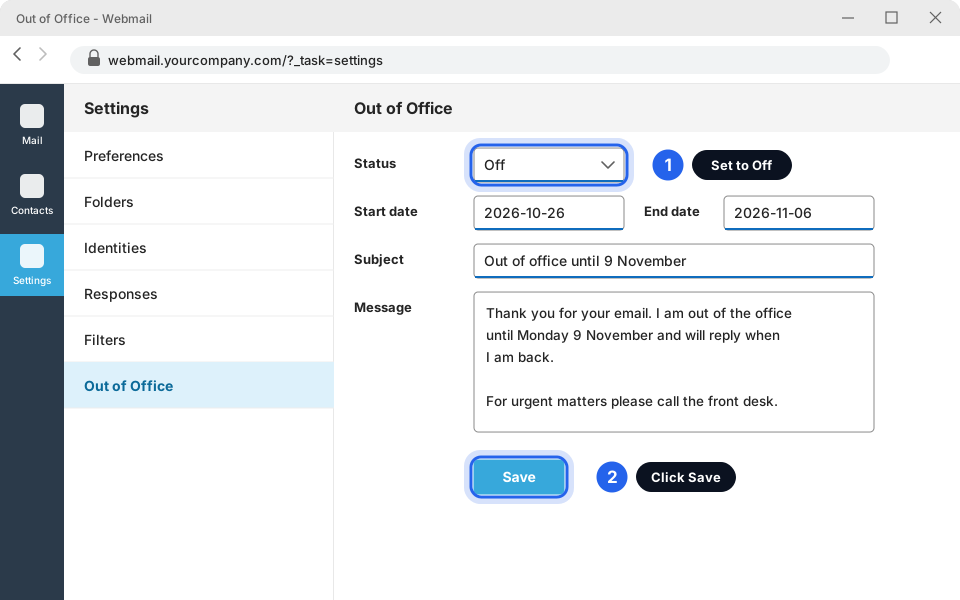
Status Off, then Save.Click picture to enlarge
In the Outlook app on your phone
-
Open the Outlook app and tap your picture, then the gear
Tap the round picture or initials in the top-left corner. A side menu slides out. Tap the gear icon at the bottom-left. iPhone and Android look nearly the same.
The Outlook app can only do this for Microsoft 365 accounts. For Skytech-hosted email use the Webmail tab.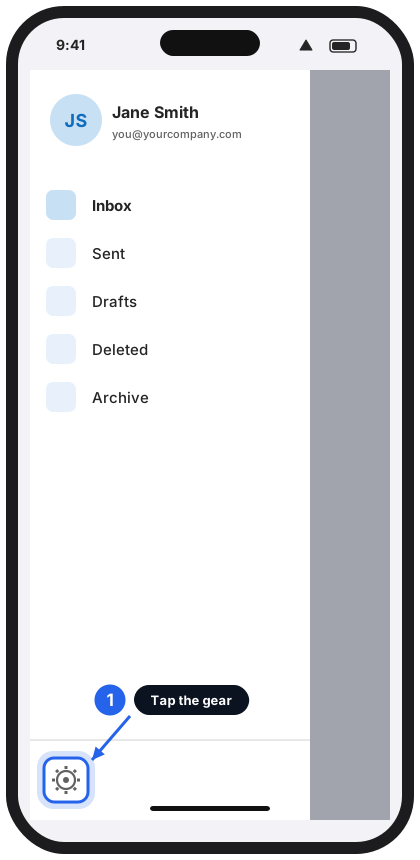
Tap the gear.Tap to enlarge -
Tap your email account
Under Mail Accounts, tap the row with your name and email address.
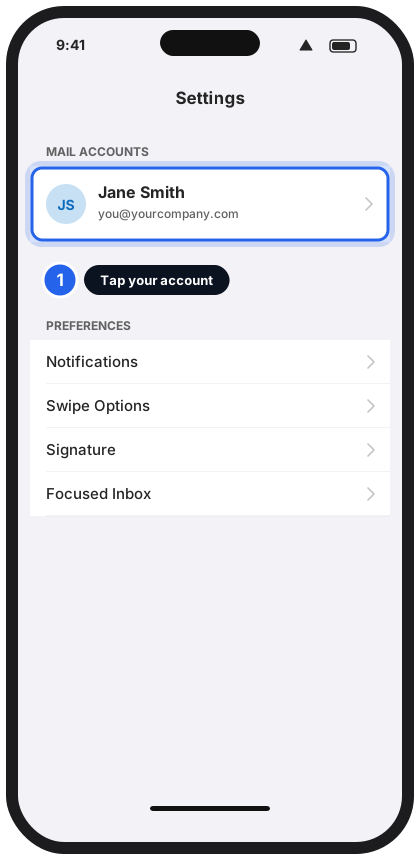
Tap your account.Tap to enlarge -
Tap Automatic Replies
It is the first row on your account page.
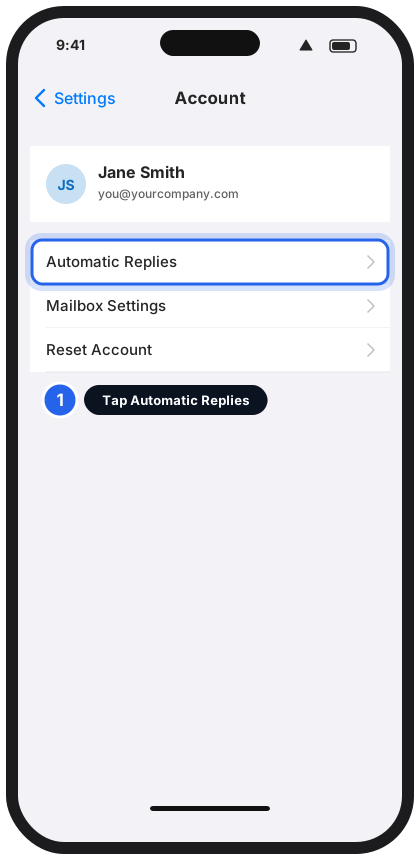
Tap Automatic Replies.Tap to enlarge -
Turn it on, set the dates and type your message
- 1. Switch on Automatic Replies (it turns green).
- 2. Switch on Send During Time Period and tap Start and End to choose them.
- 3. Type your message. There is a switch to send it to outside senders too.
Save by tapping Back or the tick at the top (it depends on your phone). Open the screen again to check it stayed on.
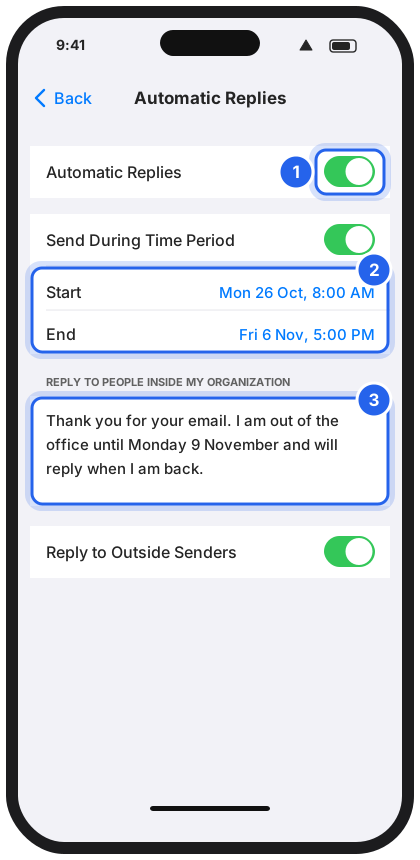
Numbers 1 to 3 in this picture.Tap to enlarge
A good message to copy
Say that you are away, when you are back, and who to contact. Keep it short. Do not say where you are going or that the office will be empty.
For your colleagues
For customers and everyone outside the company
Your out-of-office is set
Ask a colleague to send you a test email from their own address (and, if you can, from a personal address) to check that both messages arrive.
Still not working?
There is no Automatic Replies button in Classic Outlook
Your email is probably Skytech-hosted (IMAP) email. Classic Outlook only offers automatic replies for Microsoft 365 accounts. Use the Skytech webmail tab above. It may be called Out of Office or Vacation.
People inside the company get my reply but customers do not
Check the Outside My Organization tab (Classic) or Send replies outside your organization (New Outlook). It must be ticked, and it must be set to Anyone outside my organization (Classic) or leave Send replies only to contacts unticked (New Outlook), so that it is not contacts only.
It is still on after I came back
You probably did not set an end date. Follow the turn it off step in your tab. Next time, tick the time range box and fill in the end date.
The dates are wrong or it started too late
Check the time as well as the date, for example 8:00 AM to 5:00 PM. Also check that the clock on your computer or phone shows the right time zone.
The same person gets my reply again and again
Outlook normally sends only one reply to each person during your time away. If someone is getting many, it may be a mailing list or an automatic system. Message us the details.
I want one for the shared mailbox (info@, sales@)
Shared mailboxes are set up differently. Message us and we will do it for you. See also Using a shared mailbox.