The checklist
-
Restart the computer properly
This is the number one fix. Use Start, then Power, then Restart. Shut down is not the same thing. Our guide shows every click: Restart your computer properly.
Try to restart at least once a week. A computer that has been on for 2 weeks is often slow for that reason alone. -
Close what you do not need
Close programs you are not using, one by one, with the X at the top-right of each window. In your web browser, close tabs you finished with. Twenty open tabs use a lot of memory.
Look at the bottom bar (taskbar). Every icon with a line under it is an open program. -
Open Task Manager and look for the busy program
Press Ctrl + Shift + Esc together. A window called Task Manager opens. Click Processes on the left (top icon), then click the CPU heading to sort by what is working hardest. Click Memory to sort by what is using the most memory.
Look at the top of the list. One program using most of the percentage is usually your answer. Your own web browser and Excel being at the top is normal. Windows itself (for example Antimalware Service Executable or Windows Update) can be high for a few minutes after a restart. That is normal too.
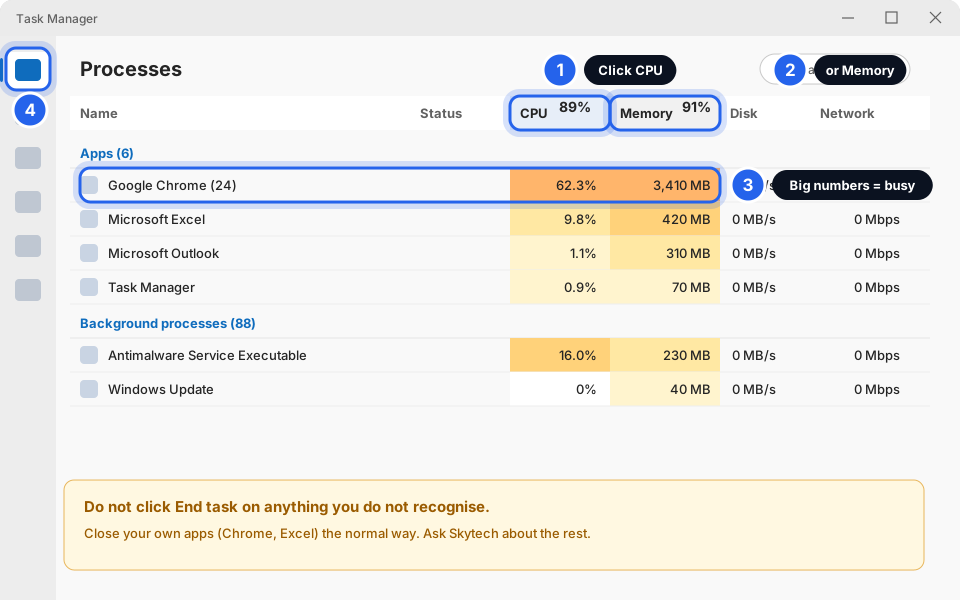
Task Manager: sort by CPU or Memory.Click picture to enlarge Only close your own programs (right-click one under Apps, then End task). Do not end anything under Background processes or Windows processes that you do not recognise. If the same unknown item is always at the top, tell us its name. -
Turn off extra startup programs
Many programs start by themselves when you switch on and slow the first 10 minutes. In Task Manager click Startup apps on the left. Click a program you do not need at start-up (games, music players, chat helpers), then click Disable at the top. You can also reach this list in Settings, then Apps, then Startup.
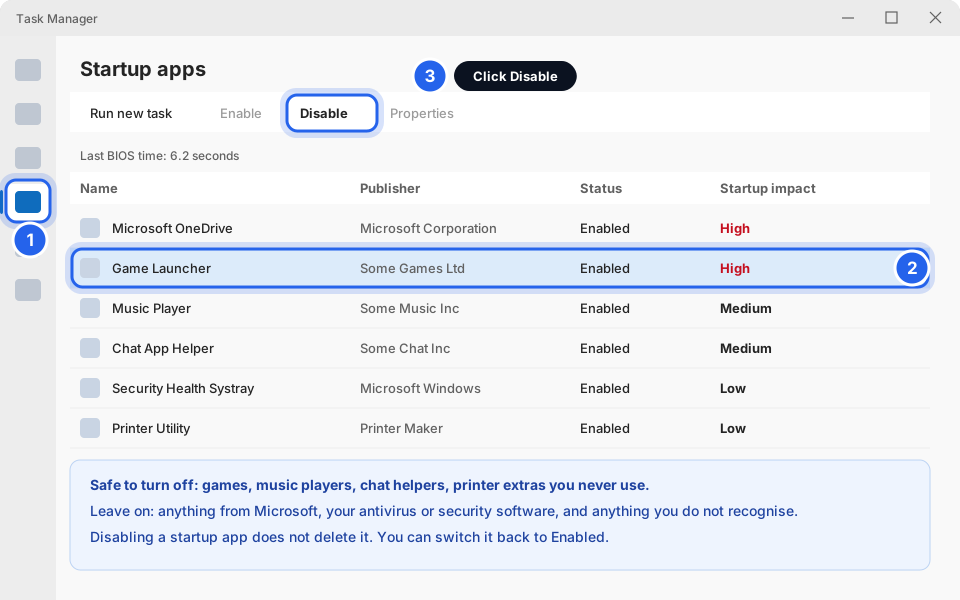
Startup apps: select one, then click Disable.Click picture to enlarge Disable only the obvious extras. Leave anything from Microsoft, your antivirus or security software, and anything you do not recognise. Disabling does not delete a program. You can turn it back to Enabled. -
Check your disk is not nearly full
A full disk makes Windows crawl. Open Settings, then System, then Storage. If the main drive (C:) is almost full (a red bar, or less than 10% free), follow Computer says the disk is full? Free up space.
-
Install waiting Windows updates
Updates fix problems, and a half-finished update can slow a computer down. Check in Install Windows updates (and why they matter), then restart.
-
Check the laptop power mode
Open Settings, then System, then Power & battery. Next to Power mode click the box. If it says Best power efficiency, choose Balanced, or Best performance if you are plugged in. Some computers do not show this option. That is fine.
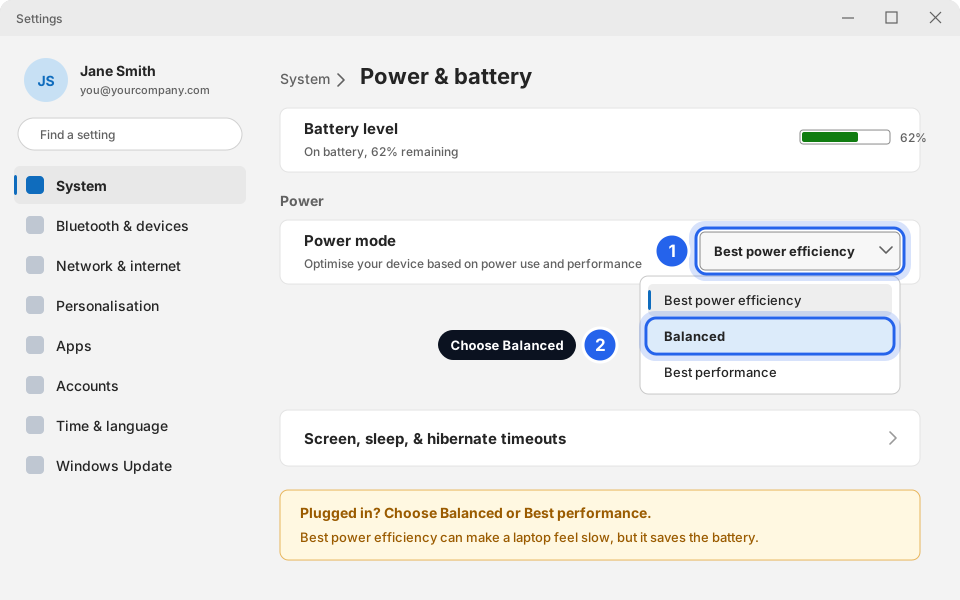
Power mode: choose Balanced.Click picture to enlarge Laptops on Battery saver also run slower on purpose. Plug in the charger and it speeds up. -
Check if OneDrive is busy syncing
Look at the small icons by the clock (click the little ^ arrow if you do not see a cloud). Click the cloud. If it says Syncing with a big number of files, OneDrive is copying files and your computer will feel slow until it finishes. Leave it to finish if you can. To give your computer a break, click the gear, then Pause syncing, then 2 hours.
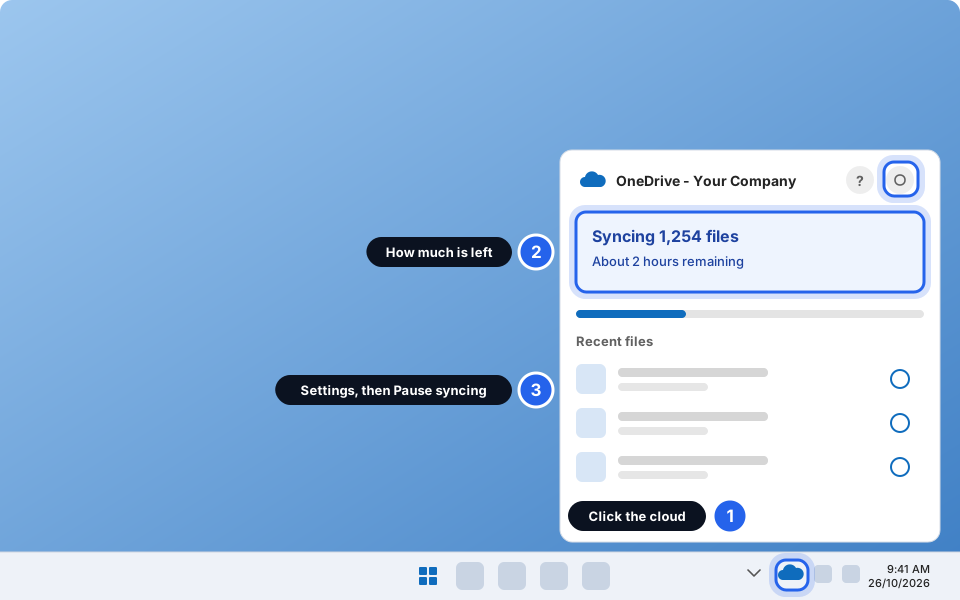
Click the cloud to see how much is left.Click picture to enlarge Are you saving big folders (photos, videos) into OneDrive? That is why it is syncing a lot. Ask us if you want help with it. -
Try again, then tell us what you saw
If it is still slow after these steps, it may be the computer itself. Go to the section below and message us.
When it is the computer itself
A very old computer, or one that is slow every single day even after a restart, may need more memory, a faster disk, or replacing. Message us if you notice any of these:
- It takes more than 5 minutes to start, or programs take a minute to open.
- The fan is loud all the time, or the bottom of a laptop is very hot.
- It freezes, shows a blue screen, or restarts by itself.
- It was fine until a certain day (after an update, a new program, or a power cut).
Tell us what you noticed, when it started, and what you were doing. That helps us find the cause fast.
Feeling faster?
Open Task Manager again. The top of the list should now show a low CPU percentage when you are not doing anything. If it does not, tell us the name at the top.
Still not working?
It is slow only when I open one program (Outlook, Excel, Teams)
Close it fully and open it again. Restart the computer. If only that one program is slow, tell us which one and what you were doing. For Outlook with a full mailbox, see Mailbox almost full.
It is slow only on the internet or in my web browser
That may be your browser or the connection, not the computer. Close extra tabs and try Website not loading or acting strange? and Internet or Wi-Fi not working?.
It is slow every morning for the first 10 minutes
That is usually too many startup programs, or updates installing after you log in. Do the Startup apps step above. If it is still the same, tell us.
The fan is very loud and the computer is hot
Make sure the vents are not blocked (do not use a laptop on a bed or soft cushion). Save your work, restart, and tell us. Overheating can damage the computer.
I cannot do these steps (no Task Manager, no Settings)
Your computer may be locked down or very slow. Message us. If you give permission we can look at it remotely: Let Skytech connect to your computer.