Check how full the disk is
-
Open File Explorer and click This PC
Press the Windows key and E together, or click the yellow folder on the taskbar. Click This PC on the left.
Look under Devices and drives at Local Disk (C:). The bar turns red when it is nearly full (less than about 10% free).
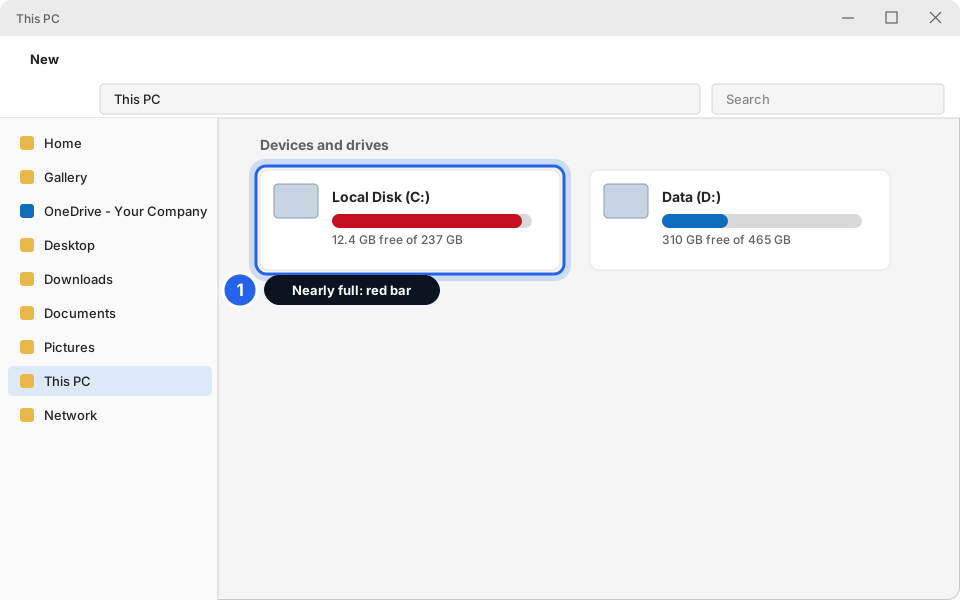
1 The red bar means nearly fullClick picture to enlarge -
For more detail, open Settings, System, then Storage
Click Start, then Settings (the cog). Click System on the left, then Storage. You see how much is used. Click Cleanup recommendations to continue.
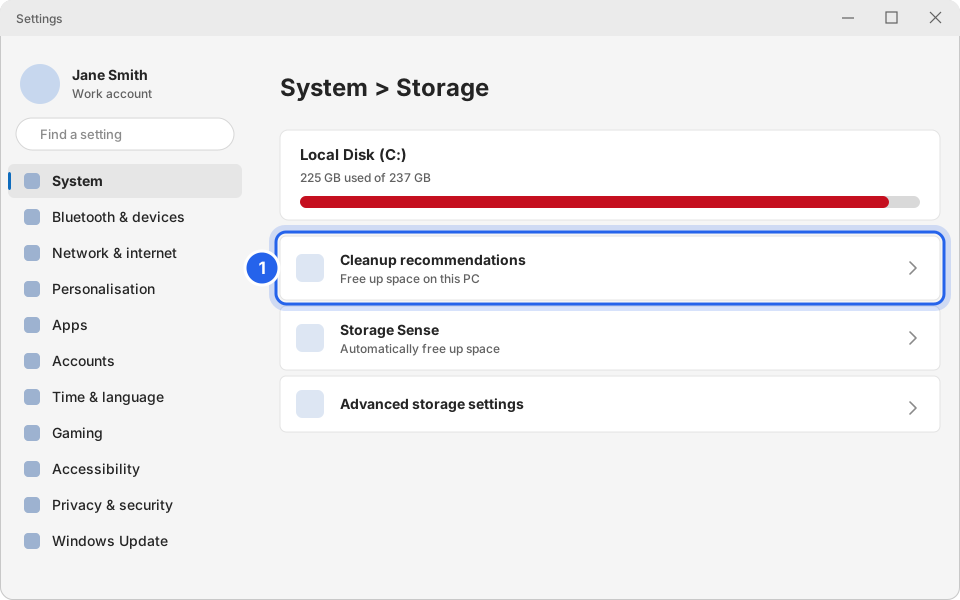
1 Cleanup recommendationsClick picture to enlarge
Run Windows cleanup
Windows can find files it is safe to remove, like temporary files. This is the safest and quickest step.
-
Tick Temporary files and click Clean up
On Cleanup recommendations, tick Temporary files. Click the Clean up button (it shows the size, such as Clean up 2.1 GB). Wait until it finishes.
You might also see Large or unused files, Files synced to the cloud and Unused apps. Leave these unticked unless you have opened them, looked at the list and know it is safe.
If you click into Temporary files and see a Downloads folder or Recycle Bin option, leave it unticked unless you have already checked those folders.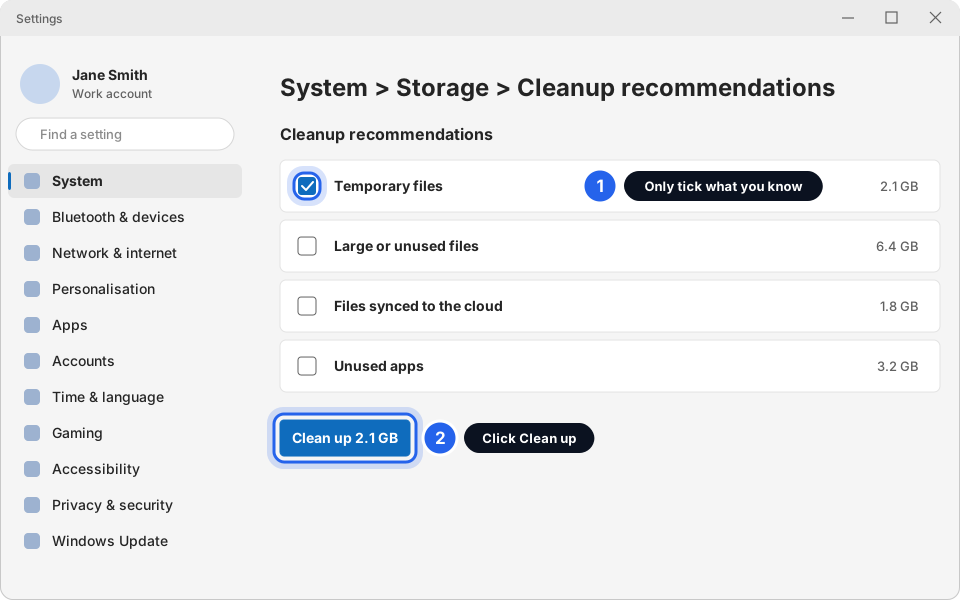
1 Only tick what you know · 2 Click Clean upClick picture to enlarge -
Switch on Storage Sense (optional)
Go back to Storage and click Storage Sense (it may be under Storage management). Turn Automatic User content cleanup on. Windows then clears its own junk files for you. Under Run Storage Sense you can choose how often (for example Every week or During low free disk space).
Leave the options for the Downloads folder and the Recycle Bin on Never unless you are sure. Otherwise Windows may delete things you wanted.
Empty the Recycle Bin
Deleted files stay in the Recycle Bin and still take up space. Look inside first, because emptying is permanent.
-
Right-click Recycle Bin on your desktop and click Empty Recycle Bin
Open the Recycle Bin first (double-click) and check nothing in there is needed. See Get back a deleted file or email. Then close it, right-click the icon and click Empty Recycle Bin. Click Yes to confirm.
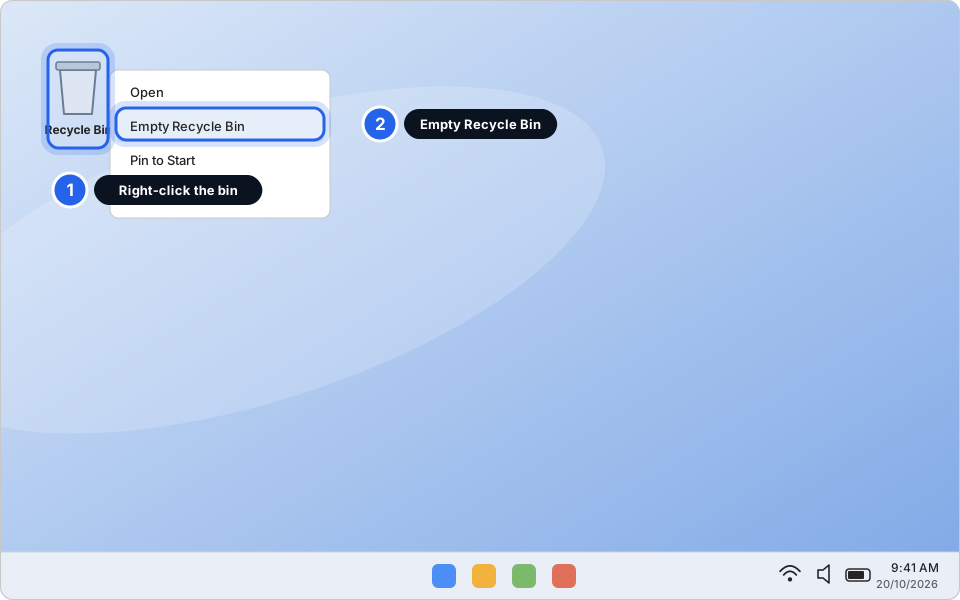
1 Right-click · 2 Empty Recycle BinClick picture to enlarge
Clear your Downloads folder
Everything you download from the internet or email lands in Downloads. Over time it fills with installers, old PDFs and videos you no longer need.
-
Open Downloads and sort by Size
In File Explorer, click Downloads on the left. Click the Size column heading (click twice if needed so the biggest files are at the top). If you don't see a Size column, right-click any column heading and tick Size.
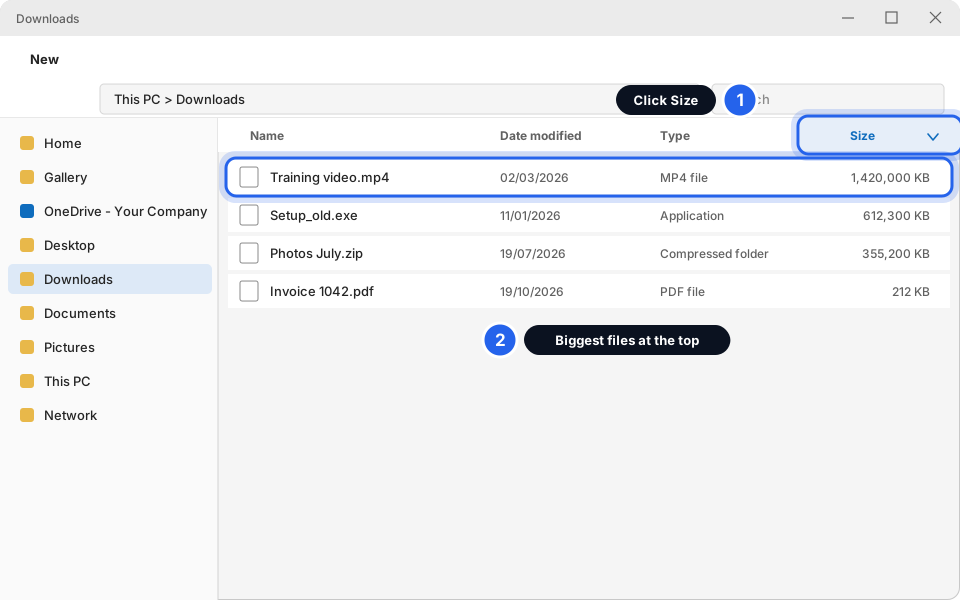
1 Click Size · 2 Biggest files at the topClick picture to enlarge -
Delete the big files you no longer need
Click a file you know you don't need. Press the Delete key on your keyboard. Repeat. Keep anything you still need. Move it to Documents instead.
Good to delete: old setup programs you already installed, .zip files you already unpacked, and videos you have watched. If you are not sure, leave it.
Then empty the Recycle Bin again. Deleted files only free their space when the bin is emptied.
Remove apps you don't need
-
Open Settings, Apps, Installed apps and sort by size
Click Start, Settings, then Apps on the left, then Installed apps. Click the Sort by box and choose Size (large to small).
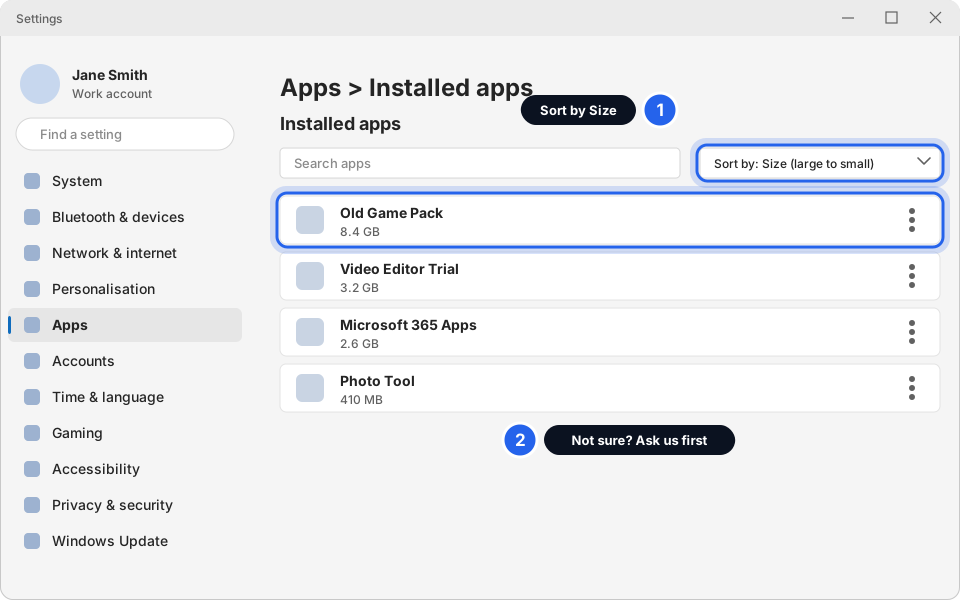
1 Sort by Size · 2 Ask us first if unsureClick picture to enlarge -
Click the three dots next to an app you know you don't need, then Uninstall
Click the three dots on the right of the app. Click Uninstall, then Uninstall again to confirm. Follow the prompts. Some apps open a small window first.
Don't uninstall anything you don't recognise. Many programs are needed for printing, the till, your email or your hotel system. Examples: Microsoft 365, printer software, RustDesk, antivirus. Message us a list or a photo instead.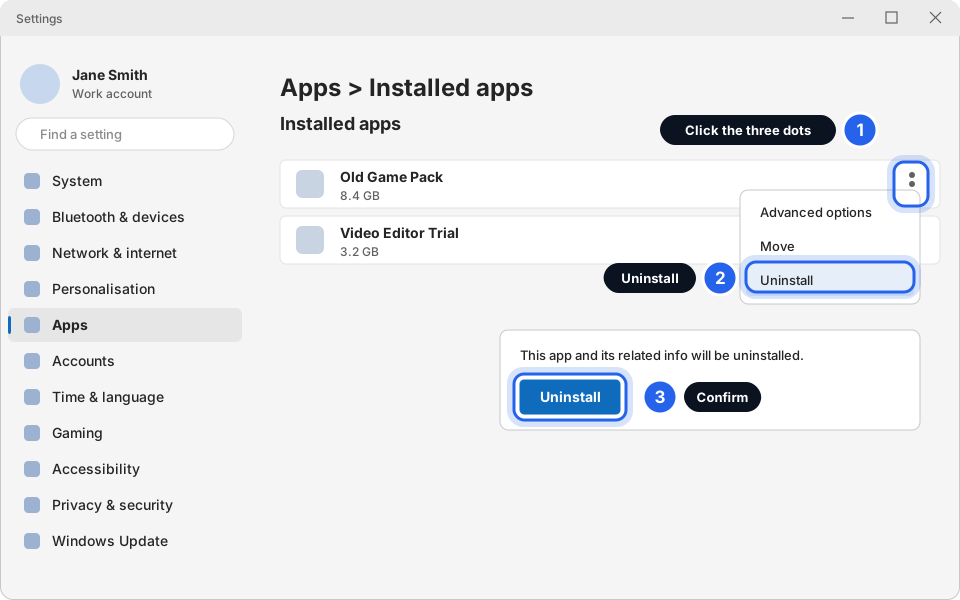
1 Three dots · 2 Uninstall · 3 ConfirmClick picture to enlarge
OneDrive: free up space
If you use OneDrive, you can keep files online only, without deleting them. They stay safe in the cloud.
-
Right-click a big file or folder in OneDrive and click Free up space
Open your OneDrive folder in File Explorer. Right-click a big file or folder and click Free up space. It turns into a blue cloud. It opens again when you click it, as long as you are online. More in Back up your files with OneDrive.
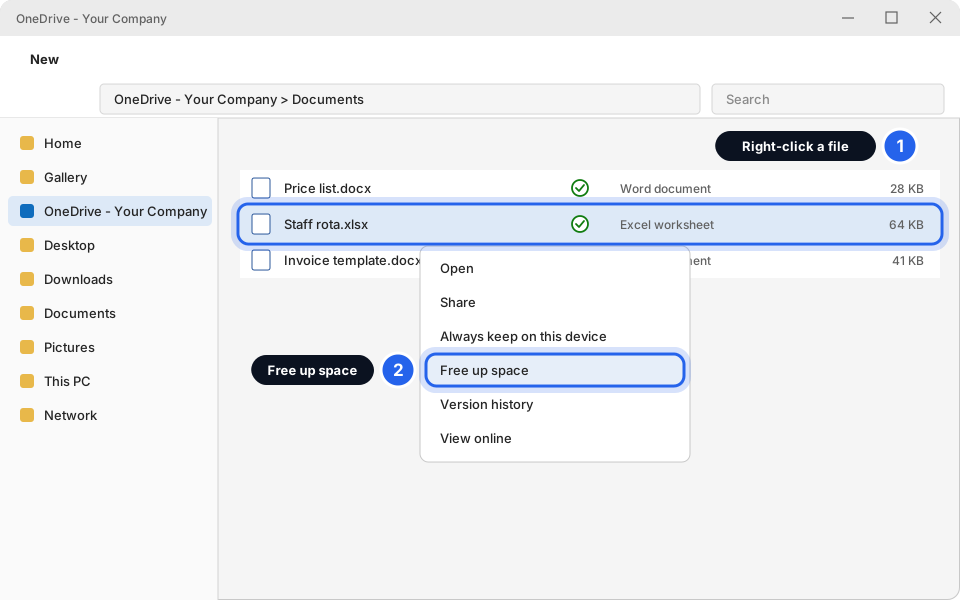
1 Right-click · 2 Free up spaceClick picture to enlarge
When to call us
- The disk fills up again within days or weeks.
- You free a lot of space but it still says almost full.
- The computer is old and has a small drive (for example 128 GB). A bigger drive may be cheaper than lost time.
- Outlook is huge or slow. See Mailbox almost full for how to archive email.
- Your folder names are unfamiliar. Don't guess. Ask us.
Space freed.
Go back to This PC and check the bar. Aim for at least 15–20% free. Restart your computer afterwards.
Still not working?
The bar is still red after cleaning up
Try the Downloads and Apps steps again, and empty the Recycle Bin. If it is still red, message us. There may be something big that only we can safely check.
Windows says I need space to install an update
Clear Temporary files first, then empty the Recycle Bin and try the update again. See Install Windows updates.
I deleted a file I needed
Check the Recycle Bin before emptying it. See Get back a deleted file or email.
Settings says "Other" or "System & reserved" is huge
That is normal for Windows itself. Don't delete system files. Message us if it looks wrong.
My D: or other drive is the one that is full
Use the Downloads and files steps on that drive. If it is a work or shared drive, message us before deleting anything.