What OneDrive does
OneDrive is Microsoft's online storage. Once backup is on, the files in your Desktop, Documents and Pictures folders are copied to your OneDrive over the internet. You keep working as normal. Files you save there are uploaded by themselves.
If your computer dies, you sign in on another one and your files are there. You can also undo mistakes: see Get back a deleted file or email.
Turn on backup
-
Find the cloud icon in the bottom-right corner
Look next to the clock at the bottom-right of your screen. You should see a blue or white cloud. If you can't see it, click the little up arrow (Show hidden icons) next to the Wi-Fi icon and look there.
No cloud at all? Click the Start button, type OneDrive, and click OneDrive in the results.
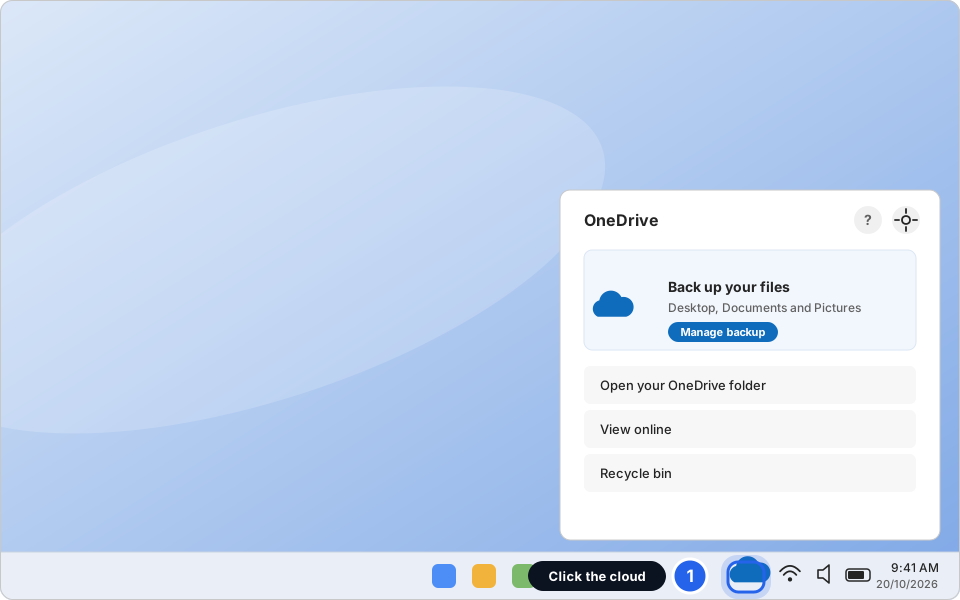
1 Click the cloud iconClick picture to enlarge -
Sign in if it asks you to
If a window called Set up OneDrive appears, type your work email address and click Sign in. Then type your password. If it asks you to approve the sign-in on your phone, do that too.
If the cloud already shows the words OneDrive is up to date or a list of files, you are already signed in. Go to the next step.
Use your work email, not a personal one like Gmail or Outlook.com. A personal account would put company files in a personal space.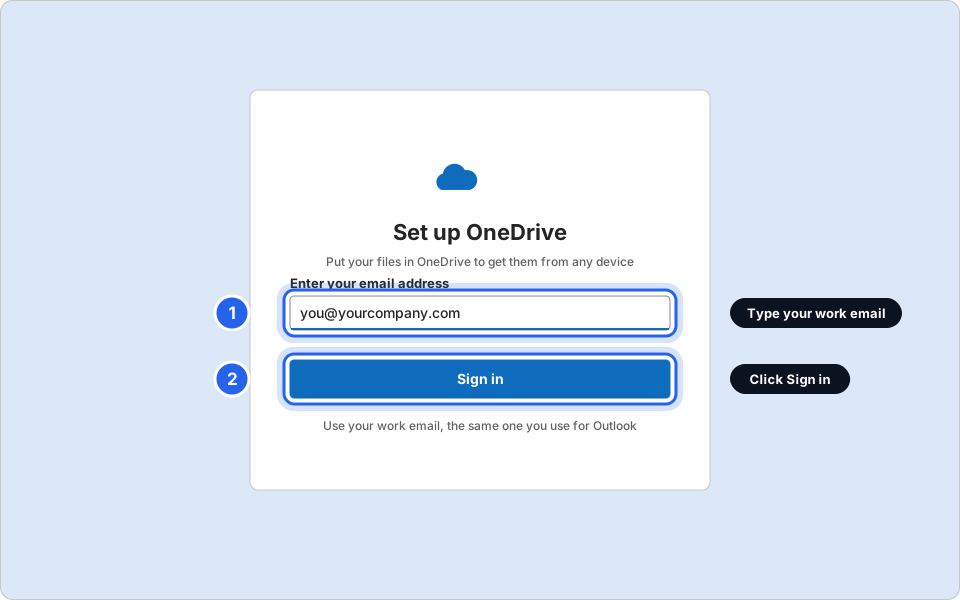
1 Your work email · 2 Sign inClick picture to enlarge -
Click the cloud, then the Help & Settings icon, then Settings
Click the cloud. In the pop-up that opens, click the gear icon at the top right (Help & Settings). A small menu opens. Click Settings.
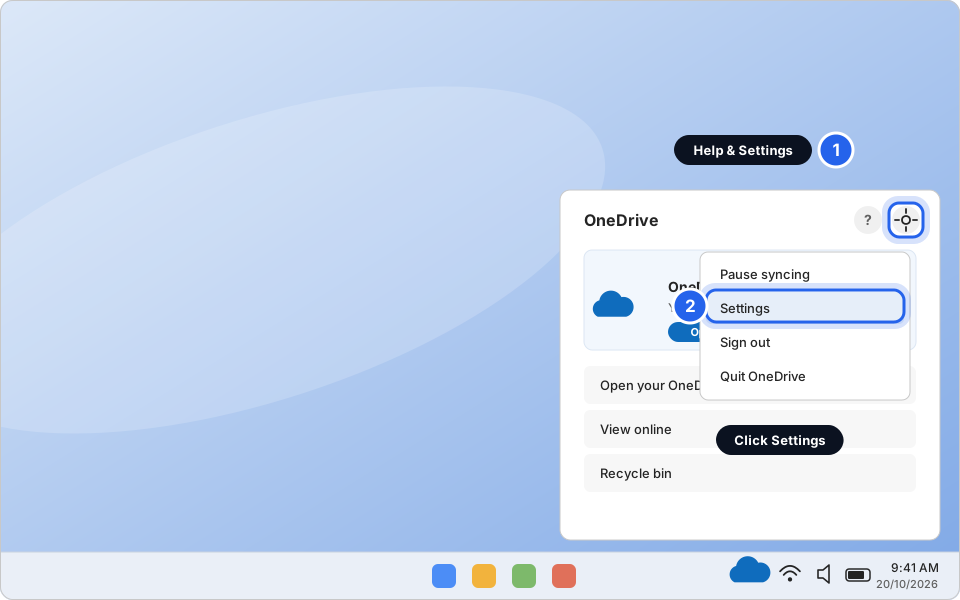
1 Gear icon · 2 SettingsClick picture to enlarge -
Click Sync and backup, then Manage backup
In the OneDrive Settings window, click Sync and backup in the list on the left. Then click the Manage backup button.
On some versions this tab is just called Backup. It is the same thing.
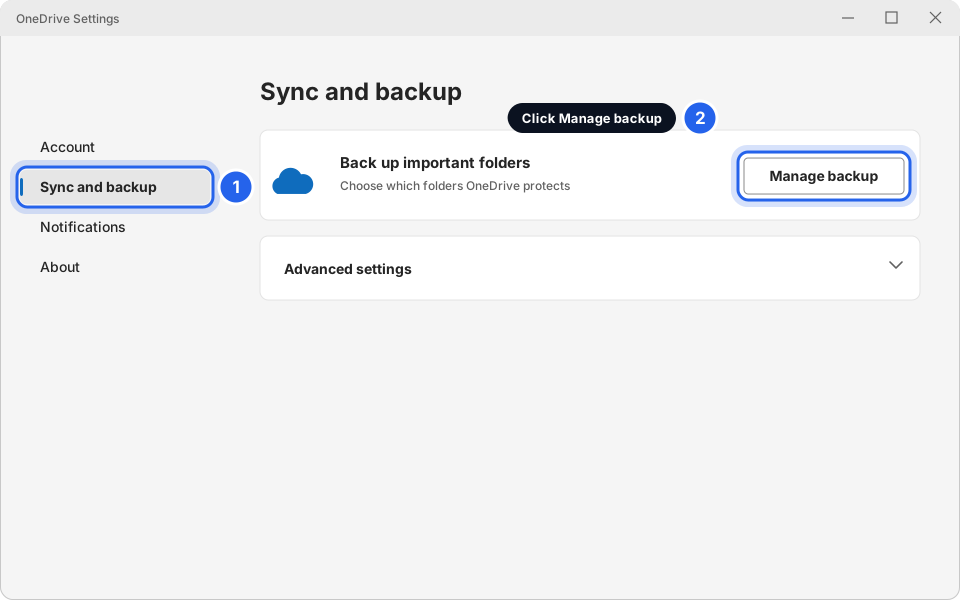
1 Sync and backup · 2 Manage backupClick picture to enlarge -
Switch on Desktop, Documents and Pictures, then click Save changes
Click the switch next to each folder so it turns blue (on). Then click Save changes. OneDrive starts copying your files straight away.
A big folder can take hours the first time. That is normal. Leave the computer switched on and connected to the internet. You can keep working.
Folder says it can't be backed up, or asks you to stop? Don't force it. Message us. Sometimes another backup is already set up, or the folder holds something that can't go to the cloud.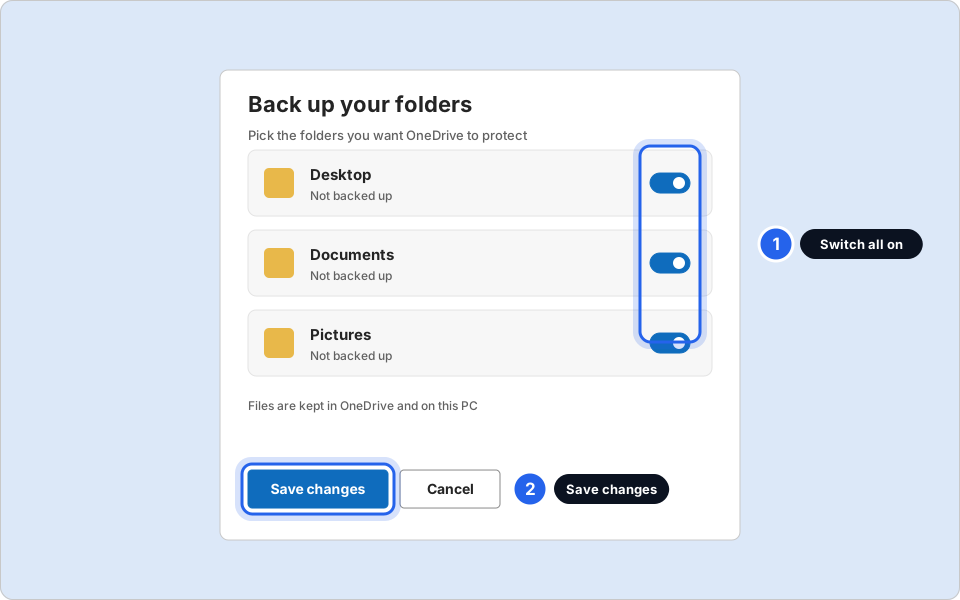
1 Switch all on · 2 Save changesClick picture to enlarge
Backup is on.
Click the cloud again in a few hours. When it says OneDrive is up to date, your files are safe in the cloud.
What the little icons mean
Open File Explorer and look at your files. Each one has a tiny icon in the Status column. This is how you can tell if a file is safe.
-
Look at the icon next to your file
The pictures below are the ones you will see most.
- Blue cloud
- The file is only online. It downloads when you open it, so you need the internet.
- White circle with a green tick
- Safe: it is on this PC and in OneDrive.
- Solid green circle
- The file is set to Always keep on this device. Also safe in OneDrive.
- Blue circling arrows
- Copying to OneDrive right now. Wait before you shut down.
- Red circle with a white cross
- This file did not save. Click the cloud in the bottom-right to see why. If you can't fix it, message us.
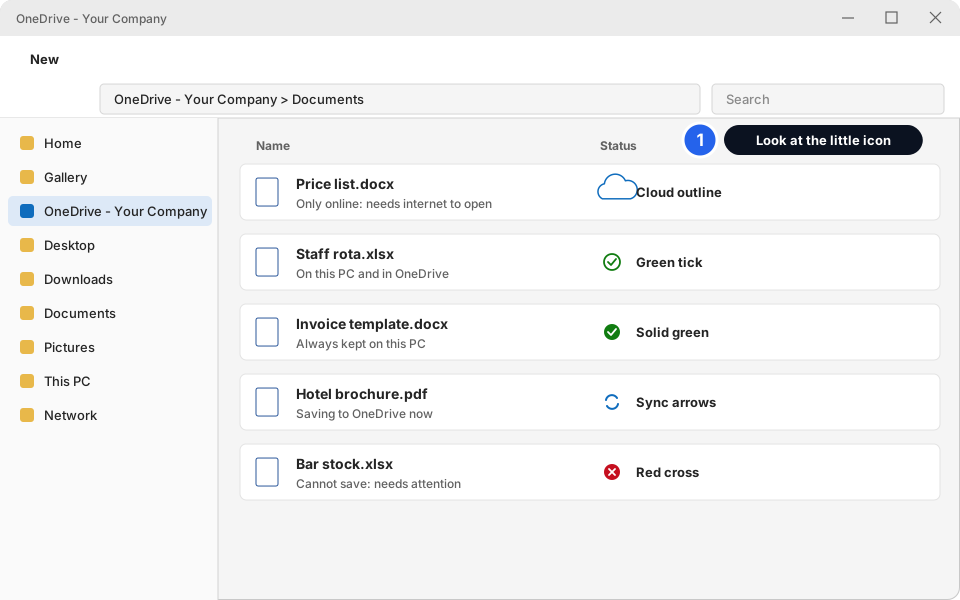
1 Look at the iconClick picture to enlarge
Keep it on this PC, or save space
OneDrive uses Files On-Demand: it can keep a file only online, so it doesn't fill up your computer. A file shows a blue cloud until you open it. You choose per file or folder.
-
Right-click a file or folder and choose what you want
Right-click the file or folder inside your OneDrive folder. Choose:
- Free up space: removes the copy on this PC to give you room. The file is still safe online.
- Always keep on this device: keeps a copy on this PC so you can open it without the internet. Use it for the files you need when the internet is down.
Don't use Free up space on files you need to open while the internet is off. Choose Always keep on this device for those.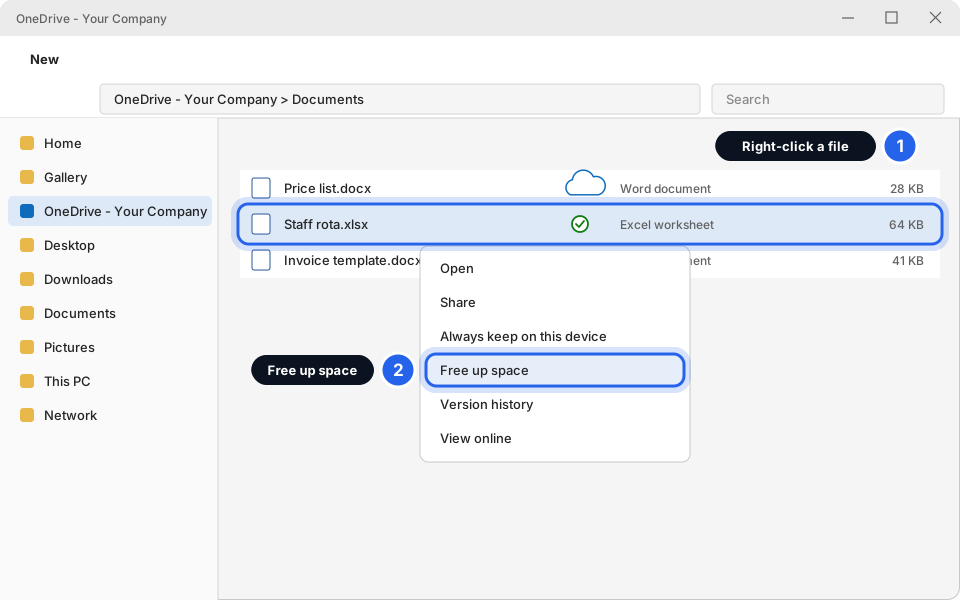
1 Right-click · 2 ChooseClick picture to enlarge
Get your files from any computer
Your files are also on the web, so you can reach them from a spare computer, a home laptop or a phone.
-
Go to onedrive.com (or office.com and click OneDrive) and sign in
Type onedrive.com into the browser address bar. Sign in with your work email and password. Click My files on the left. Your Desktop, Documents and Pictures folders are inside.
On a computer that isn't yours, sign out when you finish and close the browser.
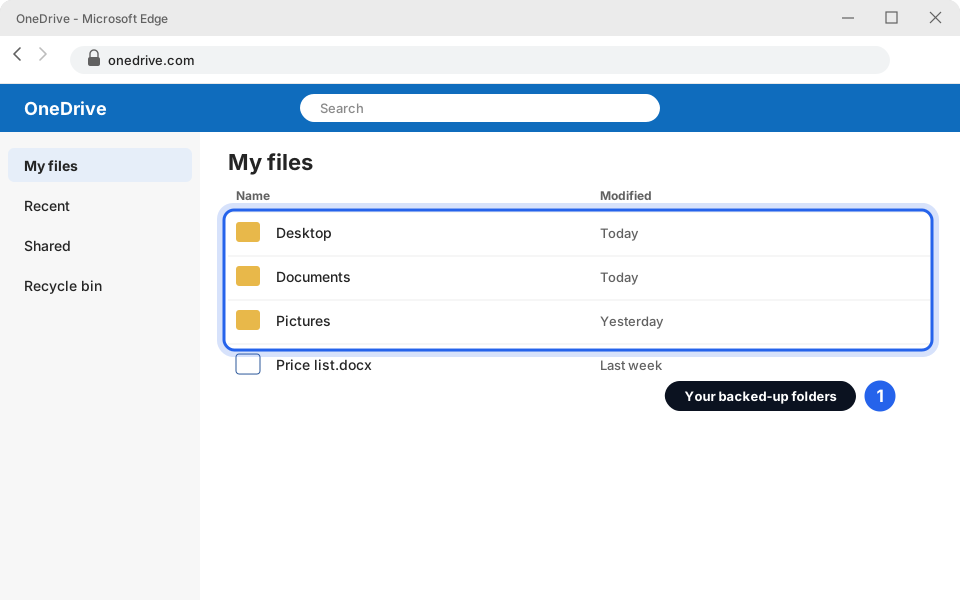
1 Your backed-up foldersClick picture to enlarge
What is NOT a backup
- A USB stick or external drive on its own. It gets lost, broken or stolen with the computer, and people forget to copy.
- Files on one laptop. If that laptop dies, so do the files.
- Files sent to yourself by email. Messy, and they are hard to find later.
- Folders OneDrive isn't protecting. Files in C:\ or a custom folder are not covered. Save in Documents, Desktop or Pictures, or save straight into your OneDrive folder.
Still not working?
There is no OneDrive cloud icon and Start can't find OneDrive
Message us. We'll check OneDrive is installed and that your Microsoft 365 licence includes it.
It says "Not backed up" or backup is greyed out
Your company may have already set up backup in another way, or your account may not have OneDrive. Don't click around. Message us.
It says OneDrive storage is full
Delete things you don't need (and empty the Recycle bin on the OneDrive website), or message us about more storage.
The icon next to a file is a red cross
The file didn't save. Common reasons are a very long file name, a character such as ? : * " in the name, or a file that is open on another computer. Rename it, close it elsewhere, and click the cloud to retry. If it stays red, message us.
The cloud shows a line through it or says "Paused"
Click the cloud and click Resume syncing. If it says you are signed out, sign in again with your work email.
Do I need to do anything every day?
No. Once it says OneDrive is up to date, it looks after itself. Just save your work in Documents, Desktop or Pictures.