Pick how much people can see
When you share, you choose one of these levels. If in doubt, pick the first or second one.
Share your calendar
New Outlook (the one with a Settings gear in the top-right)
-
Open your calendar
Click the calendar icon in the bar down the far left of Outlook.
-
Click Share
On the Home tab at the top, click Share (it may say Share calendar). If you have more than one calendar, choose the one to share.
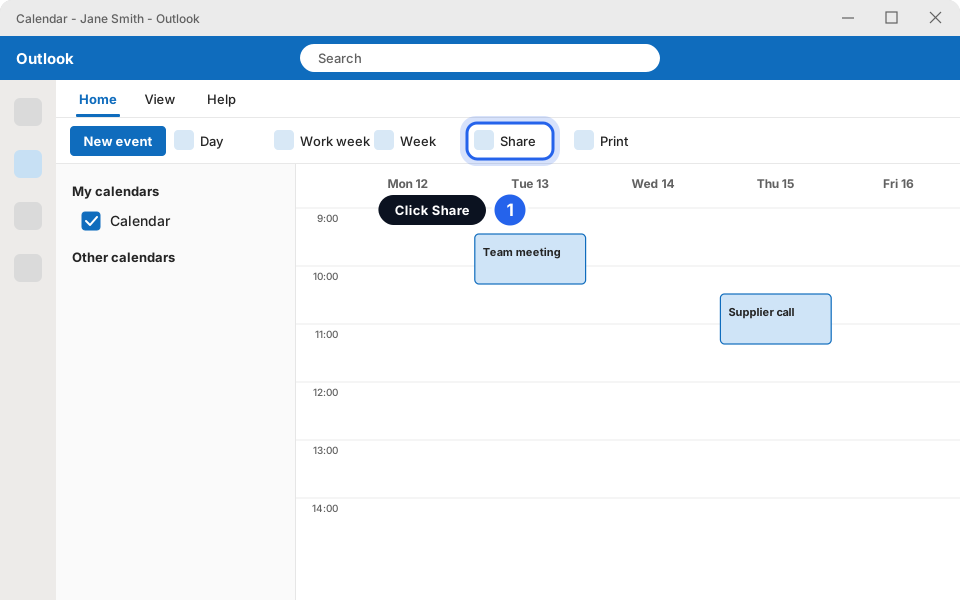
Home tab, then Share.Click picture to enlarge -
Type the person's address and choose what they see
In the Sharing and permissions box, type the person's name or email address. Click the level box and pick a level. Then click Share.
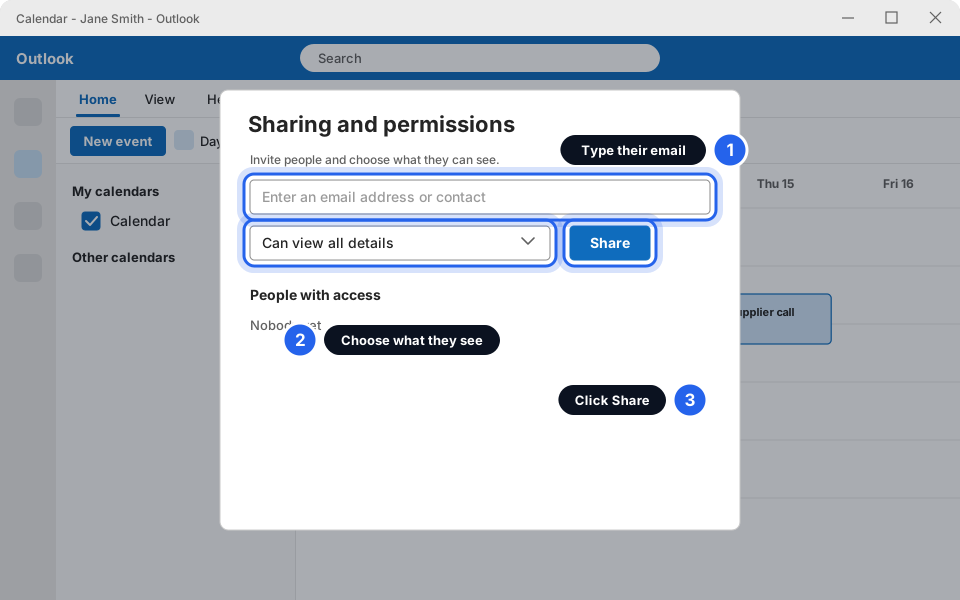
Name, level, then Share.Click picture to enlarge -
Check the levels list
This is the list you'll see when you click the level box.
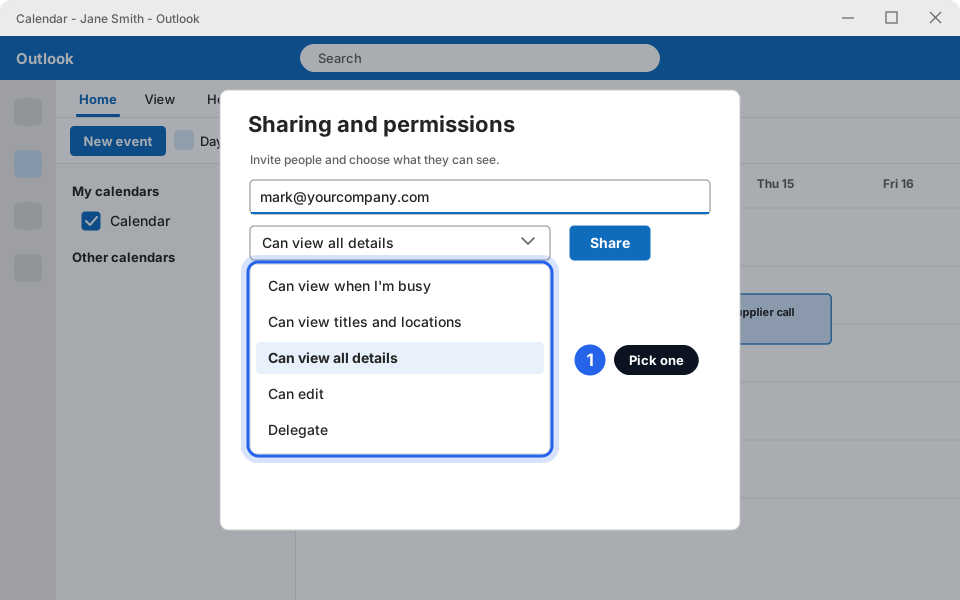
Pick one level.Click picture to enlarge -
Wait for them to accept
They get an email. Until they accept, nothing is shared. If you share with someone inside your company, it often appears for them automatically.
Outlook on the web (outlook.office.com) is very similar to the New Outlook: click the calendar icon, then Share at the top, and use Sharing and permissions exactly as above.
Classic Outlook (File, Home, Send / Receive tabs)
-
Open your calendar
At the bottom-left of Outlook, click the calendar icon (or the word Calendar).
-
Click Share Calendar
On the Home tab at the top, click Share Calendar. If you have more than one calendar, choose the one you want to share. A new message window opens.
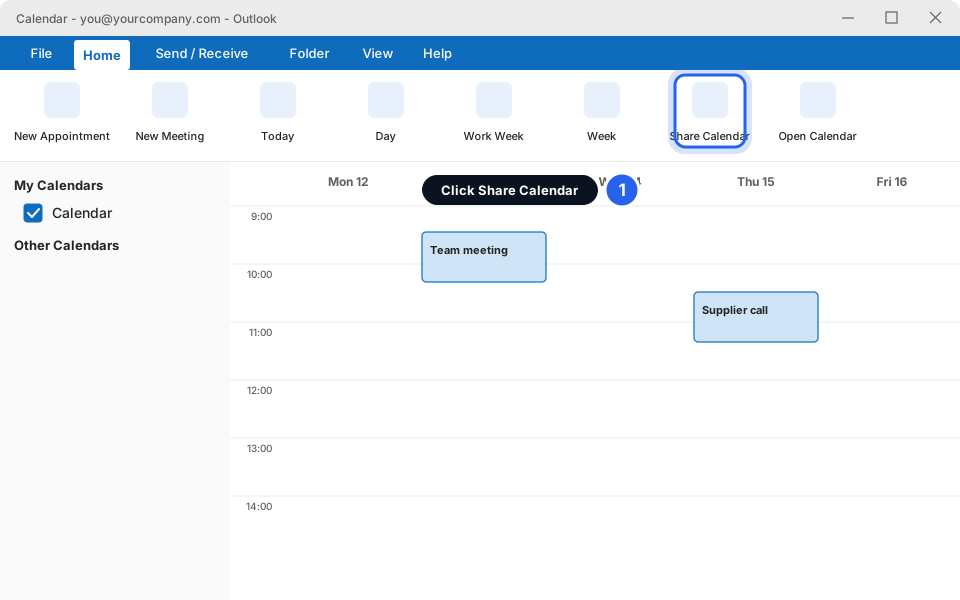
Home tab, then Share Calendar.Click picture to enlarge -
Type the person's address and choose what they see
In the To box type the person's email address. Next to Details, click the arrow and pick a level (it may be worded a little differently, for example Availability only, Limited details or Full details). Then click Send.
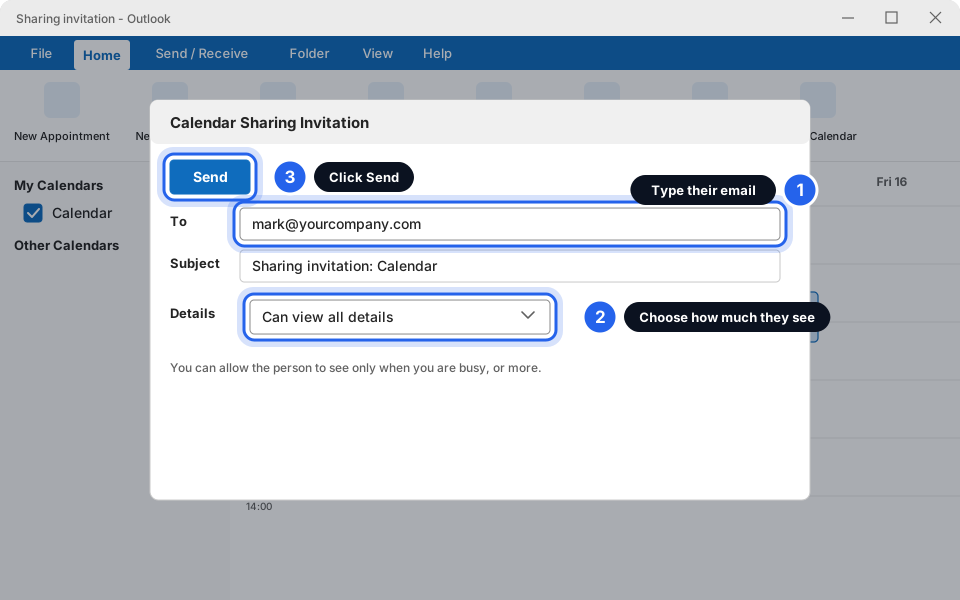
Address, level, then Send.Click picture to enlarge -
Wait for them to accept
They get an email with a button to accept. Until they click it, they can't see your calendar.
Calendar shared
The other person should now see an email asking them to accept. Ask them to check in an hour or two if they can't see it.
Open someone else's calendar
If a colleague has shared their calendar, you can add it next to yours. If they haven't shared it yet, ask them to follow the steps above first.
New Outlook
-
Click Add calendar
In the calendar view, look at the list on the left. Click Add calendar.
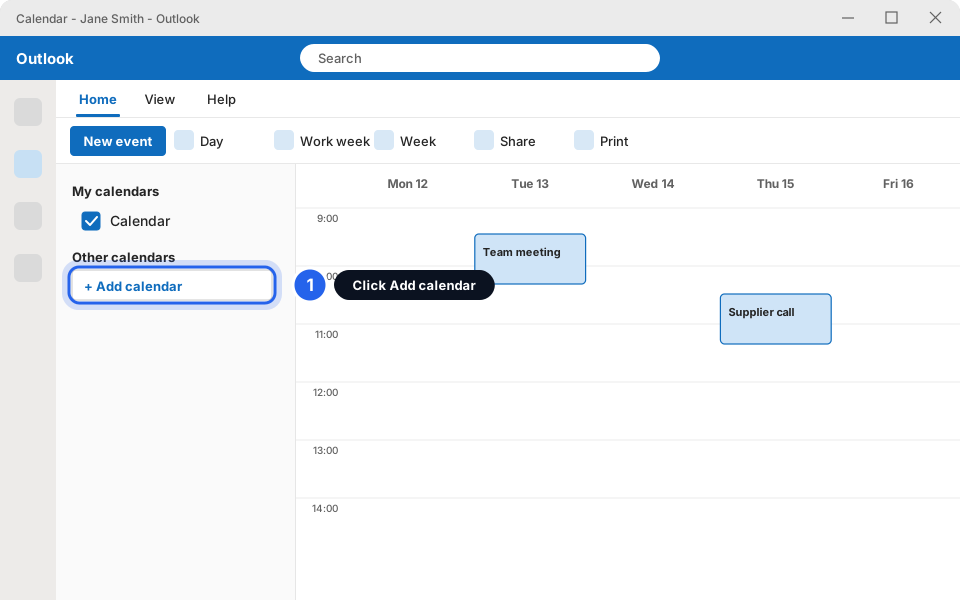
Click Add calendar.Click picture to enlarge -
Choose Add from directory
A small menu opens. Click Add from directory (the other choices are for personal calendars).
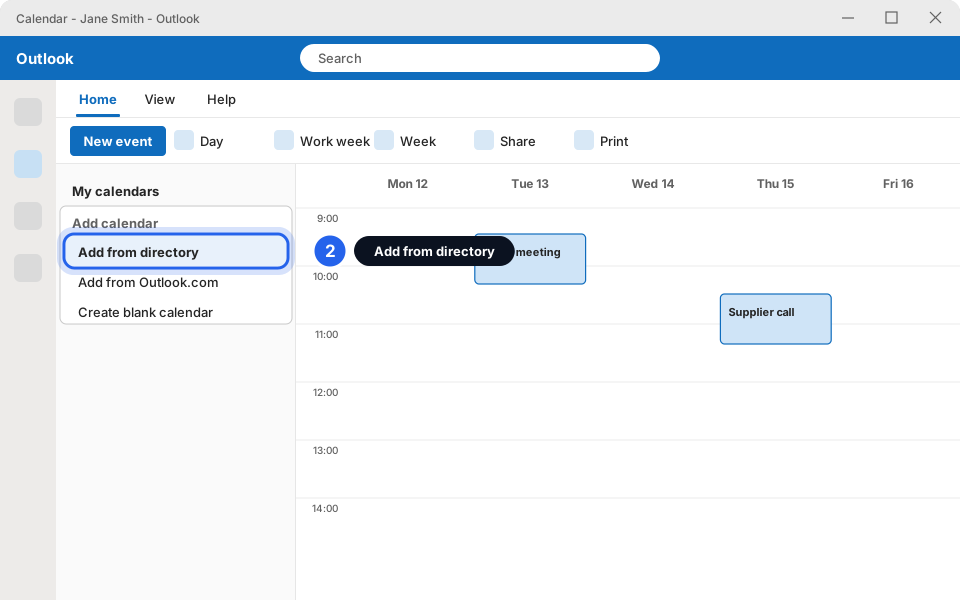
Choose Add from directory.Click picture to enlarge -
Type their name, click it, then click Add
Start typing the person's name and click them when they appear in the list. Click Add. Their calendar appears under Other calendars on the left. Tick it to show it.
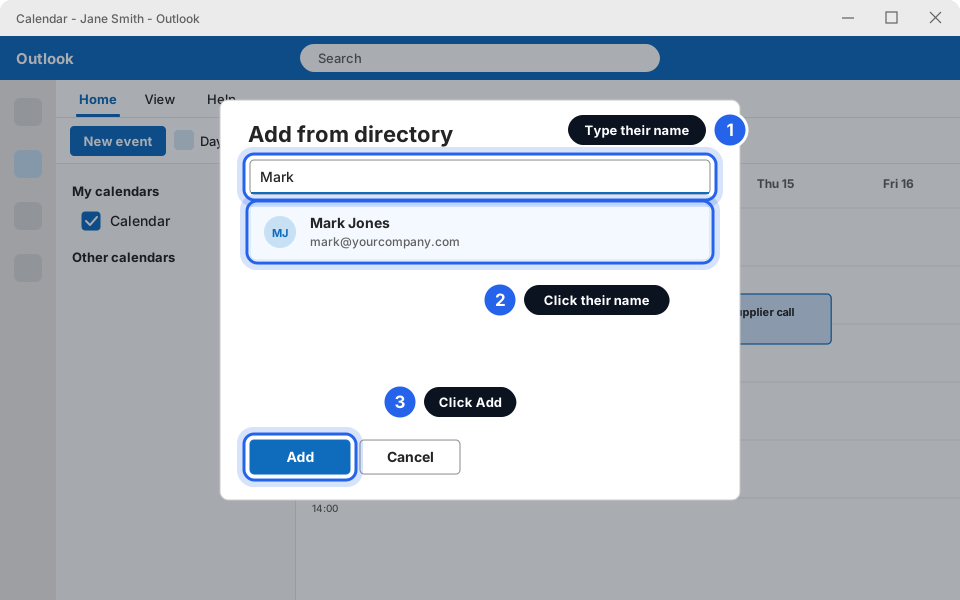
Pick the person, then Add.Click picture to enlarge
Classic Outlook
-
Open your calendar and click Open Calendar
On the Home tab, click Open Calendar. A menu opens.
-
Choose From Address Book
Click From Address Book....
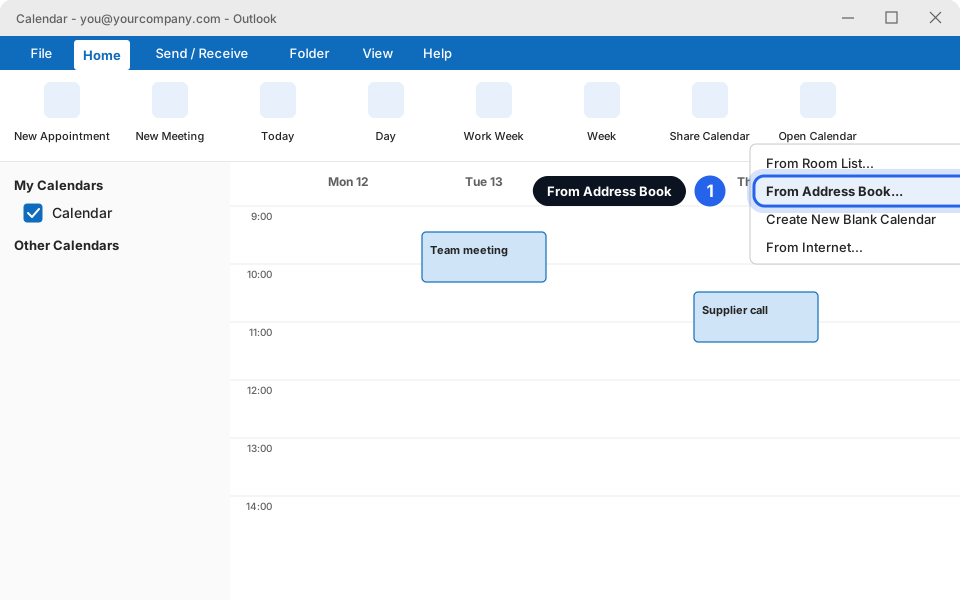
Choose From Address Book.Click picture to enlarge -
Type their name and click OK
In the Name box, type the person's name or click it from the list, then click OK. Their calendar opens beside yours.
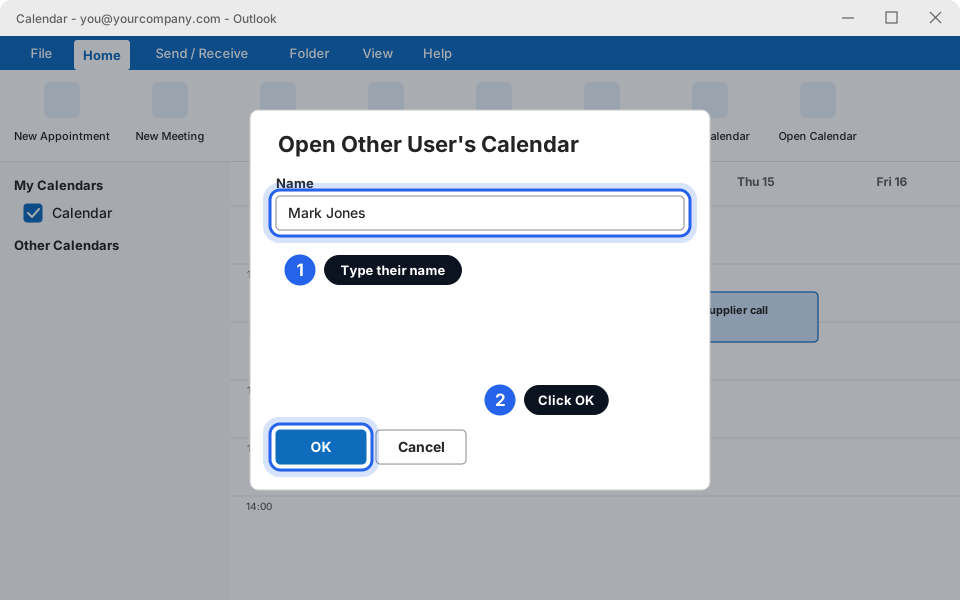
Name, then OK.Click picture to enlarge
Accept an invitation
If someone shares their calendar with you, you get an email called Sharing invitation.
-
Open the email and click the button
Open the email in your Inbox. Click Accept and view calendar (it may be called Accept). The calendar is added to your calendar list.
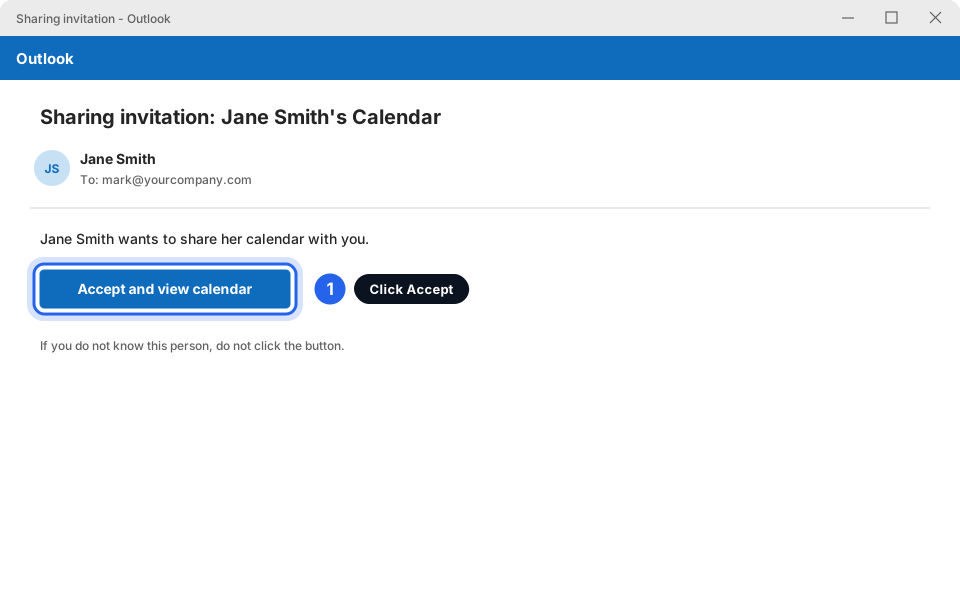
Click the accept button.Click picture to enlarge -
Look under Other calendars
Go to your calendar. The new calendar is listed on the left under Other calendars. Tick the box to show it.
Stop sharing
New Outlook
-
Open Sharing and permissions
Open your calendar. In the list of calendars on the left, right-click your calendar and click Sharing and permissions. (Clicking Share at the top and choosing your calendar also works.)
-
Click Remove beside the person
You'll see the list of people you shared with. Find the person and click Remove (it may be a bin or an X icon). They lose access straight away.
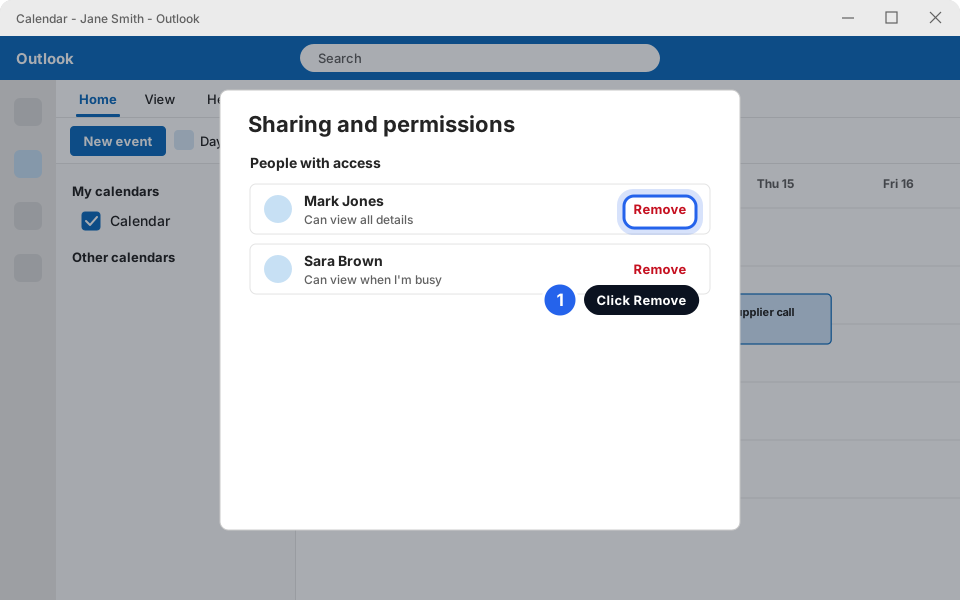
Remove the person.Click picture to enlarge
Classic Outlook
-
Open the calendar's permissions
Go to your calendar. Right-click Calendar in the list on the left and choose Properties. Click the Permissions tab. (Some versions show Sharing Permissions in the same right-click menu.)
-
Click the person, then Remove
Click their name in the list, click Remove, then OK.
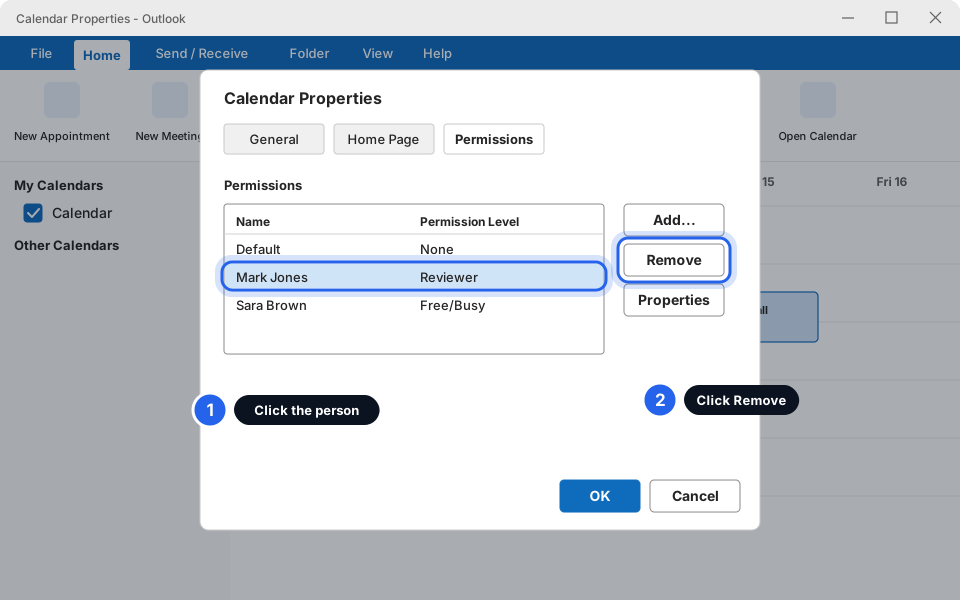
Pick the person, then Remove.Click picture to enlarge
Still not working?
The Share button is missing or greyed out
Your account may not be a Microsoft 365 account, or the company has turned calendar sharing off. If you have Skytech-hosted (IMAP) email, there's no shared calendar. Message us and we'll check.
They say they can't see my calendar
Check they clicked Accept in the invitation email. Ask them to close and reopen Outlook. It can take up to an hour to appear. Also check you typed their address exactly.
I can only share as 'busy', not edit
People outside your company can usually only be given the viewing levels. Can edit and Delegate are for people inside your company.
Shared events show the wrong time
One of you may have the wrong time zone in Outlook. Check the time zone on both computers and on the calendar. Message us if the times are still wrong.
I want my assistant to manage my calendar
Give them the Delegate level, or Can edit if they only need to change events. Choose carefully, they can act on your behalf.