Pictures are drawings of a typical business desk phone. Yours may have the sockets or buttons in slightly different places, but the idea is the same.
The checklist
-
Is the phone's screen lit?
Look at the screen. You should see your extension number and the time.
- Screen lit: good. Skip to step 3.
- Screen dark or blank: the phone has no power. Press any key first, in case the screen is just asleep. If it stays dark, go to step 2.
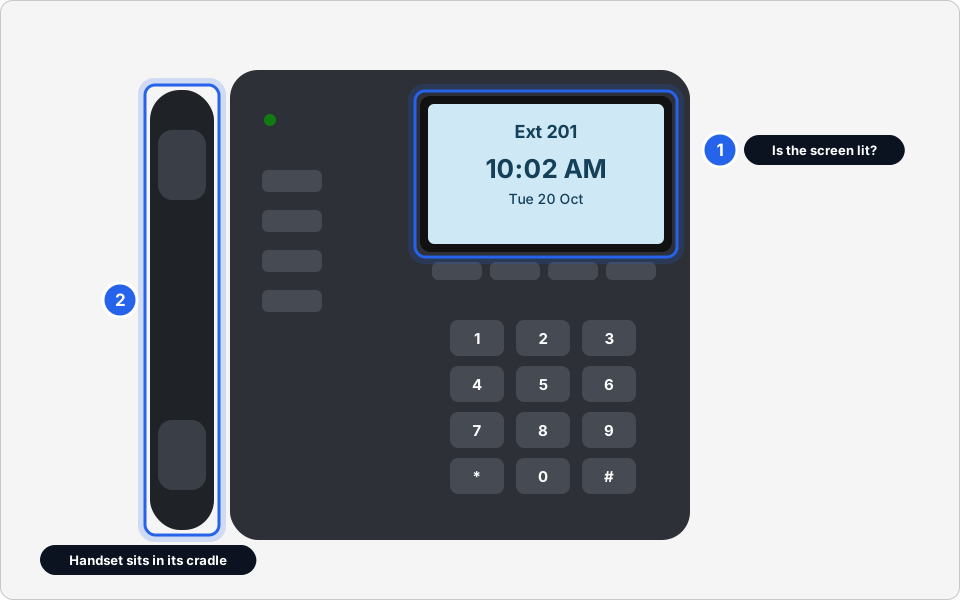
1 Screen lit · 2 Handset in its cradleClick picture to enlarge -
Check the network cable on the back of the phone
Most office phones get power and a connection through one network cable. Turn the phone over or look at the back. Find the socket marked LAN (it may show a network symbol, or say Network or SW).
- The cable that goes to the wall must be in the LAN socket.
- The socket marked PC is only for a computer cable. If the wall cable is in PC, move it to LAN.
- Push each end in until it clicks. Check the other end is firmly in the wall socket.
Only touch the cables at your desk. Never unplug or move cables in the comms room or server cupboard.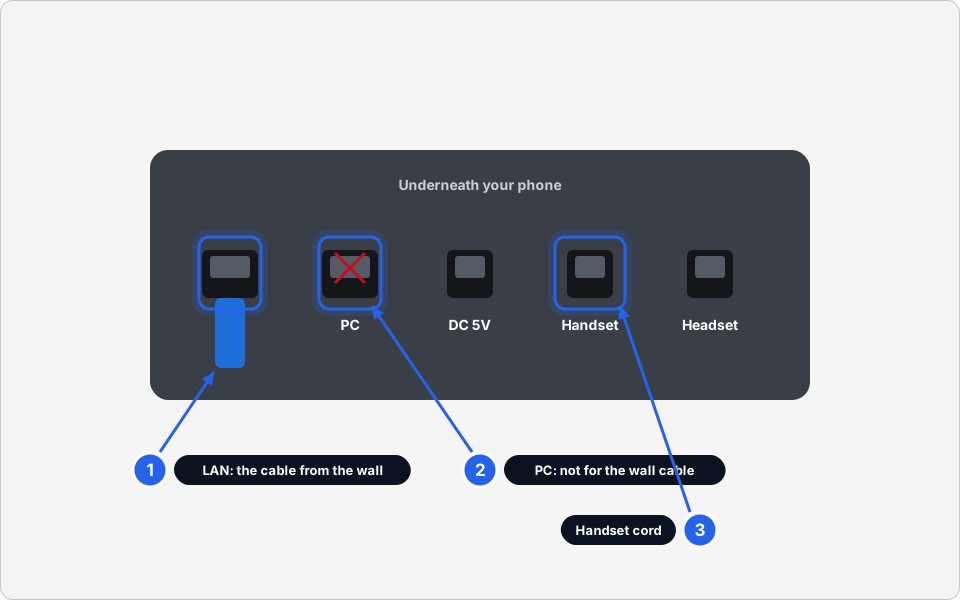
1 LAN: wall cable · 2 PC: not for the wall cable · 3 Handset cordClick picture to enlarge -
If your phone has a separate power plug, check that too
Some phones have a small power adapter that goes into the DC or power socket. If yours does, check it's pushed in at the phone and at the wall or power strip. Plug something else into the same socket (a phone charger or lamp) to see if the socket itself has power.
-
Can't hear them, or they can't hear you, on the handset?
Press the speaker button and make a test call. If speakerphone works but the handset doesn't, the curly cord is the usual cause.
- Unplug the cord at both ends (handset end and phone end), then push both back in until they click.
- Look along the cord for kinks, cuts or a cracked plug. A damaged cord needs replacing. Tell us and we'll get one.
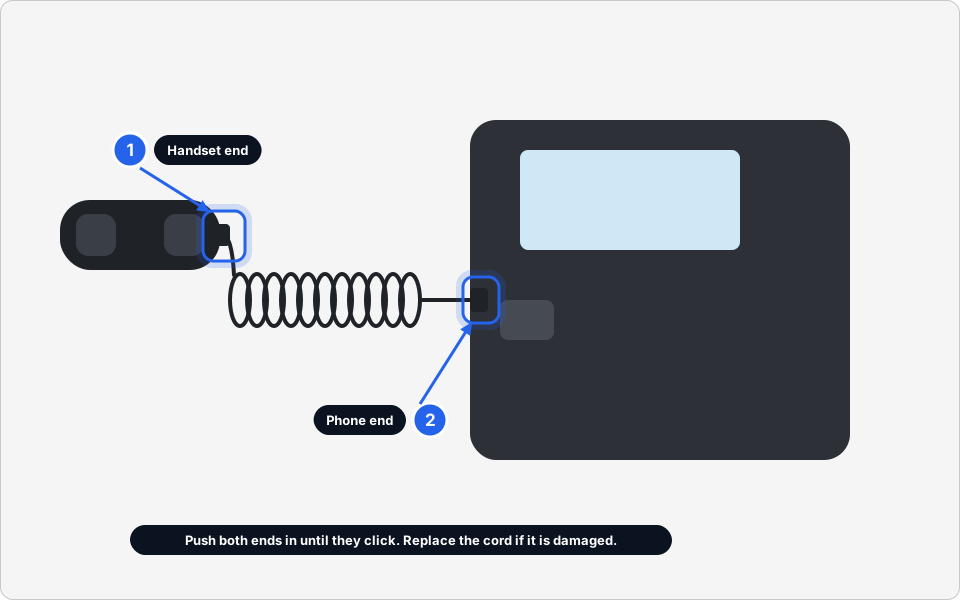
1 Handset end · 2 Phone endClick picture to enlarge -
Can't call out? Try dialling 9 first
At some offices you must dial 9 (or another number your office uses) to get an outside line, then the number. For example 9 then the full phone number. Calls between extensions don't need it. If you're not sure what your office uses, ask a colleague or message us.
-
Calls going straight to voicemail? Check Do Not Disturb and call forwarding
Look at the screen. If you see DND or Do Not Disturb (often in red), calls are being sent away on purpose. If you see an arrow or the words Forward or Fwd with a number, your calls are being passed to another number.
To turn either off, press the soft key (the button under the screen) labelled DND or Forward, or Cancel. The words and buttons differ between phone makes. If you can't find it, take a photo of the screen and send it to us.
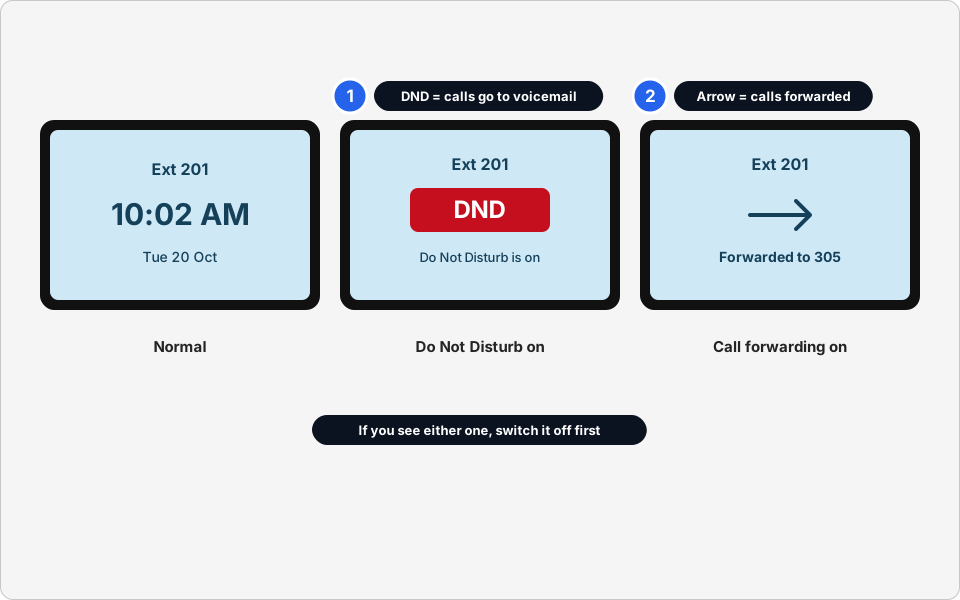
1 DND on · 2 Forwarding onClick picture to enlarge -
Too quiet? Check the volume
While you're on a call (or while the phone is ringing), press the volume + / - buttons, usually a rocker above the keypad. Press + several times. Also check the Mute button isn't lit.
-
Restart the phone
Unplug the network cable from the LAN socket (and the power adapter if your phone has one). Wait 10 seconds, then plug it back in. The phone restarts and shows a progress message. Wait 2 to 3 minutes, until your extension number and the time appear. Then try a call.
Still no joy? Tell us these four things
The more we know, the faster we fix it. Use the template below.
What to tell Skytech
Still not working?
Everyone's phones are dead, not just mine
Don't restart anything in the comms room or server cupboard. Message us straight away and say it's all phones. If there was a power cut or an internet outage today, tell us that too. See After a power cut: what to restart and Internet or Wi-Fi not working?.
The phone rings but there's no sound when I pick up
Try the speaker button. If speakerphone works, it's the handset cord (step 4). If neither works and the caller can't hear you, tell us your extension number and whether it happens on every call.
Callers say they get a busy tone or "number not available"
First check the phone isn't on Do Not Disturb or forwarding (step 6). If it isn't, message us with the extension number and the number that tried to call you.
The screen says "No service", "Registering" or "Network unavailable"
The phone can't reach the phone system. Check the LAN cable (step 2) and restart the phone (step 8). If the message is still there after 5 minutes, send us a photo of the screen.
I want my calls forwarded to my mobile
Call forwarding depends on how your office phone system is set up. Message us the extension and the number to forward to, and when you need it to start and finish.