1. Pick the cable
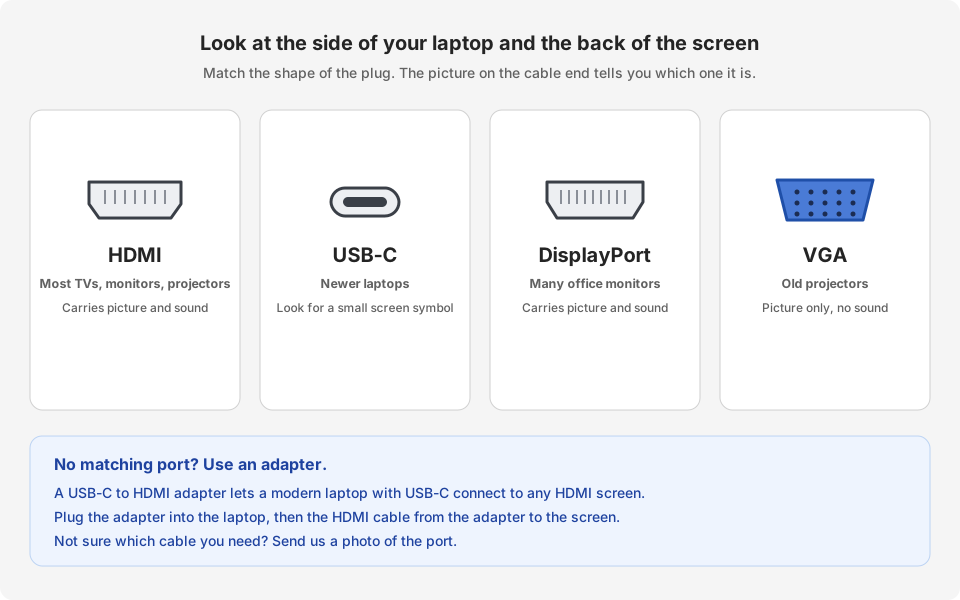
Look at the side or back of your laptop and at the back of the screen. Match the shapes. HDMI is by far the most common. If your laptop has no matching port, use an adapter (for example USB-C to HDMI).
2. Plug in
-
Plug one end of the cable into the screen, TV or projector
Look at the label next to the port. It may say HDMI 1, HDMI 2 or HDMI IN. Remember which one you used.
-
Plug the other end into your laptop
Push gently until it is firm. HDMI only fits one way.
-
Choose the right input on the TV or projector
Use the remote. Press Input, Source or Signal and pick the same name as the port you used (for example HDMI 1). On a projector in a meeting room, if the screen says No Signal, this is almost always the reason.
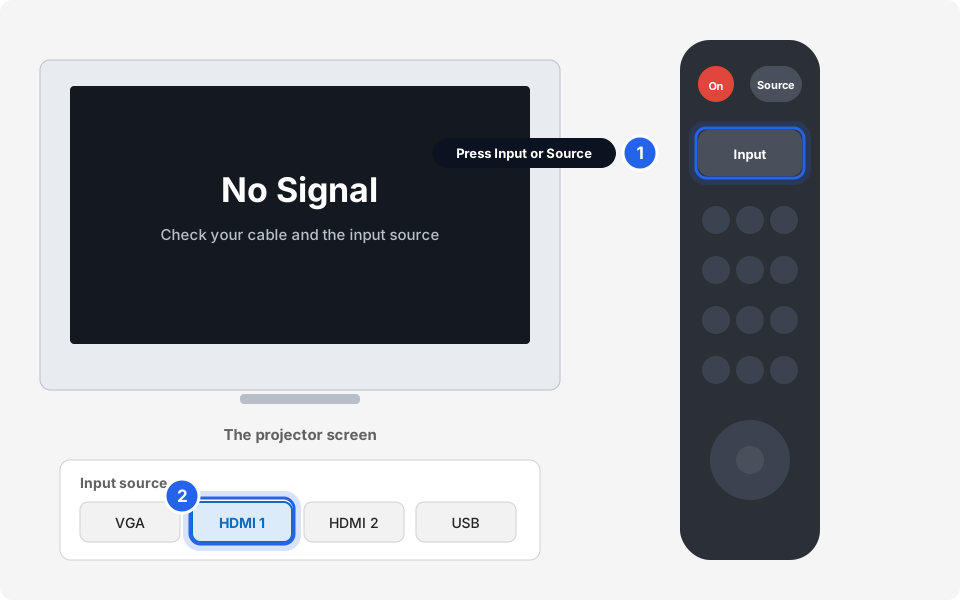
Press Input or Source, then choose HDMI.Click picture to enlarge If you do not have the remote, look for a small Source or Input button on the projector itself.
3. Choose how to use the second screen
-
Press the Windows key and P together
The Windows key has the Windows logo and is on the bottom row of the keyboard. A menu opens on the right of the screen.
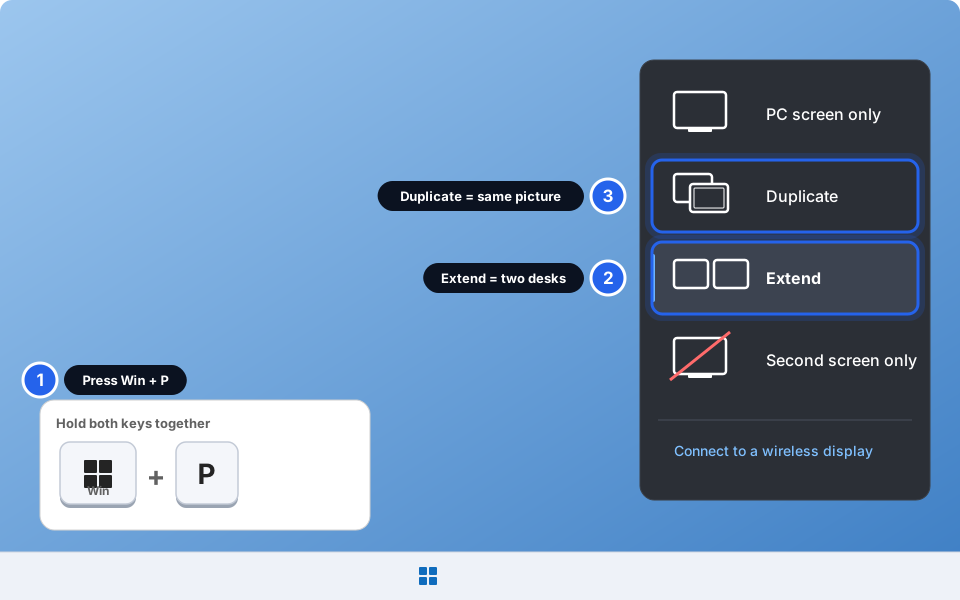
Press Windows + P.Click picture to enlarge -
Click one of the four choices
Duplicate: both screens show the same picture. Best for presentations and projectors.
Extend: the second screen is extra desk space. You can drag windows across. Best for working with two screens.
PC screen only: only the laptop shows anything.
Second screen only: only the TV or projector shows, and the laptop screen goes dark.
Nothing happens? Click the choice a second time, or unplug and plug the cable again.
4. Fix size, position or the main screen
With Extend, Windows needs to know where the screens sit on your desk. Right-click an empty part of the desktop and click Display settings. Or open Settings, then System, then Display.
-
Click Identify
A big number appears on each screen. Now you know which one is 1 and which is 2.
-
Drag the boxes to match your desk
If screen 2 is on the right of screen 1 on your desk, drag the box 2 to the right of box 1. Then your mouse moves across in the right direction.
-
Choose the main display
Click the box of the screen you want as the main one. Scroll to Multiple displays and open it, then tick Make this my main display. The taskbar and Start menu go to the main display.
-
Fix a blurry or tiny picture
Click the screen, then under Scale & layout check that Display resolution says (Recommended). If everything is too small or too big, change Scale (for example 125%).
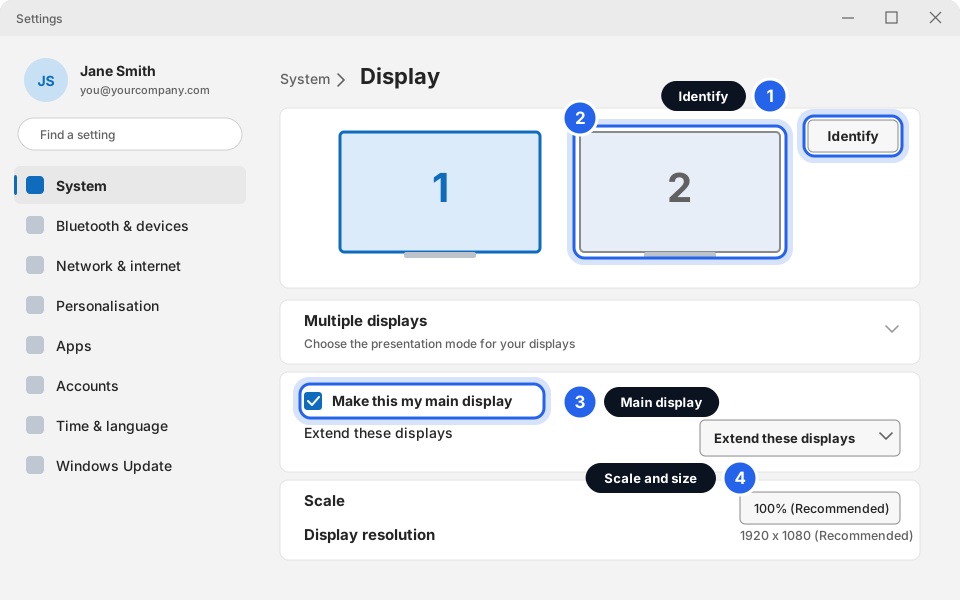
Identify, drag, main display and scale.Click picture to enlarge
5. Sound comes out of the TV (or does not)
HDMI sends sound as well as picture. Windows may switch to the TV speakers by itself. To choose where sound plays:
-
Click the sound icon by the clock
It is the small speaker at the bottom-right, next to the Wi-Fi and battery icons.
-
Click the small arrow beside the volume bar
A list called Sound output opens.
-
Tick the one you want
Choose your laptop Speakers, or the TV (it may be called HDMI, the TV brand, or the projector name).
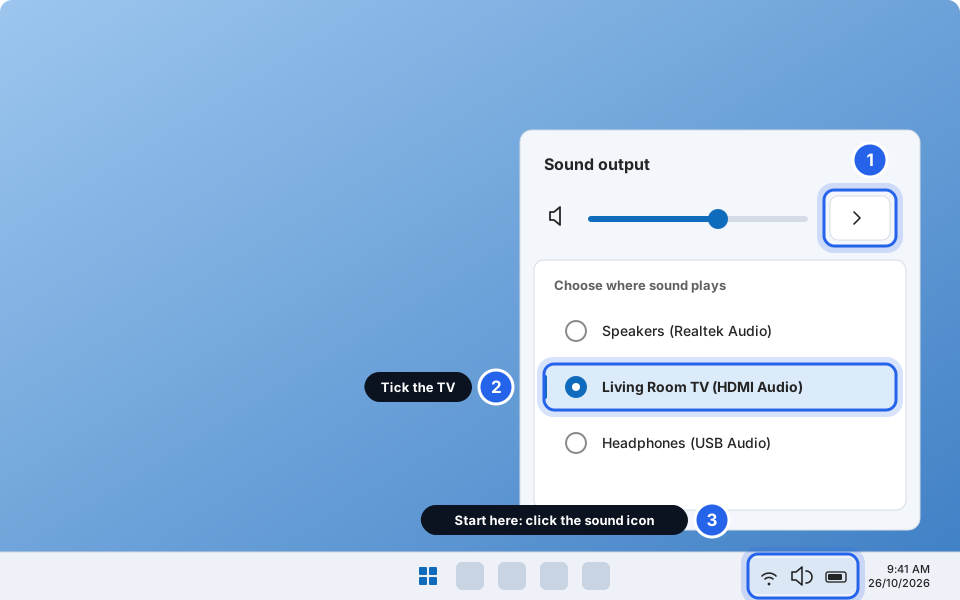
Click the arrow and choose where the sound plays.Click picture to enlarge
Wireless (no cable)
Some TVs and projectors can receive your screen over Wi-Fi. Press Windows + K (this is called Cast) and pick the TV from the list. Or press Windows + P and click Connect to a wireless display. It needs a TV that supports it on the same Wi-Fi, and it is slower and less reliable than a cable. For an important meeting, use the cable.
On a Mac
Plug the cable in. Click the Apple menu, then System Settings, then Displays. Click the screen you added. Next to Use as, choose Mirror for (the same picture on both), or Extended display. You may need a USB-C to HDMI adapter.
Connected
You should see your screen on the TV or projector, with sound where you want it. Take the cable with you if you move rooms. It is the part that gets lost.
Still not working?
The projector or TV says "No Signal"
Check the cable is pushed in at both ends. On the projector or TV, use Input or Source and choose the same HDMI number as the port you used. Then press Windows + P and choose Duplicate.
The laptop does not see the second screen at all
Switch the screen on, unplug and replug the cable, try another HDMI port or cable, then press Windows + P. If you use an adapter, try a different one. Restart the laptop with the cable plugged in.
The picture is blurry, stretched, or too small
Open Display settings, click the screen, and set Display resolution to the one marked (Recommended). Change Scale if text is too big or too small.
No sound from the TV
Click the sound icon by the clock, click the arrow beside the volume bar and tick the TV. Make sure the TV is not muted and the volume on the TV is up.
My mouse disappears off the screen the wrong way
In Display settings drag the boxes 1 and 2 to match how the screens sit on your desk.
Everything went black on the laptop
You probably chose Second screen only. Press Windows + P and choose PC screen only or Duplicate. Wait 5 seconds.