Work down this list
-
Encoder not responding? Check the cable and the light.
Make sure the encoder is plugged in at both ends (the USB cable into the PC, and the power lead if it has one). The small light on the encoder should be on.
Push the cable in firmly. If it is a USB cable, try a different USB port on the PC.
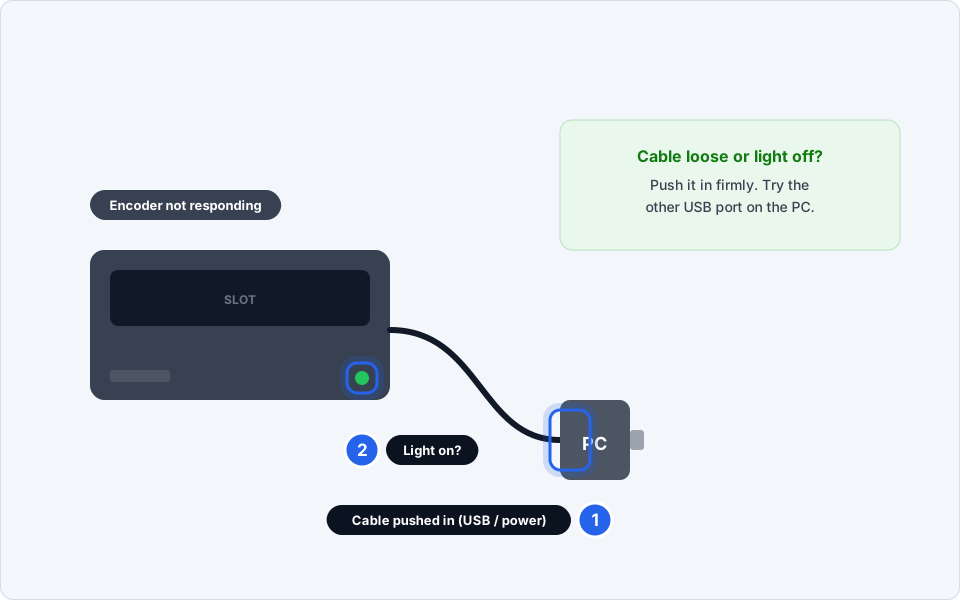
Cable pushed in, light on.Click picture to enlarge -
Close and reopen the key card software on the front-desk PC
Click the X in the top right corner of the key card program to close it. Then open it again from the desktop icon (or the Start menu). Try making a key again.
Still nothing? Restart the PC from Start then Power then Restart, then open the software again.
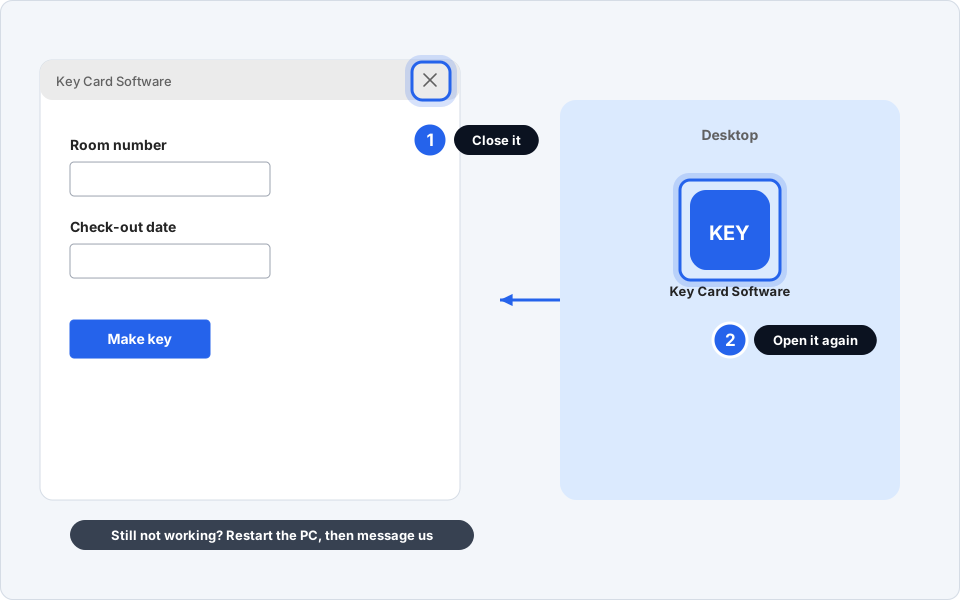
Close it, then open it again.Click picture to enlarge -
Seeing "key card error"? Try another blank card.
Cards can be faulty or wiped. Take a new blank card from the box and try again.
Keep key cards away from phones and magnets (including handbag clasps and some phone cases). They can wipe the card.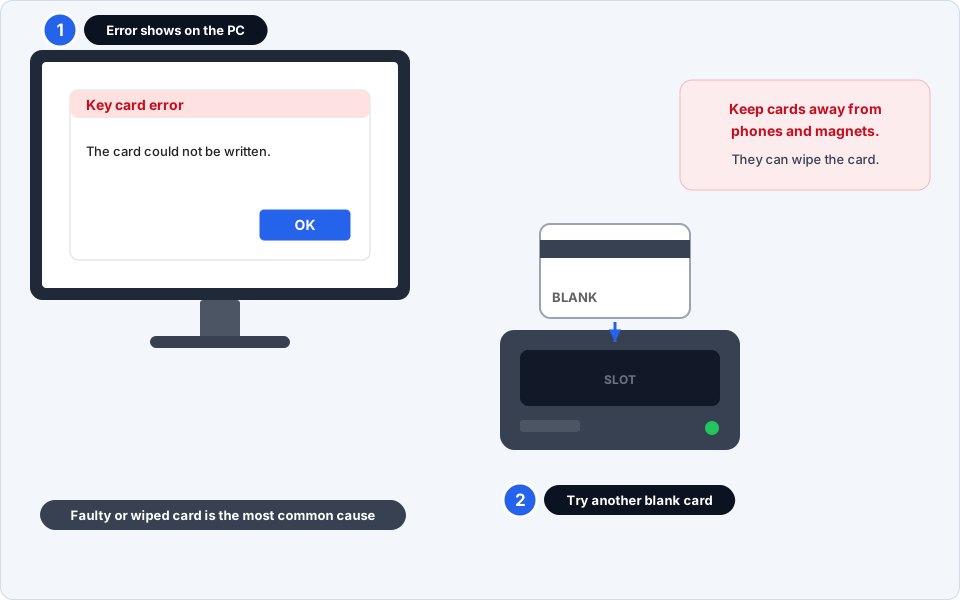
A faulty or wiped card is the most common cause.Click picture to enlarge -
Place the card on the encoder properly
Hold the card flat and put it on, or slide it into, the encoder exactly as the picture or sticker on your encoder shows. Do not wave it above the encoder. Keep it still until the encoder beeps or the light changes.
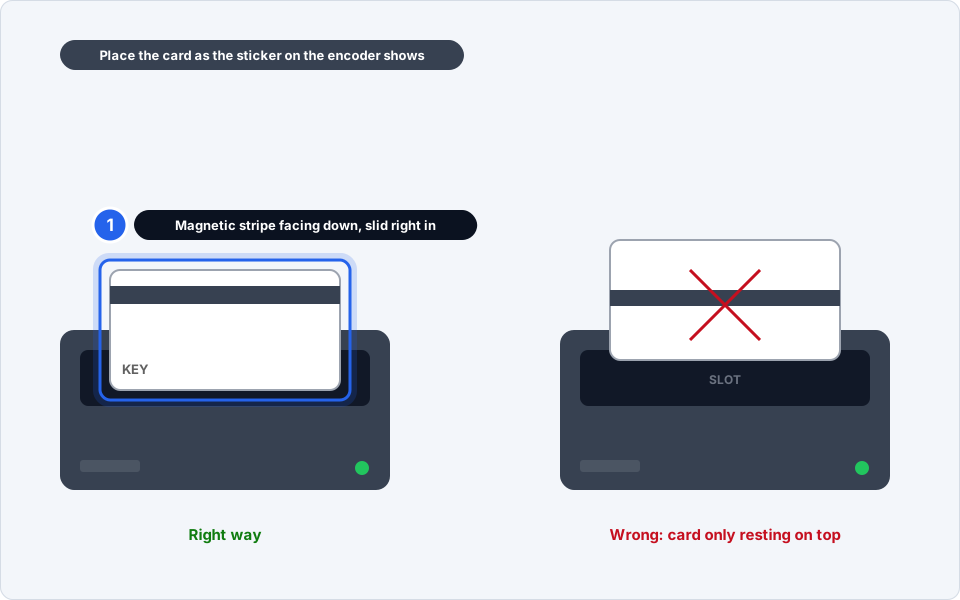
Flat, in the right place, and held still.Click picture to enlarge -
Card encodes, but the door does not open?
Check what you typed. Most of the time it is a small mistake.
- Is the room number correct?
- Is the check-out date and time later than right now? A key with a date in the past will not open the door.
Fix it and encode the key again. Test it on the door while you are still there.
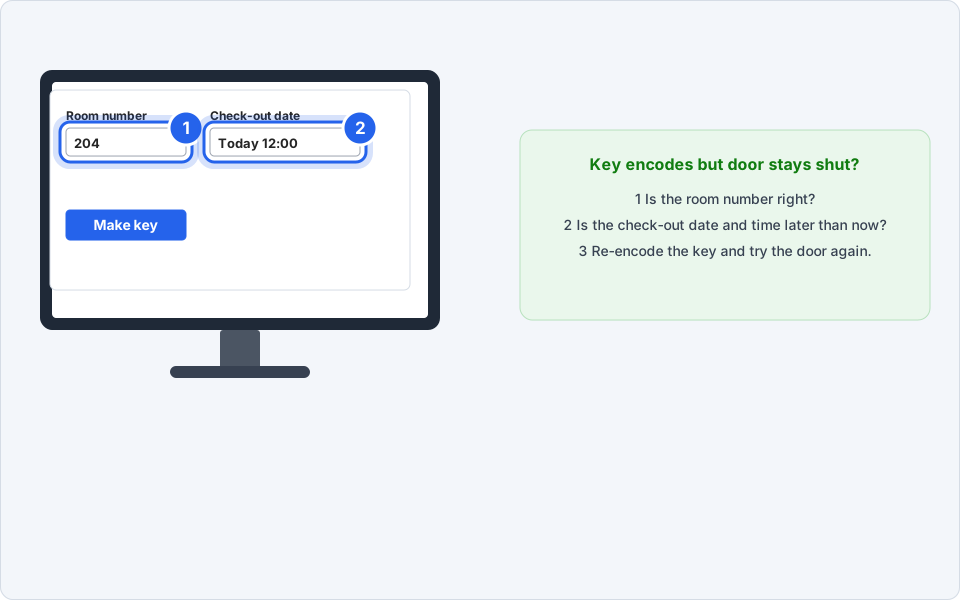
Check the room and the checkout date, then re-encode.Click picture to enlarge -
Many doors failing, or a lock with a red light or no light?
One door: try a freshly encoded key again. If it still fails, tell maintenance.
Many doors at once, or a lock that shows a red light every time or no light at all: this may be a flat lock battery or a system problem. Call us or maintenance. Do not keep re-encoding keys.
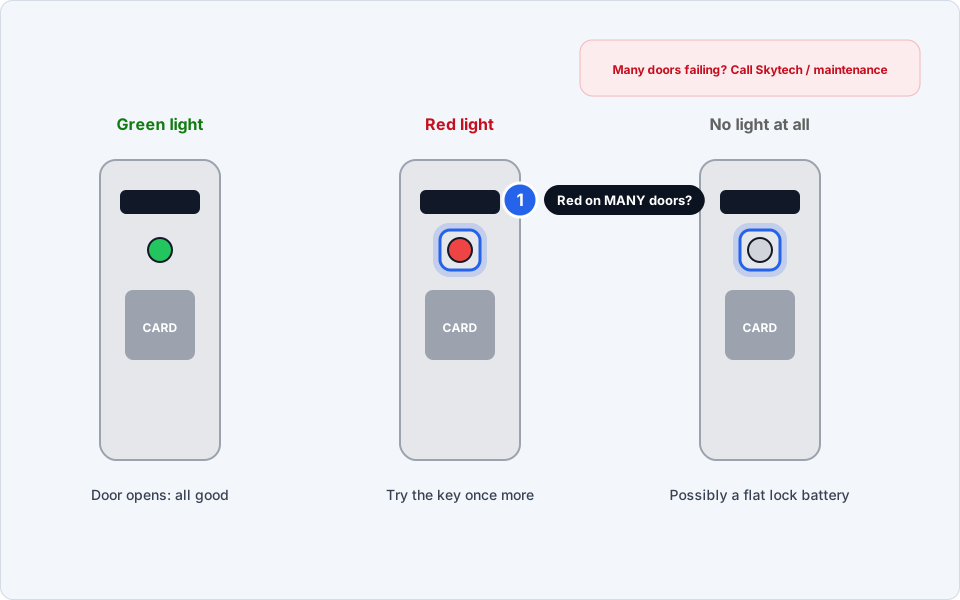
Green is fine. Red or dark may need a battery or a system check.Click picture to enlarge -
Running low on blank cards? Order early.
Check the box when you open it. Tell your manager when you are down to about a week of cards, because new stock can take time to arrive.
Encoder working again
Make one test key and try it on a door before you hand it to a guest.
Still not working?
The encoder light is off even when plugged in
Try a different USB port, and check any power lead. If the light is still off, the encoder itself may have failed. Tell us.
Every card gives an error, including new ones
Restart the PC and the key card software. If every card still fails, message us with a photo of the error.
A guest says their key stopped working
Check their room and check-out date, then make a new key. Keys can also be wiped by phones and magnets.
Only one room's door fails with every new key
Tell maintenance and us the room number. It may be that lock's battery.
The PC says it cannot find the encoder
Unplug the USB cable, wait 10 seconds, plug it in again, and reopen the software. Then restart the PC if needed.